
SYSTEM CONFIGURATION
& HELP MENU
Version 4.09
Thank you for choosing Lightbox Photo
TM Gallery Software.
The preferred choice for professional photographers, artists and artisans
to display and sell their work online.
Using Help
- To launch this documentation, click on the
 icon that is located at the right top corner of the Lightbox admin control
panel.
icon that is located at the right top corner of the Lightbox admin control
panel. - To launch the help documentation for each section of the admin control
panel, click on the
 icon that is located on each page next to the main menu.
 - Throughout this documentation we will refer to Lightbox Photo™ Gallery Software as Lightbox or the System.
Navigating the Help Menu
- Select the topic from the main menu by clicking on it. This will display information for the selected topic.
- To search this document on a PC, click on the ctrl + F keys and enter the keywords you wish to search for. On a Mac, click on the Apple Key + F and enter the keywords you wish to search for.
Lightbox Versions
There are currently three versions of Lightbox Photo™ Gallery Software.
- Standard Version
The Standard Version offers the core functions that allow you to display and sell your digital or tangible products online, but does not include any of the advanced features.
Not Supported features
- IPTC Metadata support
- Batch Upload
- Category Template
- Random Category Icon
- Category Change Status
- View, Print and Export Sales Reports
- Send Order Details
- View or Print Customer's Invoices
- Email Invoice Notification
- Promotion Codes
- Onsite Payment Processing
- Administrative privileges
- Search Logs
- Private Gallery
- Featured Media
- Multi-lightbox
- Remote FTP Server
- Rights-managed (License) calculator
- Multi-photographer (Contributor)
- Product Option (Frames)
- Product Subscriptions
- Product Packages
- Lightbox User's Comments
- Admin Quick Category Search & Jump
- Media Utilities
- POP3 media
- Zone Shipping
- Model Release & Property Release Status
- Media Orientation Status
- Sample Download Files (comp images)
- Quick Media Preview (mouseover)
- Advanced Search
- Category Tree Menu
- Lightbox SEO
- Multi-language selector
- Professional Version
The Professional Version contains all of the core features offered in the Standard Version and includes some of the advanced features.
Not Supported features- Model Release & Property Release Status
- Media Orientation
- Media Utilities
- POP3 media
- Product Option (Frames)
- Product Subscriptions
- Product Packages
- Multi-lightbox
- Remote FTP server
- Rights-managed (License) calculator
- Multi-photographer (Contributor)
- Multi-language Selector
- Enterprise Version
The Enterprise Version contains all of the core features offered in the Standard & Pro. Versions and includes all of the available advanced features.
To upgrade your version please click here to order online or contact our sales department for more information.
GETTING STARTED
There are two stages to getting your gallery "up and running".
Stage 1 - The physical installation and customization of the templates.
Stage 2 - Populating the gallery with your media
MEDIA MANAGER
The Media Manager is a core function of the gallery administration. It displays all categories and media that currently reside in the database. To browse from one category to another, click on the category name and all of its sub-categories and media will be displayed. All available data can be sorted by the displayed hyperlinked column titles. You can reverse the displayed sort order by clicking on the same link again.
Using the Media Manager you can perform the following administrative functions:
- Add New Categories
- Edit an Existing Category
- Remove or Delete Existing Categories
- Set Category Sort Order
- Add New Media
- Edit Existing Media
- Remove or Delete Existing Media
- Assign Download Links to the Gallery
- Add Global Pricing to images in the Gallery
- Approve Photographer's Media (Ent. version)
- Apply IPTC metadata to the Gallery (Pro. & Ent. versions)
- Searchable IPTC Data (Pro. & Ent. versions)
- Protect & Un-protect a Category (Pro. & Ent. Versions)
- Add Access Users for Private Galleries (Pro. & Ent. versions)
- Set FTP download server for a Category (Ent. version)
- Batch Upload Media Via a Web Browser (Pro. & Ent. versions)
- Global Update of Media Details
- Change Category and Media Status
- Quick Search Media (Pro. & Ent. Versions)
- Auto Detect Newly Uploaded Media or Categories
- Generate Media Thumbnails
- Watermark Media
- Resize Media
- Add Media Type
- POP3 Media (Ent. Version)
 Media
Manager link in the main menu.
Media
Manager link in the main menu.- Add New Category

The lightbox recognizes a system directory (folder) as a category. You can create as many categories (directories) and sub-categories as you need.There are three category statuses:
- Public Status
Categories with Public Status can be viewed by all users.
- Private Status
Categories with Private Status can only be viewed by users that have been granted access (username and password) to a Private Gallery. You can add Private users (access users) to a Private category (protected category) using the "Add Access Users" feature.
- Hidden Status
Categories with Hidden Status are hidden to all users. Lightbox will not display the category (including its sub-categories and its media) in the gallery.
There are two ways to add a new category (Manually in the Media Manager or with your FTP client).
Using the Lightbox Media Manager (Manually)
Using the manual method you can only create one category at a time. Since lightbox recognizes a system directory as a category, you need to ensure that the gallery directory that you are about to add a new category to is writeable (777) also Safe Mode must be turned off. If your host is unable to turn off Safe Mode, then you will have to create the new categories with your FTP client.
- Click on Media Manager
Media Manager link in the main menu.
- Browse to the target category by clicking on the category name.
- Click on the
icon to add a new category.

- System Name
The System name is used as the physical server directory name. It must not contain any invalid characters ~ ` ! @ # $ % ^ & * ( ) + = \ | } ] { [ " ' : ; / ? > . < , and spaces.
If the system detects any of the invalid characters listed above, it will return an error when the data is submitted.
- Display Name
Use this field to add a more meaningful category name. You can use spaces and other characters that are not permitted in the system name. By default the category system name is displayed in the gallery. If you enter a display name it will be displayed instead of the system name.
- Description
Use this field to describe the category. You can use HTML code in this field if required.
-
Template Name: (Pro. & Ent. versions)
With the Pro. and Ent. versions you can assign different gallery templates to different categories. You can use this feature to create a different look and feel for each category (the functionality will be the same). If you do not select a template when creating a new category, then the system will use the default gallery template. The default gallery template is the user_horizontal.tpl, assuming the horizontal style option is selected in the General Configuration (otherwise the user_vertical.tpl will be the default). This drop down menu allows you to assign a template to a specific category (ideal for advertising or branding). All templates in the template folder will display here, but you should only select the user_horizontal.tpl (default gallery template) or another template created using the same dynamic calls as the user_horizontal.tpl. You can create and upload to the template folder, as many templates as required.
- Icon (Category Icon)
When the system is displaying the categories in the gallery, it can display an icon that is assigned to the target category. You can either upload a category icon to the “icon” directory via FTP, or you can upload the icon to the category’s directory itself. If you upload the icon to the target category’s directory, then you must name it as “icon.jpg”. The system will automatically load the “icon.jpg” for the target category for selection when it detects one. You can also use thumbnail images in the target category for icons, by selecting the “Use Random Image” option in the Icon drop down list. If the “Use Random Image” is selected, the system will randomly use thumbnail images from the target category and its sub categories. The system will only display the category's display name if “Do Not Use Icon” is selected.
- Your current working directory
This line shows the current working category that you are browsing. The new category will be created under this category.
- Click the Submit button to add the new category.
Before adding a new category name on the server the system will check that the safe mode is turned off on the server. Please check with your hosting service provider that it is set correctly. If this configuration is not possible, you will have to create a new category using an FTP client to create a new folder (category) on the server and change its file permission to 777(read/write/execute) before uploading any new media to it.
Using an FTP Program to add a new category
Lightbox recommends that you use this method when adding new categories (directories) to the gallery. When you have finished adding or uploading new categories on the server, you will need to use the “Auto Detection” feature to add these new categories and their media to the database. Lightbox will only display the new categories and their media in the gallery after they have been added to the database. In order to use this method you need to have the FTP client program installed on your local computer.- Connect to your web server.
- Browse to the directory where Lightbox is installed.
- Browse to target directory in the "gallery" directory. All categories and images should be in folders (directories) under the "gallery" directory.
- Upload the new directory and its contents to the target directory.
- Once the uploading is complete, login to the Lightbox Admin
Control Panel and click on the Media Manager
Auto Detection
link in the Media Manager drop down menu.
- Click on the category that holds the new category and images that you have just finished uploading.
- Click on the
 icon to add the new category and its contents to the database.
This method allows you to batch upload new categories and images to Lightbox. This is the most efficient method of uploading a large quantity of images to the Lightbox system.
- Public Status
- Edit an Existing
Category

Use this feature to change a category’s properties. It is not possible to edit the category’s system name once it has been created. When you are editing an existing category you are able to edit the following.
- Category Display Name.
- Category Description.
- Category Template.
- Category Icon.
- Click on the Media Manager
Media Manager link in the main menu.
- Browse to the target category.
- Click on the
icon to edit the category properties.
- Edit all information in the available text fields as required.
- Click the Submit button to save the
changes.
- Remove or Delete
an Existing Category


Lightbox recommends that you should set the category status to hidden instead of removing or deleting it from the database when your gallery is live and users have already purchased media from this selected category. This will prevent missing data on the Sales Reports and other sections.
- Remove
The remove feature will remove the category and its contents from the database, but not the physical files from the web server. - Delete
The delete feature will delete the category and its contents from the database and the physical files on the web server. Sometimes the system returns "Can't delete directory from the server" message upon confirming the action. If this happens it means that there are still some files in the target directory that are rejecting the delete action. In this case you will need to use your FTP client to remove the directory from the physical server. After deleting the directory with your FTP client, you will need to use the Rebuild Database function to remove the old entries from the database.
- Click on the Media Manager
Media Manager link in the main menu .
- Browse to the target category.
- Click on the
icon to remove the category and its contents from the database.
- Click on the
icon to delete the category and its contents from the database and
from the web server.
- When performing either of these actions a confirmation dialog
box will open. In order to complete the action, you will need to
confirm the action by clicking on the
 icon in the dialog box.
Note: If you have assigned an image to more than one category and you only want to delete one instance of the image, then you will need to use the Remove function. DO NOT use the Delete function as it will delete the physical file from the server and remove all instances of the image.
- Remove
- Set Category
Sort Order
Lightbox displays categories in the gallery based on the “Sort Order” index value in ascending order. The lowest value will display in the first position and the highest value will display in the last position in the gallery. You do not have to use consecutive numbers (1,2,3,4...) if you want to leave room for additional categories. Therefore, you could add values such as (1,5,10,15...) if you perhaps want to later add a category between 1 and 5 in the display order.
To update the "sort order" index value, input a value into the target category's "Sort Order" field and click on the
icon.
- Add New Media

Before selling your media online, you will need to upload the images to the gallery folder and bring the related information into the database. The lightbox system only stores the media path and all of its properties such as its category, description and other info to the database. It doesn’t convert the media to binary data and store this data in the database. In other words, all media files reside in the same physical location where you upload them or add them through the lightbox system. With the Pro. and Ent. versions you can assign media to more than one category without duplicating the physical instances of the media on your web server.Lightbox provides two methods for you to add new media to the system.
- Using an FTP (client) Program.
- Using the Lightbox Admin Control Panel.
The most efficient way to upload a quantity of media is via FTP and then use the Media Auto Detection function in the Media Manager section to add them to the database.
1. Using an FTP (client) Program
This feature is similar to adding a new category using your FTP program. With this feature you can add an unlimited number of images to the lightbox database at once. Assuming that you have the FTP program installed on your local computer, you can follow the instructions below to upload new media to your gallery.
- Use any FTP (client) program to connect to your server.
- Browse to the directory where you installed the Lightbox software.
- Browse to the "gallery" directory.
- Browse to the directory (category) where you want to upload the images to, or create a new directory if required.
- Browse to the local directory where you store your digital media.
- Click Upload, to upload all selected media to the target directory (category).
- Once the uploading is complete, login to the Lightbox Admin
Control Panel and click on the Media Manager
Auto Detection
link in the main menu.
- Click on the category that holds the images that you have just finished uploading.
- Click on the
icon to add the new images to the database.
- Click on the
 icon to add all of the new images to the database.
Note: If you upload an entire category of images (or you add images to a newly created directory) you can bring all images in that category into the database with one click. If you add images to a category that has already been added to the database and you're using the standard version, you will have to add the images with individual clicks.
Video and other formats of display media
If the media is video, audio or another format of display image, you will need to do the following:
Create a thumbnail image for the media and upload it to the same directory where the media is located.
Example:
Media system name: video1.mpg (this is a video type)
The thumbnail prefix name: gallery_ (this can be set in the Media Configuration section)
Then the thumbnail for this media should be gallery_video1.jpg
Upload this thumbnail to the directory where the video1.mpg is located.
2. Using the Lightbox Admin Control Panel (Single Image Upload & Batch .zip Upload)
The lightbox system only allows you to add single media to the database when using the “Add New Media” feature from within the Admin Control Panel. The reasons for this limitation are as follows:- Internet Speed - The server may timeout during the uploading of media to the server if your internet connection speed is too slow.
- PHP upload_max_filesize - The PHP default for this variable is 2 MB. If you have a dedicated server you can increase this limit by editing the php.ini file on your server. If you don't have a dedicated server, you will need to ask your host to do it for you. The server will return an error if your media is larger than this value.
Single Image Upload: The "Add New Media"
icon will not be visible in the main gallery directory. You must browse
to a category to use it. The new media will be created under the current
working category. The current working category is shown at the top left
of the page.- Login to the Lightbox admin control panel.
- Click on the Media Manager
Media Manager link in the main menu.
- Create a new category if needed.
- Browse to the category where you want to add the new media.
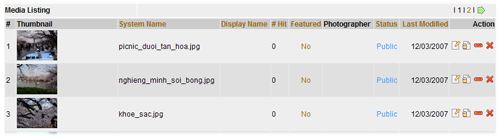
- Click on the
icon to add the new media.
- Click the Browse button to browse to the image on your local machine.
- Enter all information into the provided text fields or leave them blank if you're not ready at present (you can return later to edit).
- Click Submit button to add the new media to the database. The new image is now uploaded and the information you entered is now stored in the database.
- Continue to upload other images as required.

- File Location (System name)
When uploading new media to the server you need to specify the location of the media file on your local machine. Click on the Browse button to locate your local media. Lightbox will upload your media to the current location that you are browsing. This location is the highlighted item in the category drop down list.
- Display Name
Lightbox will display this name in place of the system name on the thumbnail and media detail pages.
- Author
Use this field to input the media's author. The system displays this info on the media details page.
- Copyright
Use this field to input the media's copyright details. The system displays this info on the media details page.
- Keywords
Use this field to add keywords for the target media. You will need to separate each keyword or keyword phrase by a “ ; ” semi-colon and avoid using punctuation.
- Description
Use this field to add a description for the target media. The system displays this info on the media details page.
- Category
Choose the category that you want add your media to. You can choose multiple categories (Pro. & Ent. versions) by holding down the Ctrl key while clicking on the category name in the list.
- Photographer (Ent. version)
With the Ent. version you are able to select the photographer that is associated with the media. The photographer's username is taken from the photographer (contributors) registration section. When a photographer is assigned to the media, all sales will be applied to the specified photographer. The commission rate is calculated based on the commission rate that you set in the photographer's profile.
- Media Type (Ent. version)
There are two types for media, either “Rights Managed” or “Royalty Free”.
When new media is uploaded it will be designated as "N/A". This is the same as "Royalty Free" except that you will need to designate it as "Royalty Free" for advanced search purposes. For "Royalty Free" media, the available products will be displayed on the media detail page if a price has been assigned to the product type. For “Rights Managed’ media the system will use the License Tree created in the license manager section. Therefore, you will need to configure the License Tree in order for the system to work correctly.
- Release Status (Ent. version)
With the Ent. version you are able to set the media release status. The three statuses available are Model Release, Property Release and N/A. The system will display the status information in the gallery media detail and quick preview popup page. The Release Status is also utilized on the advanced search page.
- Orientation
The orientation option is used to describe (Horizontal or Vertical) the target media. This option will display in the media detail, quick preview and advanced search pages.
- IPTC Info
The IPTC info link is not available when adding new media. To view or change the IPTC info, you will need to edit the media after it has been uploaded.
- Product Type
Use this section to set prices and credit costs (Ent. version) for the available product types. If the product type is not available for this media then leave it blank and it will not display in the gallery. If you have correctly configured the product types in the Product Manager section, then all available products will display here. The enable download links feature is not available when adding media.
Note: The product type will only be available for the end-user to select if it has been assigned a price. The Add to Cart button will not display unless at least one product type has been assigned a price.
With the Ent. version you are able to set the credit cost for each media or to all media at once using the Product Manager section. The credit cost is only applied to the Subscription Product Type and Packages Product Type.
When adding new media, the system will pre-fill the product type price and credit cost fields with a base price and credit cost respectively. You will need to click on the Submit button in order to set the product prices and credit costs for the target media.
- Shipping Cost & Additional Shipping Cost
This section is only used when you want to charge a shipping cost based on each individual media. The “Shipping Cost” is applied to the first quantity of the target media and the “Additional Shipping Cost” is applied to the second and subsequent quantities.
Note: The shipping cost will NOT be applied to an “instant download” product type.
Please see the “Single Item Shipping Method” to learn more on how to set the shipping cost and additional shipping for each media.
Batch Upload Media (.zip file): (Pro. & Ent. versions)
This feature allows you to conveniently upload a batch of images to the gallery. The batch upload icon will not be visible in the main gallery directory. You must browse
to a category to use it. Once the upload has completed, the system will
parse the contents of uploaded zip file to the current working category
(directory). The current working category is shown at the top left of
the input table.
icon will not be visible in the main gallery directory. You must browse
to a category to use it. Once the upload has completed, the system will
parse the contents of uploaded zip file to the current working category
(directory). The current working category is shown at the top left of
the input table.- Login to the Lightbox Admin Control Panel.
- Click on the Media Manager
Media Manager link in the main menu.
- Create a new category if required.
- Browse to the category where you want to upload the new batch of images.
- Click on the
icon.
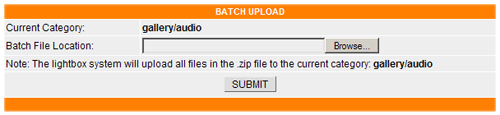
- Click the Browse button, to browse to the location of your local zip file of images to be uploaded.
- Click the Submit button to upload all contents in the zip file to the database.
- All contents of the zip file will be extracted and automatically added to the database under the category that you have currently selected.
Note: Your server needs to support the zip library in order to use this function. If Lightbox reports "Your server is not supported", you will need to ask your hosting provider to re-compile the PHP with zip support enabled before using this function. Also, please note that on most servers the default PHP setting is 2MB for uploads. If you have a dedicated server you can edit this setting in your php.ini file.
- Edit Existing Media
The Edit Existing Media feature is similar to adding new media to the system feature.
- Browse to the target category in the Media Manager.
- Click on the
icon for the target media and edit the media properties as needed.
- File Location (System name)
It is not possible to edit the media system name once it has been added to the system.
- Display Name
Lightbox will display this name in place of the system name on the thumbnail and media detail pages.
- Author
Use this field to input the media's author. The system displays this info on the media details page.
- Copyright
Use this field to input the media's copyright details. The system displays this info on the media details page.
- Keywords
Use this field to add keywords for the target media. You will need to separate each keyword or keyword phrase by a “ ; ” semi-colon and avoid using punctuation.
- Description
Use this field to add a description for the target media. The system displays this info on the media details page.
- Category
Choose the category that you want add your media to. You can choose multiple categories (Pro. & Ent. versions) by holding down the Ctrl key while clicking on the category name in the list.
- Photographer (Ent. version)
With the Ent. version you are able to select the photographer that is associated with the media. The photographer's username is taken from the photographer (contributors) registration section. When a photographer is assigned to the media, all sales will be applied to the specified photographer. The commission rate is calculated based on the commission rate that you set in the photographer's profile.
- Media Type (Ent. version)
There are two types for media, either “Rights Managed” or “Royalty Free”.
When new media is uploaded it will be designated as "N/A". This is the same as "Royalty Free" except that you will need to designate it as "Royalty Free" for advanced search purposes. For "Royalty Free" media, the available products will be displayed on the media detail page if a price has been assigned to the product type. For “Rights Managed’ media the system will use the License Tree created in the license manager section. Therefore, you will need to configure the License Tree in order for the system to work correctly.
- Release Status (Ent. version)
With the Ent. version you are able to set the media release status. The three statuses available are Model Release, Property Release and N/A. The system will display the status information in the gallery media detail and quick preview popup page. The Release Status is also utilized on the advanced search page.
- Orientation
The orientation option is used to describe (Horizontal or Vertical) the target media. This option will display in the media detail, quick preview and advanced search pages.
- IPTC Info
The IPTC feature allows you to add or edit the media's IPTC metadata header. Click on the icon to view and edit the media's IPTC metadata info as required.
The IPTC feature supports keyword phrase search strings. Please
separate each keyword or keyword phrase by entering a " ; " semi-colon
at the end of each keyword or phrase.
icon to view and edit the media's IPTC metadata info as required.
The IPTC feature supports keyword phrase search strings. Please
separate each keyword or keyword phrase by entering a " ; " semi-colon
at the end of each keyword or phrase.
Please note: Before using this feature, you must ensure that all image folders and files have permissions of 777 (r/w/e). To add the IPTC metadata for edited images to the searchable database, you will need to click on the Searchable IPTC icon for the desired category in the Media Manager. Only the fields
that are checked in the IPTC Configuration
will be searchable.
icon for the desired category in the Media Manager. Only the fields
that are checked in the IPTC Configuration
will be searchable.
- Product Type
Use this section to set prices and credit costs (Ent. version) for the available product types. If the product type is not available for this media then leave the price field blank and it will not display in the gallery. If you have correctly configured the product types in the Product Manager section, then all available products will display here. With the Ent. version you are able to set the credit cost for each media or to all media at once using the Product Manager section. The credit cost is only applied to the Subscription Product Type and Packages Product Type.

To add a download link for a product type, click on the Enable Download Link checkbox for the target product type and a popup box will appear that will allow you to browse to the download file that you previously uploaded to the server.
- Click on the "Browse" button.
- Click on the target category to highlight it, followed by the "Browse" link (repeat to browse subcategories).
- Click on the target media file to highlight it, followed by the "Select" link to select the download file.
- Click on the "SAVE" button to assign the download link.
To remove a download link for a product type, click on the Remove Download Link for the target product type.
Note: The product type will only be available for the end-user to select if it has been assigned a price. The Add to Cart button will not display unless at least one product type has been assigned a price.
- Shipping Cost & Additional Shipping Cost
This section is only used when you want to charge a shipping cost based on each individual media. The “Shipping Cost” is applied to the first quantity of the target media and the “Additional Shipping Cost” is applied to the second and subsequent quantities.
Note: The shipping cost will NOT be applied to an “instant download” product type.
Please see the “Single Item Shipping Method” to learn more on how to set the shipping cost and additional shipping for each media.
- Click the Submit button to save changes.
- Browse to the target category in the Media Manager.
- Remove or Delete
Existing Media
Lightbox recommends that you should set the media status to hidden instead of removing or deleting it from the database when your gallery is live and users have already purchased this media. This will prevent missing data on the Sales Reports and other sections.
- Remove
The remove feature will remove the target media from the database, but not the physical files from the web server. - Delete
The delete feature will delete the target media from the database and the physical files from the web server. Sometimes the system returns "Can't delete file from the server" message upon confirming the action. If this happens you will need to make sure that the file permissions for this media are set to 777 and try again.
- Click on the Media Manager
Media Manager link in the main menu.
- Browse to the target category.
- Click on the
icon to remove the target media from the database.
- Click on the
icon to delete the target media from the database and the physical
files from the web server.
- When performing either of these actions a confirmation dialog
box will open. In order to complete the action, you will need to
confirm the action by clicking on the
icon in the dialog box.
- Remove
-
Enable Download Links to the Gallery (Instant download setup)

There are two methods to assign download links
- Using the Enable Download Links function.
- Assigning download links individually on the Media Properties page in the Media Manager.
1. The Enable Download Links function is used to assign the download links to the entire target category (directory). Before using this feature, you will need to ensure that the following items are configured correctly. When users assign a download link to target media the system stores this download link path in the database and this info will not be changed unless the admin deletes a download link from this media or sets its price to zero. When you rename the target media using the Media Utilities (Ent. version) feature, the system will auto update the database with the new details and the download links will remain valid.
- You will need to have created at least one Product Type in the Product Manager section.
- The high resolution download files must be uploaded to the "download" directory, under the same directory structure (mirror) as the gallery folder and you have prefixed the file name with the product type. This directory is protected by the Apache .htaccess. This means that it is only accessible by the system and can not be accessed through a web browser.
- Please note that when assigning download links for Rights
Managed media (Ent. Version), you have to give the high
resolution files a LICENSED_ prefix.
- Click on the
icon to assign download links to the target category.
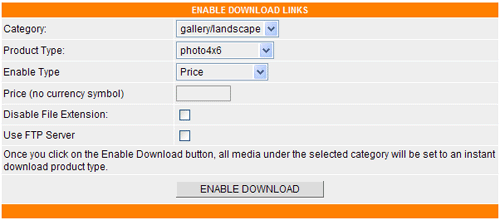
- Category
Select the category from the drop down list. All of this category's media will be assigned a download link with the selected product by clicking on the Enable Download button.
- Product Type
Select a product type from the drop down list. You will need to have created at least one Product Type in the Product Manager section to use this function. - Enable Type
Use the drop down list to select either Price, Credit or Rights-Managed (see below) for this download link.
- Price
Enter the price of the product type.
- Disable File Extension
Tick this checkbox and the system will ignore the difference between the display and download the file extensions. e.g. If you have .jpg display images and you have .tiff download files, then you will need to check this box.
- Use FTP Server
Tick this checkbox if you are storing the download files on another server (Ent. version). You need to make sure that the FTP info of the target category (directory) is properly configured. The system won't check for the FTP info during setting the Download links to the target category.
- Click the Enable Download button to assign
download links to the target category.
Before using this feature, please make sure that all high resolution download files are residing in the download directory under the same directory structure (mirror) as the gallery folder and that you have prefixed the download file names with the respective product type.
Rights-Managed media (Ent. Version) require the LICENSED_ prefix for the download file, they also need to be organized in the same directory hierarchy. Also please note that you can only assign one download file to media that have been designated as RM.
e.g. Assuming you have the following:
pic1.jpg, pic2.jpg, pic3.jpg under the category1 with the path gallery/category1. So the paths of the pic1, pic2, pic3 are as follows:
gallery/category1/pic1.jpg
gallery/category1/pic2.jpg
gallery/category1/pic3.jpg
If you want to set the price for the product type named highdownload. Then the paths of the downloadable files should be as follows:
download/category1/highdownload_pic1.jpg
download/category1/highdownload_pic2.jpg
download/category1/highdownload_pic3.jpg
If you want to set the price for a second product type named lowdownload. Then the paths of the downloadable files should be as follows:
download/category1/lowdownload_pic1.jpg
download/category1/lowdownload_pic2.jpg
download/category1/lowdownload_pic3.jpg
2. Assigning download links individually on the Media Properties page in the Media Manager.
-
Browse to the target media in the Media Manager section.
-
Click on the Edit icon.
-
Check the "Enable Download Link" checkbox for the target product type and a popup box will appear that will allow you to browse to the download file that you previously uploaded to the server.
-
Click on the "Browse" button.
-
Click on the target category to highlight it, followed by the "Browse" link (repeat to browse subcategories).
-
Click on the target media file to highlight it, followed by the "Select" link to select the download file.
-
Click on the "SAVE" button to assign the download link.
- Global Pricing
of images

By default any images that you upload to the system will be displayed for viewing by customers. However, the customers will not be able to add items to their shopping cart unless you apply a price to a product type for that media. There are two ways to apply pricing to images. You can assign pricing to individual images by editing the image in the media manager, or you can use the global pricing to apply a price to a product type for an entire category (upper section of the form), or to all categories of images (lower section of the form).
- Click on the Media Manager
Media Manager link in the main menu.
- Click on the
icon to assign the Global Pricing.
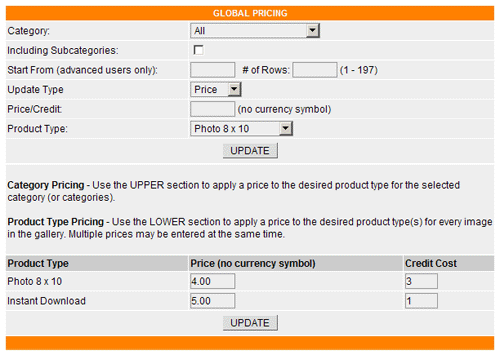
- Category
Select the category that you wish to assign pricing/credits.
- Including Subcategories
Check this box if you want the pricing to be applied to the current category as well as any subcategories that it contains.
- Start From
To prevent a server timeout, enter the start from number and the number of rows to be altered in the provided fields or leave them blank for all media. The rows referenced here are the rows in the "vss_media" table in the database. This feature is only for advanced users, with very large galleries.
- Update Type
Select the update type you want to apply from the dropdown list. The "Credit" Type is only available in the Enterprise version.
- Global Price / Credit (Ent.
version)
Enter a price or credit cost that will be set to all media in the selected category for the specified product type.
- Product Type
Select the product type that you wish to assign a price for.
- Click on the Update button to update the global
pricing/credit.
Global Product Type Pricing
If you want to assign a price for a product type to all media in the gallery you can simply enter a price for the product types listed in the Global Product Type section and click on the Update button. You can enter a price in multiple input fields as required.
Remove Products/Pricing
If you would like to remove a product type from display, you can enter a price of 0.00. This can be applied to a category or for the entire gallery by using the Product Type Pricing.
- Click on the Media Manager
- Approve Photographer's
Media
 (Ent.
version)
(Ent.
version)
When a photographer’s media is uploaded to your server its status depends on the photographer’s profile. If their “Enable File Upload Without Admin Approval” option is enabled then the uploaded media status will be “approved”, otherwise it will have a "pending" status. If the media is in a pending status, you will need to approve it before the system will display it in the gallery. The same procedure applies to new photographer's categories as well. The “Enable File Upload Without Admin Approval” option is changeable in the photographer’s profile. When the media is in a pending status the photographer is still able to edit the media properties such as pricing, set shipping cost or assign a download link to it.
- Click on the icon
under the Media Manager features.
- The list of the un-approved media will display.
- Click on the
 icon to approve the selected media.
 - Click on the
icon to view and edit the selected media details.
- Click the "Approve All" link to approve all un-approved
media.
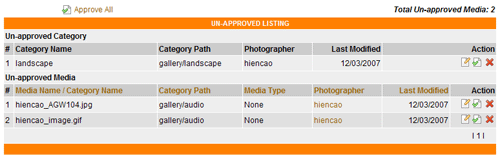
NOTE: The media can't be "un-approved" once it has been approved. You could use the Remove or Delete functions in the Media Manager to remove an image that shouldn't have been approved. Media photographer can be changed in the media properties page.
- Click on the icon
- Apply IPTC metadata
to the Gallery
(Pro. & Ent.
versions)
The IPTC feature allows you to add media properties to it's metadata header. Lightbox can read, write, and display the IPTC metadata in the gallery. The media must be in the .jpg or .jpeg file format.
There are two ways of writing the IPTC metadata to images.
- Using the Edit Media Property feature
- Using the Global Apply IPTC feature.
- Click on the icon
for the
target category.
- Select the target Category in the drop down list.
- Fill in all relevant information to the provided input fields. The IPTC feature supports keyword phrase search strings. Please separate each keyword or keyword phrase by entering a " ; " semi-colon at the end of each keyword or phrase.
- Click the Submit button to apply the new IPTC
metadata to the target category.
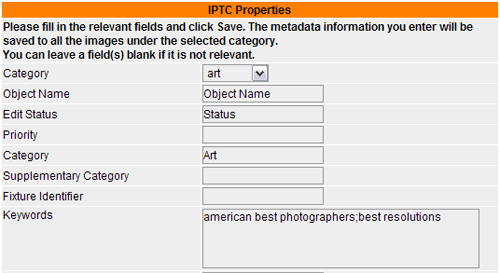
NOTE: Before using this feature, you must ensure that all image folders and files have permissions of 777 (r/w/e). Using this feature will overwrite any existing IPTC metadata for the selected category of images and the original info can not be recovered. All IPTC metadata added using the Global Apply IPTC feature will be available for searching. However, it is recommended that you should click on the
icon after each use of the Global Apply IPTC feature.
- Searchable
IPTC Data
(Pro. & Ent. versions)
With Version 4.00 onwards, all IPTC metadata is automatically imported into the database upon uploading new media to the server or using the Global Apply IPTC feature. However, to ensure that all the IPTC metadata is searchable by users, lightbox recommends that you should use this feature after you make changes to the IPTC metadata.
- Browse to the target category.
- Click on the
icon for the target category.
- All IPTC metadata is now searchable by all users.
NOTE: Only the fields that are checked in the IPTC Configuration will be searchable.
- Protect
& Un-protect Category (Private Galleries)
 -
-
 (Pro.
& Ent. versions)
(Pro.
& Ent. versions)
By default all new categories will have "Public" status. The Protect feature allows you to Protect or Un-Protect a selected category. If the category is Protected, the system will only allow users that have input the assigned user/password combination for the protected category to be able to view it. If the category is protected, the status will display as Private in the Media Manager. If the category is un-protected (default), then the status will display as Public.
- Protecting a category
Browse to the target category.
Click on the
icon to protect the target category.
The system will prompt you for confirmation before protecting it. You will need to confirm the action by clicking on the
icon on the confirmation page.
- Un-protecting a category
The Un-protect feature is only visible when a category status is "protected" (private). When you un-protect a protected category, all of its media will be un-protected as well and will become viewable to all users. By default this will not include it's sub-categories and media that are in the sub-categories. If you need to unprotect all contents of the target category including any sub-categories; you will need to check the “Including Sub-categories” checkbox on the confirmation page.
- Access Users

The Access User icon is only visible when a category’s status is "Protected" (private). Click on this icon to add a new "access users" to the target category. Once new access users are added to the system, they are able to login to the private gallery to view protected categories that are associated with username/password combination input into the Private Gallery login.
NOTE: You can assign the same username/password combination to more than one protected category, so that a user can view more than one protected category. Also, you can add as many access users to a target category as required.
- Protecting a category
- Setup FTP server for a
Category
 (Ent. version)
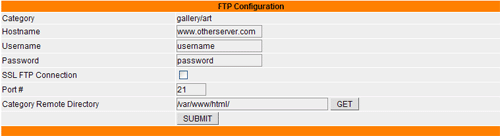
If you are storing the high resolution download files on another server (separate from the Lightbox installation), you can use this function to setup the FTP information of the other server. Each category has its own FTP server information, so you can have different categories of images residing on different servers. The system does not check for valid download files on the remote server. It assumes that you have correctly configured the download files on the remote server.
- Click on the
icon to
setup the FTP information.
- Enter all information into the provided text fields.
- Click on the Get button to set the path to the downloadable directory on the other server. This directory should contain all the downloaded files of the selected category. If the information is entered correctly you will see a popup window that will allow you to select the remote path.
- Click the Submit button to submit the info
to the server.
- Click on the
- Batch Upload
Media (.zip file)
(Pro.
& Ent. versions)
The Batch Upload icon
will not be visible in the main gallery directory. You must browse to
a category to use it. The new media will be created under the current
working category. The current working category is shown at the top left
of the page.
- Login to the Lightbox Admin Control Panel.
- Click on the Media Manager
Media Manager link in the main menu.
- Create a new category if required.
- Browse to the category where you want to perform the batch upload of images.
- Click on the
icon.
- Click the Browse button, to browse to the location of your local zip file of images to be uploaded.
- Click the Submit button to upload all contents in the zip file to the database.
- All contents of the zip file will be extracted and automatically
added to the database under the category that you have currently
selected.
Note: Your server needs to support the zip library in order to use this function. If Lightbox reports "Your server is not supported" you will need to ask your hosting provider to re-compile the PHP with zip support enabled before using this function. Also, please note that on most servers the default PHP setting is 2MB for uploads. If you have a dedicated server you can edit this setting in your php.ini file.
- Global Update
of Media

The Global Update
icon will not be visible in the main gallery directory. You must browse
to a category to use it. The global update feature allows you to update
the media properties for images in an entire category (including sub-categories
if selected). With this feature, you will be able to update the following
media data fields:
- Display Name
- Description
- Author
- Copyright
- Keywords
- # Hit
- Rights Managed
- Royalty Free
- Media Release
- Media Orientation
- Click on the Media Manager
Media Manager link in the main menu.
- Browse to the target Category.
- Click on the
icon under the media manager title.

- Select the desired field in the Field Name drop down list.
- Check the Including Subcategories box, if you want to update all subcategories of the selected Category.
- Check the Over Write Old Data box, to overwrite existing data, otherwise leave this box un-checked and the new data will be combined with the existing data.
- Enter the Global Value that you want to set
such as Keywords, Description etc.
- For Rights Managed and Royalty Free values are pre-defined, so you can't change this value
- For Media Release values, you can input one of the following as required. 1 = Property Release, 2 = Model Release or 3 = All Release
- For Media Orientation values, you can input one of the following. H = Horizontal or V = Vertical - Click the Submit button to update the data.
- Category
& Media Status
Lightbox recommends that you should set the category or media's status to hidden instead of removing or deleting it from the database. This will prevent missing data on sections such as the Sales Reports.
- To change the media status click on the
 icon for the target media.
 - To change the category status click on the
icon for the target category.
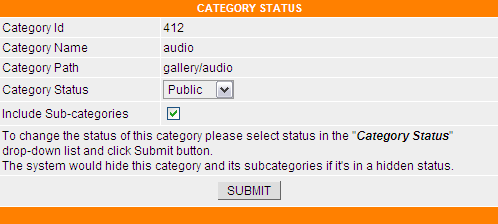
- Select Category Status in the drop down list and click the
Submit button to change its status.
- To change the media status click on the
- Quick Search
Media
To quick view target media details, input the search phrase in the Media Search field and select the database field in the next drop down list and then click the Submit button. The system will list all the media that match the search phrase.
- Media Type
The system can display any files that are viewable in a web browser. If the file format is not viewable from within a web browser, the system provides a link for customers to download the other file formats. They can then be viewed locally in the associated application. You would just use the call [FILENAME] in the opening code. In the same way, other file formats that will open in a browser can be added to the system by inputting the opening code into the media type section of the admin area. Current default file types are: gif, jpg, au, avi, aif, htm, html, mid, mp3, mpg, mov, png, ra, ram, rar, swf, wav, zip, wma, wmv and pdf.The media type feature allows you to add new media types, edit or delete existing media types. The media type code will be used to open the media when it is displayed on the media detail page. If you need to add a new media type that is not in the list, you can add it to the database using the add feature by clicking on the
icon.- To Add a new file type
Click on the
icon to add a new media file type.
Extension: this is the file's extension. It should not contain a dot.
e.g. for media .mp3 the entered characters should be mp3.
Opening Code: Enter the code that will be used to open the media. The code should not contain any actual file paths (see following example).
-<EMBED src="[FILENAME]" type="audio/mp3" hidden=true autostart=true loop=true height=1 width=1> </EMBED><table border=0 cellspacing=0 cellpadding=3><tr><td> </td><td align=center><font face="Verdana,Arial,Helvetica" size=1>Having trouble hearing this file?</font><br><font face="Verdana,Arial,Helvetica" size=2><a href="[FILENAME]"><b>Click here to download it!</b></a></font></td></tr></table>
The system will replace the [FILENAME] tag with a real system file name. So when adding a new opening code, simply replace the actual file path with the [FILENAME] tag. If you are not sure about this code, please see other sample codes that are already available in the system.
Note: If you want to use a unique width and height values for all of your file types, just replace your current width and height values with the [WIDTH] and [HEIGHT] tags. e.g. your file type code has a width="320" height="200", just replace these with width="[WIDTH]" height="[HEIGHT]". After making this change, you can update all of your file type's width and height by editing the Default Width and Default Height fields in the Quick View Media Configuration section of the Media Configuration page.
You can add the media description field (media properties section) to the image's alt tag by checking the "Show Media Description on its Alt Tag" option in the General Configuration. You will also need to make sure that you have the following entered into the Opening Code for the jpg file type (Media Type section). <img src="[FILENAME]" border="0" width="[WIDTH]" height="[HEIGHT]" alt="[ALT]" title="" />. You can also add floating IPTC calls to the opening code, e.g. alt="[caption]".
- To Edit a file type
Click on the
icon for the target media type.
Edit the opening code as required.
Click the Submit button to save the changes.
- To Delete a file type
Click on the
icon for the target media type.
You will need to confirm the delete action by clicking on the
icon on the confirmation page. Lightbox recommends that you do not
delete any media types. as they may be needed sometime in the future.
- To Add a new file type
- Auto Detection
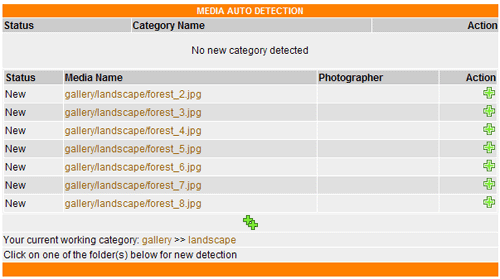
The Auto Detection function is used to detect new categories and media that are residing in the gallery directory, but have not yet been added to the database. Using this function you can add an entire category of media and its contents to the database at one time.To Add a new category of media to the database
- Click on the Media Manager
Auto Detection link in the main menu.
- Browse to the category that holds the newly uploaded category or media.
- Click on the
icon to add the new category or media to the database. If you autodetect
a category, Lightbox will add all of the media contents in this
category to the database.

To Add new media to the database
- Browse to the category that holds the newly uploaded media.
- Click on the
icon to add the new media to the database.
- If you are adding media to an existing category (already autodetected)
then you will need to add the files individually.
If you have many individual files to add, you can click on the Add all Media
icon, to add all new media to the database at once.
- Click on the Media Manager
- Generate Thumbnails
The thumbnail images can be generated automatically by checking the Auto Generate Thumbnail on New Media feature in the Media Configuration. By using this feature, the thumbnail images will automatically be generated (according to the percentage reduction specified) when new media are brought into the system using the Autodetect feature. Otherwise they can be generated (or re-generated) using the method outlined below.If you want to use the system's "Generate Thumbnails" feature, you should convert all display images to jpg format (or .gif or .png if your server's GD version supports them) before uploading them to the server. Alternatively, you can upload other file types with a pre-made thumbnail. Remember to upload the thumbnail to the same directory and give the thumbnail the admin defined thumbnail prefix, which is gallery_ by default.
- Click on the Media Manager
Generate Thumbnails link in the main menu.
- Click on the
icon for the target category to generate thumbnails. The thumbnails
for the entire category of images will be created based on the percentage
reduction set in the Media Configuration
section.
- Click on the
icon to confirm and compete the action, or click on the
 icon to cancel the action.
 - After this action completes, the status for the target category will change from Not Generated to Generated.
Note: If there are a large number of images in the directory, the execution may timeout, this is not a fault in the system. Just click on the browser refresh button and the system will continue to generate thumbnails from where it left off. Keep doing this until you see the "Action Performed Successfully" message. If you do not see this success message, check to see if the thumbnail overwrite box in the configuration section is checked. If it is, un-check the box and click on the generate thumbnails link again. Before using this feature, you must ensure that all image folders and files have permissions of 777 (r/w/e).
Video and other formats of display media
If the media is video, audio or another format of display image, you will need to do the following:
Create a thumbnail image for the media and upload it to the same directory where the media is located.
Example:
Media system name: video1.mpg (this is a video type).
The thumbnail prefix name: gallery_ (this can be set in the Media Configuration section).
Then the thumbnail for this media should be gallery_video1.jpg
Upload this thumbnail to the directory where the video1.mpg is located.
- Click on the Media Manager
- Watermark Images
The system can either apply a Text or Image watermark to the display images. The type of watermark that will be applied will be determined by the setting in the Media Configuration section.
- Click on the Media Manager
Watermark Images link in the main menu.
- Click on the
icon for the target category to add watermarks.
- Click on the
icon to add watermarks to images in the category that have not had
a watermark previously applied.
- Click on the
icon to use the watermark overwrite option that will apply a watermark
to ALL images. If an image was previously watermarked it will be
re-watermarked. This re-application will darken (make it less transparent)
the appearance of the watermark.
- Click on the
icon to cancel the action.
- After this action completes the status for the target category
will change from Not Generated to Generated.
Note: This feature applies a physical watermark on the display images. Images can't be recovered to their original un-watermarked state after they have been watermarked. So please make sure that you backup all images locally before doing so. To view a demo of how the image will look after it has been watermarked, click on the
 icon in the Media Configuration section.
Before using this feature, you must ensure that all image folders
and files have permissions of 777 (r/w/e).
icon in the Media Configuration section.
Before using this feature, you must ensure that all image folders
and files have permissions of 777 (r/w/e).
- Click on the Media Manager
- Resize Images
The most efficient method to resize your display images is to run a batch process on your high resolution original images prior to upload. This saves server resources and considerably saves file transfer times and bandwidth.The system will resize the longest dimension of the images to the size entered in the Media Configuration. The system will maintain the aspect ratio of the images during the resize process. Only images which have a larger size compared to the resize value will be resized.
This feature is not recommended for a large category of images or for very large files, as it can cause the server to timeout before the operation completes. If a blank page is displayed, please continue by refreshing the screen until the message "Action Performed Successfully" is shown. This indicates that the resize image process is complete.
- Click on the Media Manager
Resize Images link in the main menu.
- Click on the
icon for the target category to resize that category of images.
- Click on the
icon to confirm and complete the action, or click on the
icon to cancel the action.
- The system will resize the images in the category based on the
setting in the Media Configuration section.
NOTE: Images can't be recovered to their original size after resizing. So please make sure that you backup all images locally before doing so. Before using this feature, you must ensure that all image folders and files have permissions of 777 (r/w/e).
- Click on the Media Manager
- Rebuild
Database
This feature allows you to remove any invalid entries from the database. Invalid entries will occur when moving files from one directory to another or deleting files from the system via your FTP client. To avoid invalid entries you should run this feature on a regular basis.To confirm the action click on the
icon.To cancel the action click on the
icon.
- Media Utilities
(Ent. version)
The Media Utilities feature gives you the ability to edit your media from within the gallery admin area. This feature is available for the Ent. Version only and you need to ensure that ImageMagick® is installed on your server. Please visit the ImageMagick® website to download a copy of their software to install on your server. If you do not have root access to your server, you will need to ask your host install this for you.
- Click on the Media Manager
Media Utilities link in the main menu.
- Click on the
 Detach
icon to use the Media Utilities feature in a separate window.
Detach
icon to use the Media Utilities feature in a separate window.
EDITING YOUR CATEGORY
The icon symbolizes the media category.
- Click on the
icon for the target category to Resize all media
inside this category.
- At the RESIZE CONFIRMATION section: Enter your pixels dimension in the Resize To field. The system will resize the longest dimension to the specified value. The system will maintain the aspect ratio of the images during the resize process. Only images which have a larger size compared to the resize value will be resized.
- Click on the
icon to Cancel.
- Click on the
icon to complete the action.
- Click on the
icon
for the target category to Rename this category.
- Click on the
icon for
the target category to Delete this category.
- Click on the
 icon for
the target category to Move this category to a
different location. Once the files have been moved to the new
location, you will need to use the auto detect feature to bring
the images into the database in their new location.
icon for
the target category to Move this category to a
different location. Once the files have been moved to the new
location, you will need to use the auto detect feature to bring
the images into the database in their new location.
NOTE: To Resize, Delete or Move multiple categories, please check all of the target category checkboxes in the
column,
then click on the
,
or
icons
at the top of the MEDIA UTILITIES section to Resize, Delete or Move
multiple categories.EDITING YOUR MEDIA
- Click on the
icon for
the target media to Resize this media.
- Click on the
icon for the
target media to Rename this media.
- Click on the
icon for
the target media to Delete this media.
- Click on the
icon for
the target media to Move this media to a different
location. Once the files have been moved to the new
location, you will need to use the auto detect feature to bring
the images into the database in their new location.
NOTE: To Resize, Delete or Move multiple media, please check all of the target media checkboxes in the
column,
then click on the
,
or
icons at the top of the MEDIA UTILITIES section to Resize, Delete
or Move multiple media.USING ADVANCED MEDIA UTILITIES
If your media extension is an image type, you can use our Advanced Utilities feature with powerful tools to edit your images.
By clicking on the icon, you can choose the effect that you want to apply to the image.
- At the message Do you want to convert all media
under this category? Click
the Yes/No
Action button. If you click Yes, then you will
have the following options.
- Check the Do you want to convert all media under this category's subcategories? Check this box, if you want to apply your customized effect to all of the media in the current category and it's subcategories.
- Check the Do you want to continue converting your remaining media in this category? Check this box, if you want to continue applying this effect to the remaining media that did not have the effect applied previously, due to an issue while applying the effect during the last action.
- Click on the
icon to Cancel or click on the
icon to .Convert
After customizing the image with your desired effect(s) you can do one of the following:
- Click on the
 icon to "Save" your converted media.
- Click on the
 icon to "Save As" your converted media.
- Enter the new file name in the File Name field
- Choose the image type to save as in the Save as type dropdown list.
- Click on the Save button to save your new image. Click on the Cancel button to cancel.
Note: If you use the "Save As" feature, then you will need to use the autodetect feature to bring the newly saved image into the database.
- Click on the Media Manager
- POP3 Media
(Ent. version)
Lightbox has a new convenient way to add media to your database, it is called the POP 3 Media Manager feature. You or your photographers can just send an email with the media attached to an email account that is setup in the POP3 Media Manager section. Then you can use this feature to check the mailbox, download the attached media and add them to the gallery categories.This feature also allows you or your contributors to upload images to the gallery directly from their mobile phone (if they have a camera feature on their phone). After capturing their photo they can simply send the camera phone image to the email address that you have setup in the POP3 Media Manager.
In the Account Information section:
- Hostname: Enter your POP3 Mail Server URL
- Username: Enter your POP3 Email Username
- Password: Enter your POP3 Email Password
- Mailbox Name: Enter your mailbox name, Lightbox will download all messages from this mailbox.
- Port #: Enter your POP3 server port number.
icon
to save the new settings.
Click on the
icon to connect and download email messages from your POP3 Mail Server.
POP3 MAIL MANAGER
If you connect to your POP3 Mail Server successfully, all unread messages will be downloaded automatically. Messages that contain attached media will be listed.
Click on the desired Media Name to preview your Media.
Click on the desired Photographer to edit the photographer's profile. The photographer needs to prefix their file name with their user name (e.g. photog_image1.jpg) for the system to recognize that the image belongs to a particular photographer (contributor).
Choose the category that you want to add new media to in the Category column, then click on the
icon to add your media to the database.
If you want to add more information to the new media before adding it to the database, click on the
icon.
If you want to delete the new media instead of adding it to the database, click on the
icon.
ORDER MANAGER
Using the Customer Orders section you can do the following
- Manage Customer's Orders.
- View, Print & Send Customer's Invoices.
- View, Print & Export Sales Reports.
- Completed orders, are orders that have been paid for.
- Pending orders, are orders that have not yet been paid for. Users may not have completed checkout process, or the system did not receive confirmation of the payment from the payment gateway.
- The displayed sort order of the Customer Orders or related information can be changed by clicking on the column header title links.
- Order Manager
The Order Manager section displays all order summaries (Pending and Completed) that currently reside in the database.
- Click on the Order Manager
Order Manager in the main menu.

- To View the Order Details,
click on the Order Id.
- To change the status of an order from Pending
to Completed click on the
icon.
When an order is completed, the download link will be available to customers in their My Account area if there is an instant download media in the order.
- To change the status of an order from Completed
to Pending click on the
 icon.
icon.
When an order is pending, the download link will not be available to customers in their My Account area, as the purchase has not been completed.
- To Send an invoice to a customer, click on
the
 icon (Pro. & Ent. versions).
The system will send an invoice to the customer's email address using the same format as in the Invoice Manager section.
- To Print Order details click on the
 icon (Pro. & Ent versions).
The order details of the selected order id will popup with a print function enabled.
- To Delete an order click on the
icon.
You will need to confirm the delete action before the system removes the selected order from the database.
- To change an order's Shipping Status, click on the link
in the Shipping Status Column.
With the Pro. or Ent. version you are able to input the shipping information for the selected order id. When clicking on the shipping link of the selected order id, another window will display which allows you to input shipping information such as shipping provider, provider URL etc. Customers will be able view all of the information that you input into the shipping information page (except the shipping cost), by clicking on the Shipping Info icon in their "My Account" area.
- To view the Promotion Code details click on the promotion
value hyperlink.
The hyperlink is only visible if customers have input a promotion code during the checkout process. After clicking on the hyperlink, you will see all promotion codes that were used for the selected order id.
- To view customer's Registration information, click on
the customer's username.
The customer's profile page will display with the customer's profile information.
- To Quick View Order Detail, enter the order
id number into the Order Id # field and then click
Submit.
The order details of the input order id # will display if it exists in the database.
- Click on the Order Manager
- Invoice
Manager - View Print & Send Customer's Invoices (Pro. & Ent.
versions)
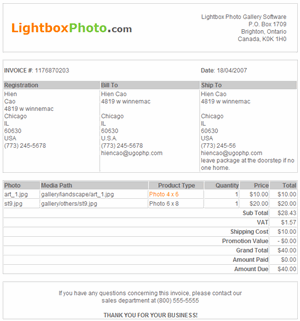
You can view, print or send an invoice to a customer's email address using this feature. The invoice data is taken from the customer's information collected through the Registration Form. You can add all information or just add selected fields using the invoice Configuration feature.
There are three sets of customer information that are used by the invoice feature.
- Customer Registration Information
This information is collected when the customer registers to your site.
- Billing Information
The billing information is collected during the customer checkout process.
- Shipping Information
If the order is a delivery order (not all instant download products), then the system will ask customer to input their shipping address during the checkout process. This information is stored in the database and it is used for the invoice and order details sections.
Below is a sample invoice.
Invoice Configuration
This feature allows you to control the target customer's registration form fields that will be displayed on the invoice page or in the invoice email that is sent to customers. The system WILL NOT add these fields after you first install the software on your server. You will need to do this manually as described below. The billing and shipping details are predefined by the system.- Click on the Order Manager
Invoice Manager in the man menu.
- Click on the
Configuration link in the Invoice page.
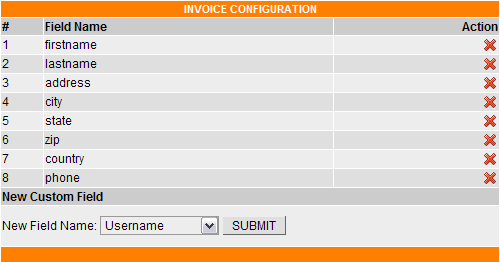
- New Field Name
The fields displayed in the dropdown menu are taken from the Customer Registration Form Fields that you have configured. If you have not configured this form yet, click here to learn how.
- Click the Submit button to add the new field to the database.
- Click on the
icon of target field name to delete it from the database.
- Click on the Order Manager
Invoice Manager in the main menu.

- Click on the
Configuration link
Use this feature to add or remove registration form fields from the invoice as required.
- To send a invoice detail to the customer's
registered email address, click on the
icon for the target invoice id #.
- To view a customer's invoice detail, click
on the
 icon for the target invoice id #.
- To print a customer's invoice detail, click
on the
icon for the target invoice id #.
- To quick print invoice detail, enter the invoice id # into the
Quick Print Invoice # text field and click submit.
The order invoice details for the entered id # will display if it exists in the database.
- Customer Registration Information
- Sales
Report - View, Print and Export Sales Report (Pro. & Ent. versions)
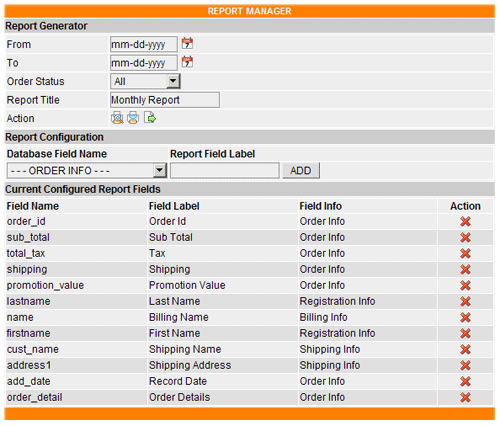
This feature allows you to view, or printout customer sales reports. You can customize the report layout as required (see below).
- Launching Sales Reports
- Click on the Order Manager
Sales Reports in the main menu.
- Click on the Order Manager
- View Sales Reports
- Select the From date by clicking on the
 icon next to the From Date field. Select the Month and Year
from the dropdown menus and select a date from the calendar
to complete the selection.
icon next to the From Date field. Select the Month and Year
from the dropdown menus and select a date from the calendar
to complete the selection. - Select the To date by clicking on the
icon next to the To Date field. Select the Month and Year from
the dropdown menus and select a date from the calendar to complete
the selection.
- Select the Order Status of the Customer's orders (All, Complete or Pending).
- Enter the Report Title. The report title is used to describe the report.
- Click on the
icon to view the report.
The system will open a small window displaying all order summaries based on the selected date and the selected customization fields that you have configured in the "Current Configured Report Fields".
- Select the From date by clicking on the
- Print Sales Reports
- Select the From date by clicking on the
icon next to the From Date field. Select the Month and Year
from the dropdown menus and select a date from the calendar
to complete the selection.
- Select the To date by clicking on the
icon next to the To Date field. Select the Month and Year from
the dropdown menus and select a date from the calendar to complete
the selection.
- Select the Order Status of the Customer's orders (All, Complete or Pending).
- Enter the Report Title. The report title is used to describe the report.
- Click on the
icon
The system will open a small window (with a print function enabled) displaying all order summaries based on the selected date and the selected customization fields that you have configured in the "Current Configured Report Fields".
- Select the From date by clicking on the
- Export Sales Reports
- Select the From date by clicking on the
icon next to the From Date field. Select the Month and Year
from the dropdown menus and select a date from the calendar
to complete the selection.
- Select the To date by clicking on the
icon next to the To Date field. Select the Month and Year from
the dropdown menus and select a date from the calendar to complete
the selection.
- Select the Order Status of the Customer's orders (All, Complete or Pending).
- Enter the Report Title. The report title is used to describe the report.
- Click on the
icon.
The system will open a small window that will allow you to Open or Save the Sales Report. The report will contain all order summaries based on the selected date and the selected customization fields that you have configured in the "Current Configured Report Fields". The export file is in .csv (commas separated value) format. You can open the exported file in Microsoft Excel® (or any other spreadsheet application).
- Select the From date by clicking on the
- Customize Sales Reports
Use this feature to customize the Sales Report layout. The system WILL NOT add these fields after you first install the software on your server. You will need to do this manually as described below before generating or exporting any sales reports. There are four data sections in the “Database Field Name”.
- Order Info
This section is predefined by the system so you can’t add or remove any fields from the drop down menu. - Registration Info
This information is collected when the customer registers to your site. If you add or remove fields from the registration form, the changes will be reflected in the dropdown menu. - Billing Info
This section is predefined by the system so you can’t add or remove any fields from the drop down menu. The billing information is collected during the customer checkout process. - Shipping Info
This section is predefined by the system so you can’t add or remove any fields from the drop down menu. The shipping information is collected during the customer checkout process.
- Click on the Order Manager
Sales Reports in the menu function.
- Select the field name in the "Database Field Name" drop down list.
- Enter the Report Field Label to describe the field name.
- Click the Add button, to add the new custom field to the report's layout.
- Delete custom fields that are not required, by clicking
on the
icon for the target field.
- Order Info
- Launching Sales Reports
CUSTOMER MANAGER
After a customer registers to your site their account status will be either in Pending or Active status.
- Pending Customers are those that either have not activated their account (if you are using the "Enable new account email validation" feature) or have been changed from Active to Pending by you. If customers are in Pending mode they are not able to access the check out page or account page, but they are able to access the site to view the thumbnail or media detail pages.
- Active customers are able to access all features
of the gallery, but not the administration or photographer's areas.
The displayed sort order of the Customers or related information can be changed by clicking on the column header title links.
Using the Customer Manager
- Registration
Form
The lightbox system supports an unlimited number of form fields for the customer registration form. You can add more fields or remove existing ones that are not required for your gallery. If you wish to remove a field from displaying on the form, lightbox suggests that you edit the field and make it inactive rather than deleting the field, as you may wish to use it at a later date. By default when the software is installed the system will add the following fields to the customer registration form. Please see the Registration section for more information.
- Click on the Customers
Registration link in the main menu.
- firstname - Customer's first name
- lastname - Customer's last name
- address - Customer's physical address
- city - Customer's city
- state - Customer's state
- zip - Customer's postal code
- country - Customer's country
- phone - Customer's phone number

- Click on the Customers
- Contact Mapping
There are a few places in the system that require customers to input information. This information may have already been collected during the registration process. Lightbox provides an option, which allows you to map these fields to the customer's registration form. With this mapping relationship the system will automatically pre-fill the customer’s data to the common defined fields, so that customers do not need to re-input data, which was already submitted.
- Click on the Customers
Contact Mapping link in the main menu.
Note: It is only necessary to make changes to this section if you remove any of the default Registration form fields and replace them with your own custom fields.
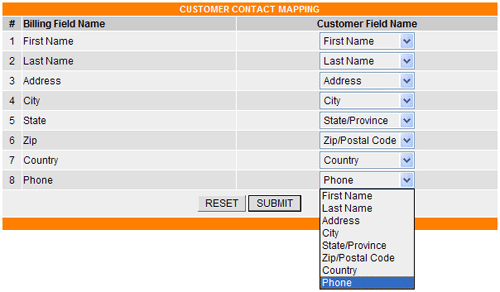
- Click on the Customers
- Add New Customer
Within the admin control panel you can add a new customer to the system. The new customer will become active once you have submitted the data to the server. The system will not verify the email address even if you have set it to do so in the general configuration.
- Click on the Customers
Add Customer link in the main menu.
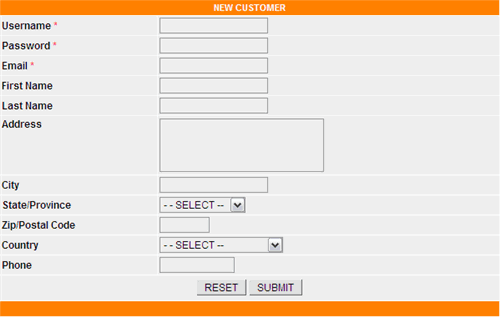
The system displays the dynamic fields from the registration form that you have configured in the Customer Registration
section. The username, password and email fields are all required by
the system. Fill in all relevant values into the provided text fields
and click the Submit button to add the new customer to the system.
- Click on the Customers
- Active & Pending
Customers
- By clicking on either the “Active Customers” or “Pending
Customers” link, the system will display the following screen.
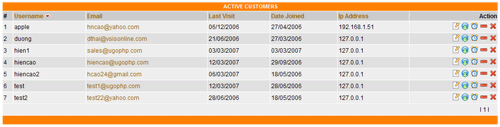
- To view and edit a customer's information,
click on the
icon for the target customer.
- To view a customer's Download Sample history, click on the
icon (Pro. & Ent. versions).
- To view a customer's Search Logs, click on
the
 icon (Pro. & Ent versions).
 - To change a customer's status to Pending,
click on the
icon.
- To change a customer's status to Active,
click on the
icon.
- To delete a customer from the database, click
on the
icon.
- By clicking on either the “Active Customers” or “Pending
Customers” link, the system will display the following screen.
- Email Customers
Use this function to communicate with customers.
- Click on the Customers
Email Customers link in the main menu.
- Enter the return email address into the "From" field. The return email address is the email address that customers would use if they wanted to reply to your message after receiving it.
- Select the customer group in the "To" drop down list. (Active Customers, Pending Customers or All Customers).
- Enter the Subject of the message.
- Enter the message body into the Message field.
- Click the Send button to send the message.
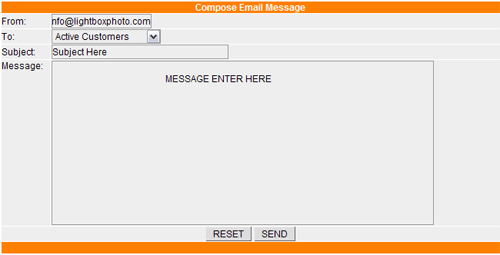
- Click on the Customers
MANAGE PHOTOGRAPHERS (CONTRIBUTORS) (Ent. version)
With an Ent. version you are able to allow photographers (contributors)
to upload and sell their own digital goods on your site. The system calculates
the commission due to the photographer based on the commission rate that
is set in the photographer settings section. The system also generates sales
reports for each photographer and gives you full control over all photographers
and their submissions.
Before photographers are able to upload media to your server, they need
to register to the gallery system. After registering to the system, their
account status will be either in Pending or Active status,
depending on the setting that you have configured in the photographer setting
section. The system provides a number of features that are described below
for you to manage the photographers (contributors).
- Pending Photographers are those that either have not activated their account (if you are using the Enable Photographer Email Validation feature) or have been changed from Active to Pending by you. If you want the photographers to remain in pending status until you manually approve them, then you will need to use the Enable Photographer Email Validation feature and remove the [LINK] call tag from the photographer_activate_email.txt template. If photographers are in Pending mode, they are not able to access the photographer's section, but they are able to access the gallery.
- Active Photographers are able to access all pages of the gallery and the photographer's section, but not the administration area.
- Un-approved Media
This section lists all the media that have not yet been approved by you for inclusion in the gallery. Any un-approved media will not be displayed in the gallery.
- Click on the Photographers
Un-approved Media in the main menu to view all
un-approved media that are currently in the database.
- Click on the
icon to view the target media's details.
- Click on the
icon to approve the target media.
- Click on the
icon to delete the target media.
- Click on the Approve All hyperlink to approve
all un-approved media.
Note: Lightbox only displays the photographer's media in the gallery when their status is Approved.
- Click on the Photographers
- Active Photographers
- Click on the Photographers
Active Photographers in the main menu to show all
active photographers that currently reside in the database.
- To view the photographer's details, click on the
icon.
- To set the photographer's payment status, click on the
icon.
- To view the photographer's sales reports, click on the
 icon.
icon. - To change the photographer's status to pending, click on the
icon.
- To delete a photographer from the database, click on the
icon. A deleted photographer is not able to access the photographer's
section.

- Click on the Photographers
- Pending Photographers
- Click on the Photographers
Pending Photographers in the main menu to show
all pending photographers that currently reside in the database.
- To view the photographer's details, click on the
icon.
- To set the photographer's payment status, click on the
icon.
- To view the photographer's sales reports, click on the
icon.
- To change the photographer's status to active, click on the
icon.
- To delete a photographer from the database, click on the
icon. A deleted photographer is not able to access the photographer's
section.
- Click on the Photographers
- Email Photographers
Use this function to send an email or newsletter to the photographers.
- Click on the Photographers
Email Photographers in the main menu.
- Enter the return email address into the From text field.
- Select the photographer's group from the To drop down list.
- Enter a Subject for the email.
- Enter the Message body to send to the photographers.
- Click the Send button to send the message to
photographer's group.
- Click on the Photographers
- Add Photographer
You can add a new photographer to the gallery system using the Add Photographer function. The system will not verify the photographer's email address even if the “Enable Photographer Email Validation” option is set to do so in the configuration. This new photographer's account status will be Active immediately after you click on the Submit button.
- Click on the Photographers
Add Photographer in the main menu.
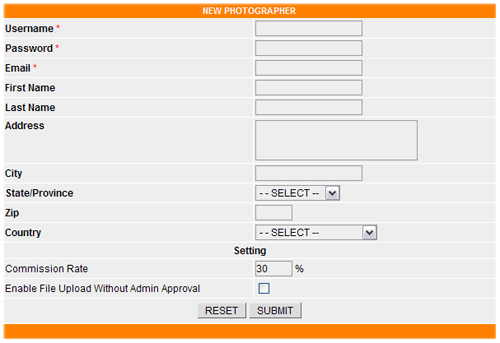
- Fill in all information to the relevant text fields.
- Click the Submit button to add the new photographer to
the database.
- Click on the Photographers
- Settings
Use this function to configure the default settings that Lightbox will use when a new photographer signs up to your site. You can set the photographer's commission rate and require the administrator to approve newly uploaded media.
- Click on the Photographers
Settings in the main menu.
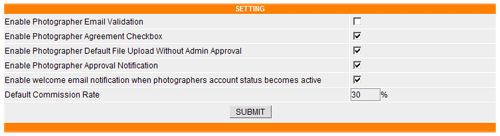
- Enable Photographer Email Validation
Check this box if you want to validate the photographer's email address before their registration is activated. Once a new Photographer registers to the system they will be emailed a link that when clicked will activate their account. If you want the photographers to remain in pending status until you manually approve them, then you will need to use this feature but remove the [LINK] call tag from the photographer_activate_email.txt template.
- Enable Photographer Agreement Checkbox
Check this box if you want to display the agreement checkbox on the photographer's registration form. Photographers must check this checkbox on the form to complete the registration process.
- Enable Photographer Default File Upload Without Admin
Approval
Un-check this box if you want to approve each photographer's uploaded media (otherwise it will automatically be added to the gallery).
- Enable Photographer Approval Notification
Check this box if you want the system to send a notification email to your email address each time a photographer uploads new media to the system.
- Enable Welcome email notification when photographers
account status becomes active
Check this box if you want the system to send a welcome message to the photographer's registered email address when their account becomes active.
- Default Commission Rate
This commission rate is applied for the default setup. This percentage is the amount that will be withheld by you before the Photographer is paid for the sales of their images. Therefore, if the sales total is $ 100.00 and the percentage is set to 30%, then the system will calculate that the amount owed to the Photographer is $ 70.00. You can change this value for an individual photographer by editing their photographer's profile.
- Click the Submit button to save the changes.
- Click on the Photographers
- Registration
Using this function, Lightbox will collect the photographer's information. Please see the Registration section for more information. Although this functions in the same way as the Customer's Registration form, it is completely independent.
- Click on the Photographers
Registration in the main menu.
- Click on the Photographers
LIGHTBOX MANAGER
When customers add media to their lightbox, the system stores the selected media information in the database along with the customer's information such as IP Address, username and date of the action. The lightbox manager section allows you to view all the information that was captured during this process. The displayed sort order of the Lightboxes or related information can be changed by clicking on the column header title links.
- Click on the Lightbox Detail link in the main menu to view a listing of all user's lightboxes.
- Click on the customer's lightbox Session Id to view its contents.
- The Username column shows the visitor's username.
- Click on the
icon to delete the target lightbox session id and media.
- Click on the
 icon to empty all of the lightboxes that are currently in the database.
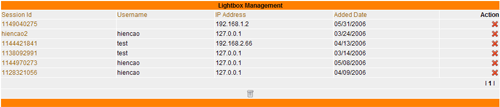
SHOPPING CART MANAGER
The Shopping Cart Manager section allows you to control the customer's shopping cart media. When customers add media to their shopping carts, the system will keep these media until the order is either completed or the customers remove them from their cart. Each customer has their own unique session id associated with shopping cart. The displayed sort order of the Shopping Carts or related information can be changed by clicking on the column header title links.
- Click on the Shopping Cart link in the main menu to view a listing of all user's shopping carts.
- Click on the customer's shopping cart Session Id to view its contents.
- The Username column shows the visitor's username.
- Media Count column shows how many media that are in this shopping cart session id.
- Click on the
icon to delete the target shopping cart session id and its contents
from the database.
- Click on the
icon to empty all shopping carts that are currently in the database.
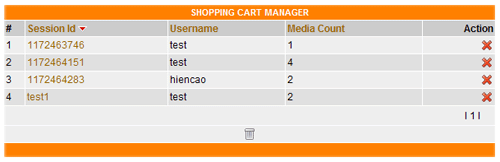
GENERAL CONFIGURATION
The General Configuration section contains the majority of the available configuration settings. There are other configuration sections that the system uses for the gallery listed below.
- Media Configuration
The Media Configuration allows you to set the media properties such as Quick Preview Info, Thumbnail size, Watermark, etc. To go to this configuration section, click on the Media Manager Media
Configuration link in the main menu. - Invoice Configuration (Pro. & Ent versions).
The Invoice Configuration allows you to control the target customer's registration form fields that will be displayed on the invoice page or in the invoice email that is sent to customers. To go to this configuration section, click on the Order Manager Invoice
Manager Configuration link in the main menu. - Sales Report Configuration (Pro. & Ent versions)
The Sales Report Configuration allows you to tell the system to collect customer's registration, billing and shipping information and display them on the sales report. To go to this configuration section, click on the Order Manager Sales
Reports link in the main menu. - Customer Registration Configuration
The Customer Registration Configuration allows you to collect customer's information during the registration process. You can either tell the system to require a user's input for the specified field or have the user input optional. To go to this configuration section, click on the Customers Registration
link in the main menu. - Photographer Registration Configuration (Ent. version).
The Photographer Registration Configuration allows you to collect the photographer's information during the registration process. This configuration is similar to the Customer Registration configuration but they are completely independent. To go to this configuration section, click on the Photographers Registration
link in the main menu. - Photographer Settings (Ent. version)
The Photographer Settings configuration allows you to set default values for the system to use during the photographer's registration to the gallery system. Use this configuration section to set the "Enable Photographer Email Validation", "Default Commission Rate", etc. To to go this configuration section, click on the Photographers Settings
link in the main menu. - Shipping Configuration
The Shipping Configuration section allows you to set the shipping cost that the system will use during the check out process. You can use this configuration section to set Flat Rate Shipping, Zone Shipping, etc. To go to this configuration section, click on the Shipping Manager Configuration
link in the main menu. - Tax Configuration
The Tax Configuration allows you to set the tax method that the system will use to tax customers. To go to this configuration section, click on the Tax Manager Configuration
link in the main menu. - Payment Gateway Configuration
The Payment Gateway Configuration is used to tell the system which gateways will be available to users when they make a purchase. To go to this configuration section, click on the Payment Gateway link in the main menu.
- Mail Server Configuration
Lightbox can use either of two methods to send out mail. The Default Mail Server or SMTP Server.
- Default Mail Server
Lightbox recommends that you use the default mail server to send out mail to customers. No options are needed if you select to use the default mail server. - SMTP Server
If for some reason you don't have a mail system installed on your server, you could use the SMTP method. The system will need a little more time to send out emails if you are using this method. It needs time to connect to the SMTP Server before sending out emails. To use this method, select SMTP Server in the drop down list and fill in all the information for your SMTP mail server configuration in the text fields. Click the
icon to test the connection before saving the settings. If the entered
info is correct, you will receive an email that is sent to the email
address in the "Notification Email Address" text field.
- Default Mail Server
- Cookie Manager
When a customer visits the gallery, a cookie is saved on the customer's computer to keep track of their actions. Lightbox uses this cookie for the shopping cart and lightbox session id.
- Cookie Lifespan (in days)
The time that the cookie will last on the customer's computer. The time is reset whenever the customer returns to the gallery. To change the lifespan of the cookies that are set by the system, enter a new value here.
- Cookie Lifespan (in days)
- User Session
Lightbox will automatically logout customers after the specified time has elapsed. This will prevent unauthorized access if the customer does not logout.
- Session Timeout (In Minutes)
Enter the desired value here. The default value is 30 minutes.
- Session Timeout (In Minutes)
- Download Manager
- Download Buffer Size
If the download file (order) is large, the download file zip process may not complete. This may occur because the memory limit is exceeded when the system reads the contents of the download file and then stores it in the buffer before creating the .zip file. If this occurs you should increase the buffer size accordingly by selecting from the drop down list. - Require Login To Download Sample Media (comp.
images).
Check this checkbox if you want to require users to login before downloading sample download files. You will need to have sample download files in the same directory as the corresponding media with the same filename and prefix it with "sample_" + media system name. e.g. For a file called image1.jpg, the corresponding sample file will be sample_image1.jpg. Both of these files will reside in the same gallery folder (category). - Remove download links after # of days
Input the number of days that you want the system to maintain the active download links in the user's "My Account" area. After the specified number of days, the system will de-activate the links. The number of days are counted from the day after the customer made their purchase.
- Download Buffer Size
- Registration configuration
The system will use these configurations during a customer registration.
- Enable Agreement Checkbox
Check this box to require users to check the "agreement checkbox" before submitting the registration info to your site. - Enable new account email validation
This feature allows you to validate the email address entered by the end-user. Once the end-user has completed and submitted the registration form, an automated email will be sent to the user's email address for validation. The end-user is required to activate their registration by clicking on a link that is included in the activation email. To disable the email validation feature, un-check the “Enable new account email validation” check box. If this feature is disabled, any user that registers to the site will become active upon the completion and submission of the registration form. - Notify me when someone signs up
To be notified when some one signs up (registers), check this box, otherwise leave it un-checked. The notification email will be sent to the email address that is entered in the “Notification Email Address” field. The notification email contents can be modified by editing the notify.tpl template in the template section. - Notification Email Address
The system will use this email address to send the notification email when a new user signs up. - Webmaster Name
The system will use this name for the notification email.
- Enable Agreement Checkbox
- Invoice Configuration (Pro. & Ent. versions)
The system will use these configurations upon the completion of a customer's order.
- Enable Notification Invoice Email
If this box is checked, an invoice will be sent via email to you and to the end-user when an order is processed. To disable this feature, un-check the box. The invoice email contents can be modified by editing the invoice.tpl template in the template section - Enable bcc Invoice
To bcc (blind carbon copy) the invoice email to another email address, tick the checkbox. - bcc Invoice Email Address
Enter the email address where the bcc email will be sent. This feature could be used to automatically send a copy of the invoice to your print shop or order fulfillment centre. - Mobile Notification Email Address
Enter the email address for your mobile phone. The system will send a new order notification to the mobile phone email address that you input. You can obtain the mobile phone email address through your service provider. - Enable Show Invoice Thumbnail
By checking this box, a thumbnail image will display on the invoice. - Enable Show Media Path
By checking this box, the category path will display on the invoice.
- Enable Notification Invoice Email
- Lightbox Configuration
- Maximum number of media for each lightbox
Enter the maximum number of media allowed for each lightbox. If the customer reaches the maximum number an alert will be displayed. This number will be used to prevent any users from trying to abuse the system. The bigger the number, the more space that is required on the database. The default number is 30.
- Maximum number of media for each lightbox
- Promotion Code Configuration (Pro. & Ent versions)
- Enable Promotion Code
To disable this feature simply un-check this box. The promotion code and discount value are configured in the Promotion configuration section.
- Enable Promotion Code
- Send To Friend
- bcc Admin a copy of SEND TO FRIEND email
Check this box to have a blind carbon copy of the sent message emailed to your notification email address.
- bcc Admin a copy of SEND TO FRIEND email
- Date Format Configuration
- Date Format: There are two types of date format
that you can choose from.
mm/dd/yyyy: The date will be displayed in month/day/year format.
dd/mm/yyyy: The date will be displayed in day/month/year format.
- Date Format: There are two types of date format
that you can choose from.
-
Language Configuration
-
Language Display Style: There are two styles that you can choose
from.
- Icon: All available language icons will display horizontally in the gallery for the end user to select from.
- Dropdown: Lightbox will generate a dropdown box that contains all of the available language options for the end user to select from.
-
Language Display Style: There are two styles that you can choose
from.
- Gallery Configuration
- Category Display Style
There are two ways to display the main categories of your gallery.
Listing Style: Lightbox displays the main categories in a listing style.
Dropdown Style: Lightbox displays the main categories in a drop down list. - Enable Category Tree Menu (Pro. & Ent. versions)
Enabling this option will make your Category Listing menu expandable and collapsible. - Featured Media Display Number (Pro. & Ent.
versions)
Lightbox uses this number to limit the number of featured media images to be displayed in the featured media section. - Featured Media Display Style (Pro. & Ent. versions)
There are two ways to display the featured media section.
Vertical Style
Lightbox displays the media designated as featured in the Media Manager in a Vertical Style. The number of images displayed is restricted by the Featured Media Display Number.
Horizontal Style:
Lightbox displays the media designated as featured in the Media Manager in a Horizontal Style. The number of images displayed is restricted by the Featured Media Display Number. - Product Type Display Style
There are two ways to display the available Product Types.
Drop down style: Lightbox displays the available Product Types in a drop down list.
Listing Style: Lightbox displays the available Product Types in a listing style. - Remove File Extension
By default, Lightbox uses the system filename as the display name. By default, the system filename includes the file extension. To remove the file extension from the display, check this box. - Show Media Description on its Alt Tag
If the box is checked, the system will add the Media Description field to the media's "alt" tag. You will need to make sure that you have the following entered into the Opening Code for the jpg file type (Media Type section). <img src="[FILENAME]" border="0" width="[WIDTH]" height="[HEIGHT]" alt="[ALT]" title="" />. You can also add floating IPTC calls to the opening code, e.g. alt="[caption]". - Require Login To View Media Detail (Pro. &
Ent. versions)
To prevent customers from viewing the media detail page (enlarged image) without registering or logging in, check this box. With this box checked, customers will be able to view thumbnails, but they will not be able to view the enlarged image or add images to their lightbox until they log in. - Number of category columns per page
The number of category columns that will be displayed per page. - Number of media columns per page
The number of media columns that will be used to display media thumbnails per page. - Number of media rows per page
The number of media rows that will be used to display media thumbnails per page. - Default sort field
Before displaying media in the user's browser, the system will sort the data based on this field setting. Select a value from the drop down list to be used as the default sort field.
System name: the media will be sorted based on system file name.
Display name: the media will be sorted based on media display name.
Last modified: the media will be sorted based on when the media was last modified. - Default sort order
There are two types of sort order. Select a value from the drop down list to be used as the default sort order.
Ascending: the media will be sorted in ascending order.
Descending: the media will be sorted in descending order. - Display Home Button
This button is used to display the gallery main category page once it is clicked. To disable this button, un-check the box. - Display New Photos Button
This button is used to display all new media based on the date that they are entered. The date to be considered new can be changed in the Media Configuration section. To disable this button, un-check the box. - Display Lightbox Button
This button is used to display the end user's Lightbox. To disable this button, un-check the box. - Display Product Button
This button is used to display the available products such as Subscriptions or Packages, for users to select (Ent. Version). To disable this button, un-check the box. - Display My Account Button
This button is used to display the end-user's account page info. This page shows the end-user's order history and also allows end-users to download any instant download orders. To disable this button, un-check the box. - Display Shopping Cart Button
This button is used to display the end-user's shopping cart. To disable this button, un-check the box. - Display Order Info Button
This button is used to display the "Ordering Info" page. You can use this page to explain the ordering procedure to end-users. The template for this page is available in the template section with the file name order_info.tpl. To disable this button, un-check this box. - Display About Us Button
This button is used to display the "About Us" page. You can use this page to describe your company, product or service. The template for this page is available in the template section with the file name about.tpl. To disable this button, un-check the box. - Display Contact Us Button
This button is used to display the "Contact Us" page. You can use this page to display the company's contact information. The template for this page is available in the template section with the file name contact.tpl. To disable this button, un-check the box. Please note that it is not possible to modify the contact form. - Enable Slide Show
The gallery has the ability to display media in a slideshow. To disable the slide show feature, un-check the box. You can alter the size of the slideshow by editing the #myGallery section in the horizontal_css.css. - Show Category Listing Stats
To retrieve the category stats may take sometime depending on the size of your gallery. The system will count all its sub-categories and media. To save data processing resources you can disable this feature by un-checking the box. - Slide Show Timeout
Enter value as desired. The value must be numeric. The lower the number, the faster the images are changed in the slideshow. - Currency Symbol
Enter the desired currency symbol to be used. This currency symbol will be used throughout the system. - Currency Symbol Prefix
Before Price: The system will display the currency symbol before the price.
After Price: the system will display the currency symbol after the price. - Currency Decimal Separator
Choose the symbol you want to separate the decimal part from your currency amount. - Menu Button Display Style
The system supports two types of menu button layout (Horizontal and Vertical).
Horizontal Style: All navigation menu buttons will be displayed horizontally
Gallery | New Images | Lightbox | My Account | Shopping Cart | Order Info | etc ....
Vertical Style: All navigation menu buttons will be displayed vertically.
Gallery
New Images
Lightbox
My Account
etc ......
If you select the Horizontal Style, the system will use the user_horizontal.tpl (and the horizontal_css.css style sheet) for the main public gallery template and the private gallery template would be user_private_horizontal.tpl.
If you select the Vertical Style, the system will use the user_vertical.tpl (and the vertical_css.css style sheet) for the main public gallery template and the private gallery template would be user_private_vertical.tpl. - Enable Rollover Menu Image
By checking this box, the menu rollover feature will be enabled. To replace the rollover image (or the static menu image) you can simply upload new button images to the images folder while maintaining the existing file names. - Show Category Bar Stats
By checking this box, the bar containing the category stats XX Media in XX Categories will be displayed. To remove this bar, un-check the box. The appearance of this bar can be modified in the CSS. - Show Category Breadcrumb Links
By checking this box, the bar containing the category links (breadcrumbs) will be displayed. To remove this bar, un-check the box. The appearance of this bar can be modified in the CSS. - Enable Quick View Media Feature (Pro. & Ent
versions)
Check this box if you want the system to display a quick view popup window with media details when a user moves their mouse over the media thumbnail. The preview template is in the template section with the name media_preview.tpl. Note: If you have enabled the "Require Login To View Media Detail" option, then the Quick View Media feature will not be functional until after the user logs into their account. The size of the Quick View Media pane can be modified by editing the Default Width and Default Height fields in the Quick View Media Configuration section of the Media Configuration page. - Enable Individual Logout
If this feature is enabled, any logout activity from one section such as My Account won't affect any other sections (such as the Private Gallery or Admin Control Panel), this means that the session from other sections will remain. - Home Public Breadcrumbs Link
Enter the path you want the "Home" breadcrumb link to be associated with. By default it will point to the index.php (main gallery page). If you want it to point to another page on your site, please enter the correct path into the input text field. Please provide the absolute path for Lightbox SEO compatibility. e.g. http://www.yourdomain.com/lightbox/index.php
Home Public Button Link
Enter the path you want the "Home" menu button link to be associated with. By default it will point to the index.php (main gallery page). If you want it to point to another page on your site, please enter the correct path into the input text box. Please provide the absolute path for Lightbox SEO compatibility. e.g. http://www.yourdomain.com/lightbox/index.php
- Category Display Style
- Search Configuration
- Enable Partial Text Searching
If this checkbox is checked, the system will return search results for searches of partial words. e.g. If this feature is enabled and the user searches for "ant", then the search feature will return results for media that contain the keyword "ant" as well as any keywords that contain the word "ant", such as "anteater", "plant", "pants", etc... Depending on your gallery, you may not want to enable this feature as it may return too many extraneous results. - Display Category Field (Pro. & Ent. versions)
The system will display the category drop down list on the advanced search page if this checkbox is checked. - Display Searchable Field (Pro. & Ent. versions)
The system will display the Media Properties checkbox on the advanced search page if this checkbox is checked. - Display Metadata Field(Pro. & Ent. versions)
The system will display the Media Metadata checkbox on the advanced search page if this checkbox is checked. - Enable Royalty Free Checkbox (Ent. version)
The system will display the Royalty Free checkbox on the advanced search page if this checkbox is checked. - Enable Rights Managed Checkbox (Ent. versions
The system will display the Rights Managed checkbox on the advanced search page if this checkbox is checked. - Enable Model Release Checkbox (Ent. version)
The system will display the Model Release checkbox on the advanced search page if this checkbox is checked. - Enable Property Release Checkbox (Ent. version)
The system will display the Property Release checkbox on the advanced search page if this checkbox is checked. - Enable Orientation Checkbox (Ent. version)
The system will display the Orientation checkbox on the advanced search page if this checkbox is checked.
- Enable Partial Text Searching
- Subscription & Credit Configuration (Ent. version)
- Enable Subscription Product
If this box is checked, the system will display the "Payment Method" link in the gallery. - Credit Card Expiration Year Range
The system will use this value on the credit card processing page. This value will set the number of years displayed in the expiration year drop down list.
- Enable Subscription Product
- Security Configuration (Pro. & Ent. versions)
- Enable Blacklisted IP Address Management
Tick this checkbox if you want the system to block unwanted IP addresses from your gallery. You will need to use the Blacklisted IP Address function in the Administrator
Manage Blacklisted IP section to add blacklisted IP addresses.
- Enable Blacklisted IP Address Management
- Other Configuration
- Query Row Limit
This value is used in the admin control panel to specify how many rows of information will be displayed. The default number is 20.
- Query Row Limit
Click on the SAVE button to save your new configuration
settings.
In order to be able to sell your media, you will need to create at least one product type. Lightbox supports an unlimited number of Product Types. You can use this function to create as many product types as you need and then using the Media Manager Section you can assign a price to the product type for each media individually (by editing the individual media) OR you can assign a price to a product type for an entire category of images (or the entire gallery) by using the Global Pricing Feature. The system also supports instant downloads. This type allows end-user to instantly download a media file as soon as the payment has been completed. Please note: The Add to Cart button will not display until at least one product type has been assigned a price.
With the Ent. version you can also offer subscription products, packages of products and product options (Frames) in your gallery.
- Product Types
Below are the steps required for you to create new product types.
- Click on the Product Manager
Product
Types.
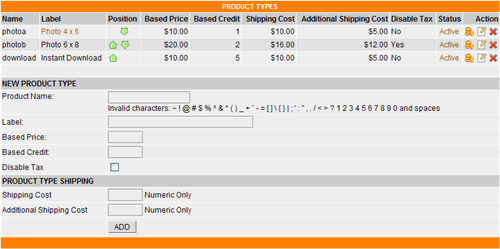
- Product Name
The product name is used by the system's database, so it should not contain any special characters, spaces or numbers.
e.g. !@#$%^&*()_+|}{":?><1234567890-=\][';,./
- Label
You can use this field to describe the Product Type. The product label is what the user will see in the gallery and it may contain special characters, spaces, numbers and even HTML code.
- Base Price
The system uses this value to pre-populate a base price in the media properties and Global Pricing sections.
NOTE: This base price will not apply to the media until you use the
Global Update Product Price & Credit feature to update all media.
- Base Credit (Ent. version)
The system uses this value to pre-populate a base price in the media properties and Global Pricing sections. You need to enter a value in this field in order to be able to create the product type. Ifyou don't want to enter an actual value then you can just enter 0 (zero).
NOTE: This base credit will not apply to the media until you use the
Global Update Product Price & Credit feature to update all media.
- Disable Tax
If you don't need to tax customers for this Product Type, tick the checkbox. The system will not charge tax for items purchased with this product type.
- Shipping Cost & Additional Shipping Cost
Enter the shipping cost and additional shipping cost for this product type. The additional cost would be applied on the second and subsequent items with the same product type. To use the Product Type Shipping Cost, you must select "Use Product Type Shipping Method" in the Shipping Manager section of the admin control panel. Click here for other Shipping Methods.
- Click the Add button to add the new Product
Type to the database.
Other Product Type Functions
- Click on the Status of each Product Type to change it's display status. Active means
that this Product Type is available for customer to use. Hidden means
that this Product Type is hidden and it is not available for customer to use.
- To Global Update Product Base Price & Credit, click on the
Icon.
- To edit an existing Product Type, click on the
icon for the target Product Type.
- To delete an existing Product Type, click on the
icon for the target Product Type.
You will need to confirm the delete action by clicking on the
icon in the confirmation page. Lightbox recommends that you should
set the target product type to be "Hidden" (by clicking on the "Active"
link for the target Product Type) instead of deleting it from the
database. This will prevent missing data errors if customers have
already purchased media with this product type.

After clicking on the
icon, the system will update the base price and base credit cost
of the selected product type to all media in the gallery.
- To move a Product Type's position up or down in the display
list, click on the
 or
or
 respectively.
This is the order that the system will use to display the Product Types on the media detail page of the gallery.
- Click on the Product Manager
- Product Options
(Ent. version)
This feature allows you to sell accessories for your product. You can use this feature to sell media frames, mats etc. Using the Product Options Manager you can create as many product options as required. Lightbox will display them in the gallery for customers to purchase. When displaying the media details page, the system checks for the product type and product options. If there are any product options available for the target media’s product types, the system will display a button to allow the customer to purchase the available product options. Note: The Product Option feature is not available when a customer is using a subscription payment method (Ent. Version).
Before using this feature the lightbox needs at least one product type created in the database.
- Click on the Product Manager
Product Options link in the main Menu.
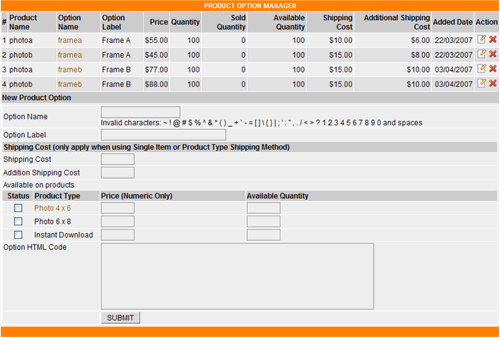
- Option Name
The Option name is used by the system's database, so it should not contain any special characters, spaces or numbers.
e.g. !@#$%^&*()_+|}{":?><1234567890-=\][';,./
- Option Label
You can use this field to describe the Product Option. The product label is what the user will see in the gallery and it may contain special characters, spaces and numbers.
- Shipping Cost & Additional Shipping Cost
Similar to the single item shipping or product item shipping calculation, the system will apply the same formula to calculate the shipping cost for this product option.
NOTE: The system only applies this shipping setting when you're using the "Single Item Shipping Method" or "Product Type Shipping Method" in the Shipping Manager section of the admin control panel.
- Available Products
You need to tell the system which product types are available for this new product option. The system will not allow a customer to purchase this product option if there are no product types that associates with this product option. If you have correctly configured the product types, the system will display them here for you to set the price and their available quantities.
- Status
Check the check box if this new product option is available for this product type. - Product Type
The product type label. - Price (Numeric Only)
The price for this new product option. The price is per item. - Available Quantity
Product options available quantity. The system only allows customers to purchase if the sold quantities plus customer's input quantities are less than available quantities.
- Status
- Option HTML Code
The system requires you to input the Product Option HTML code. This HTML code is used to display in the gallery when a customer wants to preview it before purchasing. There are two tags that are required by the system.
- [MEDIAIMAGE]
The system will replace this tag with the actual media image.
- [OPTION_ADD_TO_CART]
The system will replace this tag with the "add to cart" button.
- Product Option Sample
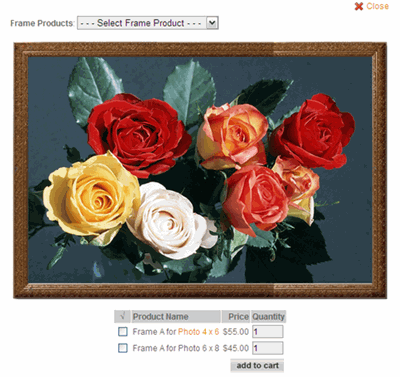
- The following code was used to create the sample frame above.
The images used for the frame can be found in the sample_frame.zip
file in the images folder. The files should be uploaded to the
tmp folder, if you would like to use the sample frame on your
site. When you create a new frame, you can store the image files
in the location of your choice as long as you have the correct
file path in the html code.
<table border="0" cellspacing="0" cellpadding="0">
<tr>
<td align="left" valign="top"><img src="tmp/topleft.gif" alt="" width="22" height="22" /></td>
<td style="background-image:url(tmp/top.gif)"> </td>
<td align="right" valign="top"><img src="tmp/topright.gif" alt="" width="22" height="22" /></td>
</tr>
<tr>
<td style="background-image:url(tmp/left.gif)"> </td>
<td>[MEDIAIMAGE]</td>
<td style="background-image:url(tmp/right.gif)"> </td>
</tr>
<tr>
<td align="left" valign="bottom"><img src="tmp/bottomleft.gif" alt="" width="22" height="23" /></td>
<td style="background-image:url(tmp/bottom.gif)"> </td>
<td align="right" valign="bottom"><img src="tmp/bottomright.gif" alt="" width="22" height="23" /></td>
</tr>
</table>
<table border="0" cellspacing="0" cellpadding="0" align="center">
<tr><td align="center">[OPTION_ADD_TO_CART]</td></tr>
</table>
- [MEDIAIMAGE]
Other Product Option Functions
- To edit an existing product option click on the
Icon.
- To delete an existing product option click on the
Icon.
- Click on the Product Manager
- Product Subscriptions
(Ent. version)
You can use the subscription feature to offer customers the ability to subscribe to your gallery before purchasing products or instant download media. There are two types of subscriptions available.
- Duration Subscription
Customers who subscribe to this subscription type are able to purchase products or downloads for any media that has product types that are available for this subscription. Customers will not able to use a subscription if it has expired.
- Credit Subscription
This subscription type is similar to the “Duration Subscription”, but instead of checking for the expiration date, the system will check for available credits to use. The available credits are the customers Subscription Credits minus the used credits. The customers can’t use their subscription when their remaining credits are zero.
NOTE: If the product type is a delivery type then the customers will only need to pay for the shipping cost and not the media cost. If the product type is NOT a delivery type, then the customers will not be charged during the checkout process. Therefore, Lightbox recommends that you use the subscription product for instant download product types only, to avoid the customer having to pay for shipping charges upon checkout.
Using Subscription Functions
- Subscription Type
Type of subscription, Duration or Credit type.
- Subscription Name
Name of subscription. This name should not contain any spaces or invalid characters.
- Subscription Description
Description of the subscription. Use this field to describe this subscription. The system will use this description in the gallery instead of the subscription name.
- Subscription Price
Subscription price.
- Subscription Period / Credit Number
Depending on Subscription Type selected, the system will display the Subscription Period or Credit Number field. If the subscription type is Duration, then the Subscription Period will be shown. Otherwise the Credit Number will be shown. If the Credit Subscription Type is selected the system will display the "Expire After" field to allow you to set the number of days after the purchase that the subscription will remain valid.
- Available on Product Type
Tick the desired product type for this subscription. The customers are only able to purchase or download any media that has this product type assigned to it.
- Click the Submit button to add the new Subscription.
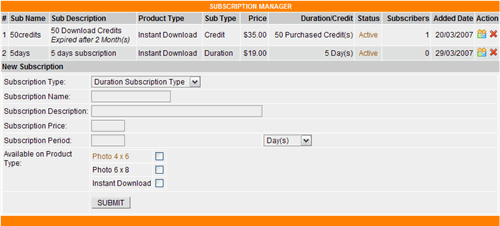
- To Delete an existing subscription click on the
Icon.
The system recommends that you should set the subscription status to "Hidden" instead of deleting it from the database. This will prevent missing data issues.
- To View subscribers for a desired
subscription click on the
 Icon
Icon
With this function you are able to view sales reports for the subscribers. The system also calculates the photographer’s commission, if customers used their subscription to purchase or download a photographer's media.
- To hide a subscription from users, click on the "Active" hyperlink.
Customers are not able to purchase a subscription when its status is "Hidden".
- To activate a "Hidden" subscription, click on the "Hidden" hyperlink
.
- Duration Subscription
- Product Packages (Ent.
version)
Use this feature to create Product Packages to sell a set of images for a set price.
- Click on the Product Manager
Product Packages link in the main menu.
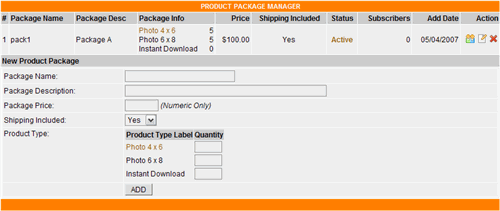
- Package Name
Name of the package. You should not use any invalid characters "~`!@#$%^&*()-_+=\|]}{["':;??><,." or spaces.
- Package Description
Description of package. Use this field to describe the package.
- Package Price
Price of package.
- Shipping Included
If your price already includes the shipping cost, select Yes otherwise select No. If "Yes" is selected, the system will not charge shipping during the checkout process, otherwise the system will charge the shipping cost based on the Shipping Method that you configured in the Shipping section.
- Product Type
Enter the quantity for the desired product type. The system will check to make sure that the quantity that are purchased by users match the quantity entered. If all quantities are matched, then users will be able to check out their order.
- Click Add to add new product package
- Click on the
Icon to view its subscribers.
- Click on the
Icon to edit the desired product package.
- Click on the
Icon to delete the desired product package.
- Click on the "Active" hyperlink to hide the desired product package from users.
- Click on the "Hidden" hyperlink to display the desired product package for users to purchase.
- Click on the Product Manager
LICENSE MANAGER
With the Enterprise version you can use this section to create and assign Rights Managed (RM) licenses for your digital media.
You could think of the license as a tree which has multiple branches and each branch has its own price and sub-branches.
The license tree example below illustrates how the license function works:
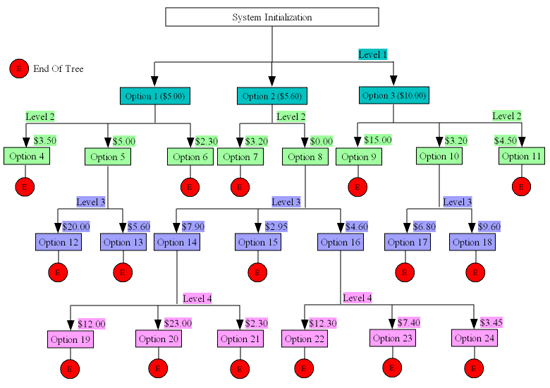
- The system displays all option(s) of the same level of the same
branch in the same drop down list. According to above image,
Option 1, Option 2, Option 3
are in the same drop down list. The system also provides the option
to allow you to label the level option.
- The Option value is only displayed for a user to select if it has
a price of at least $0.00 or a positive number.
- The Option values are displayed based on their parent (rely
on) level. According to the above image, Option 4,
Option 5 and Option 6 are only displayed
in the drop down list of the Level 2 when users select
the Option 1 in the Level 1 drop down
list. The Option 9, Option 10,
Option 11 are displayed when users select Option
3 in the first level drop down list.
- The cost of the selected license is a SUM of all
the selected Options in the license tree. According
to above image the cost for Option 2
Option 8
Option 16
Option 22
is $22.50.
- The E presents for End of Tree, no other option
values will be displayed when this option value is selected.
- Lightbox only allows users to add the RM media to the basket if
all the license options in all drop down menus have been selected.
- Lightbox initializes the drop down option value with all of the options for the parent (rely on) level. According to the above image the Option 1, Option 2, Option 3 are pre-filled in the level 1 drop down list. The other level drop down lists will display N/A (not available).
There are three steps to configure the RM License Calculator feature.
- License Data (set options)
License data, is data that will be displayed in the drop down list for customers to select, based on the license that you created.
- License Manager (set pricing)
The License Manager allows you to create the license by assigning a value (cost) to the license data that was entered in the License Data section.
- Set Media License Type
You will need to set the media type to Rights Managed for all media that you want to utilize the Media License Manager feature.
- Use the License
Data section to set license options
- Click on the License Manager
License Data link in the menu function.
- License Option Label is a label that is used to describe the data in the License Option Value field (e.g. Image Use).
- Rely On: Each drop down list must rely on a
parent option level.
The TOP level means the data in this drop down list will be initially filled with the value that is entered in the License Option Value for users to choose from. - License Option Value are values that are used
for this License Option.
You can enter more values as long as they are separated by a ";" semicolon (e.g. Retail Products;Editorial;Multimedia;Advertising;Display/Signage;Internal Company Use;Marketing). - Click the Submit button to save the changes.
NOTE: If the Option level will not be used by all options in the level that it is set to "Rely On", then an Option value of None should be added.
The following is an example license setup with nine option levels:
Option1:
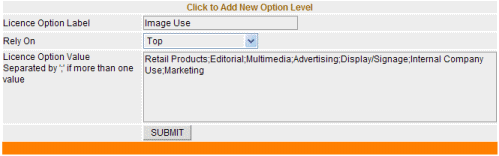
Option 2:

Option 3:
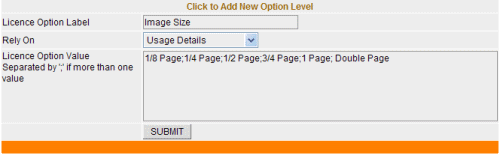
Option 4:

Option 5:
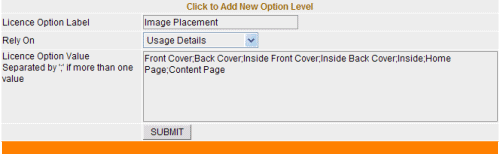
Option 6:

Option 7:
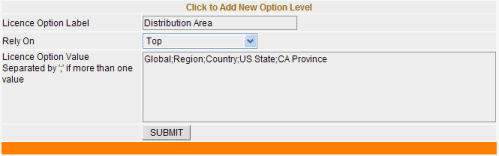
Option 8:
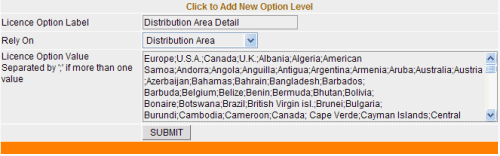
Option 9:

The following image shows the Option Level Manager with the nine option levels created above:
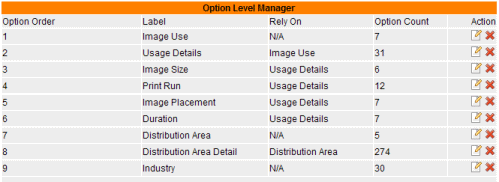
- To edit an existing License Data Option, click on the
icon of the target license option.
- To delete an existing License Data Option, click on the
icon of the target license option.
Note: all data for this license option will be removed from the database. Lightbox will also remove data from License values that you have already created.
- Using the example in the image above:
- The Image Use, Distribution Area and Industry will be initially filled with options when the license is displayed to the user.
- The Details Of Use options will only be filled when the customer selects an option from the Image Use field.
- The Image Size, Print Run, Placement and Duration will only be filled with options once the customer has selected an option from the Details Of Use field.
- The Distribution Area Detail will be filled
when the customer selects an option from the Distribution
Area field.
- The License Option selection displayed in the user interface
for a RM image will look like the following.

- The Start Date drop down lists are added by the system to allow
users to select the starting date of the license use.
- Click on the License Manager
- Use the License
Manager to set pricing for the license options
This feature only applies to the Ent Version. The License Manager section relies on the License Data section. If you have not configured and input the License Data Options in the License Data section please do so before using this section. Once you have configured the license options in the license data section you can now add pricing to the options. In this example we will add a pricing value of $ 0.00, for demonstration purposes. You can add your own values as required.
- Click on the License Manager
License Manager link in the main menu.
- Lightbox will display all the license data options that are in the Main (TOP) level.
- Price the target license tree.
- Click the Submit button to submit the license price.
- You are only able to browse to its sub-option when its price
is $0.00 or greater than $0.00.
NOTE: If a sub-option does not apply to the parent option then 0.00 should be entered for the "None" value.
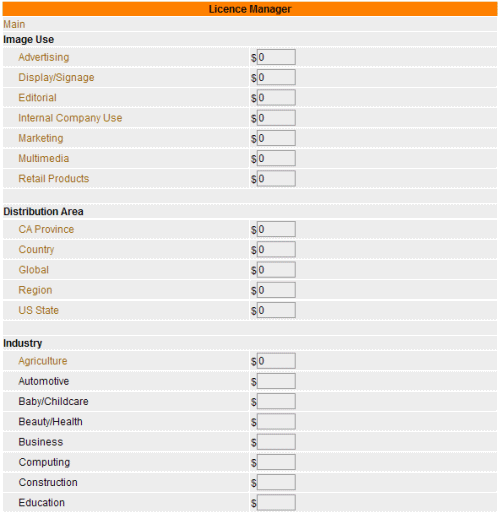
- Once the Main level options have be priced (with at least a
$ 0 value), the sub level options can be priced by clicking on the
main option. For this example we will follow the Advertising option
and price the sub-options (by clicking on the Advertising link in
the screen above).
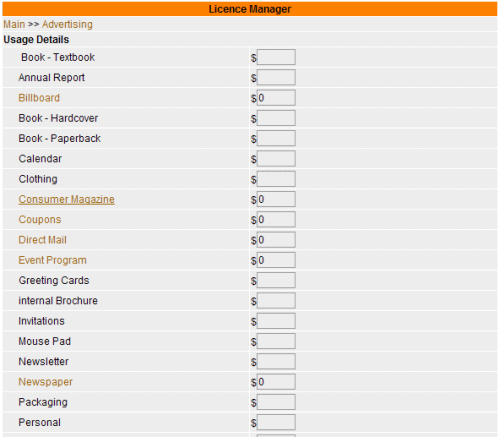
- After clicking on the Consumer Magazine link in the screen above,
further options are displayed (see below).
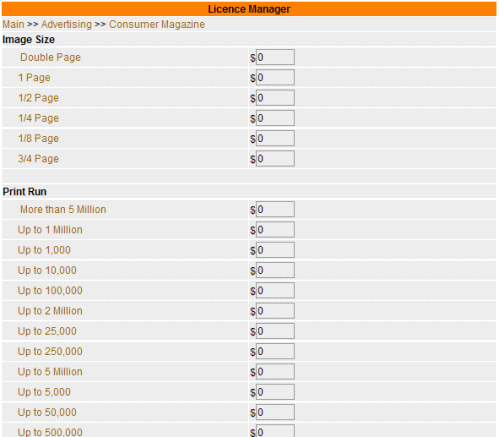
- The screen below is displayed after clicking on the Double Page
link. This is the end of the tree as there are no more options relying
on the Double Page option level.

- The license price is calculated when customers select all the
data in the license tree that you created.
- The Price is a total price of the tree that the customer selected.
- Click on the License Manager
- Set Media License
Type
By default all uploaded media has the media type set to N/A. You will need to set the media type to Rights Managed for media that will use the Media License Manager feature.
- To set the Media License Type individually:
- Click on the Media Manager
Media Manager link in the main menu.
- Browse to the target category.
- Click on the
icon to edit the target media.
- Enter all information into the provided text fields.
- Click on the Rights Managed in the Media Type.
- Click the Submit button to set the License Type to this selected Media.
- Continue for other media as required.

- Click on the Media Manager
- To set the Media License Type for an entire category:
Lightbox also allows you to set the License Type for all media in the target category at once using the Global Update function in the Media Manager.
- Click on the Media Manager
Media Manager link in the main menu.
- Browse to the target category.
- Click on the
icon.
- Click on the Rights Managed in the drop down list.
- Click the Submit button to set all media
of the target category to the selected Media License Type.
- Click on the Media Manager
- To set the Media License Type individually:
PROMOTION CONFIGURATION (Pro. & Ent. versions)
This section allows you to add a new promotion or delete an existing one. The Promotion Code can either be created and given out to customers to enter during the checkout process or it can be created to be automatically applied if the purchase amount meets the defined criteria. The promotion can be an exact amount or a percentage of sales.
The promotion code is only applied if the Enable Promotion Code is enabled in the General Configuration section.
To create a new promotion code:
- Click on the Promotions link in the main menu.
- Enter the Promotion Code in the promotion code field. The system will only apply the discount to the purchase if the Promotion Code is a match (it is not case sensitive).
- Enter the Promotion Value. This is the amount that you want to give as a promotion (discount), if the code entered by the customer is verified by the system. Select if you want the Promotion to be an Exact Value or a % of Net Purchase (total before tax and shipping).
- Enter the Promotion Net Value. The Net Value will be used to determine if the promotion code can be used for this purchase (minimum order total to qualify for the promotion). Lightbox will only apply the discount to the purchase if the customer's purchase is greater than or equal to the Promotion Net Value.
- Select Auto Promotion
If Yes is selected, Lightbox will apply the promotion code automatically if the values set above are met.
If No is selected the customers need to enter the promotion code during the checkout process to have the discount applied to their purchase. - Click Submit to add the new promotion code.
eg: You enter:
Promotion code: XYZ123
Promotion value: 25 You also need to select the promotion method in the dropdown list (Exact Value).
Promotion net value: 125
Auto promotion: No
The system only deducts the promotion value from the customer's purchase if they purchase at least $125 (before tax and shipping). The promotion value is calculated based on the selected promotion method. If the promotion method is "Exact Value", the system will deduct the exact value entered in the promotion value field. Otherwise the promotion value will be calculated based on the specified percentage of the net value.
100% Discounts to offer FREE products or downloads
You can create a discount of 100% which will allow customers to download files for free, or you can allow them to download now and invoice them later.
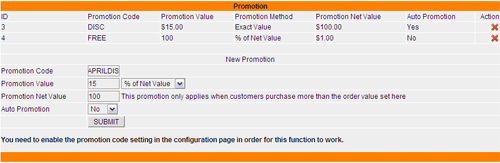
SHIPPING MANAGER
Lightbox can charge customers a shipping cost during the checkout process. The shipping cost is based on the shipping configuration that is set in the Shipping Configuration section. There are four shipping methods that are available for you to choose from.
- Use the Single Item Shipping Method.
- Use the Flat Rate Shipping Method.
- Use the Flat Rate Zone Shipping Method (Pro. & Ent versions).
- Use the Product Type Shipping Method (Pro. & Ent versions).
- Configuration
Before configuring the shipping cost for your gallery you need to tell the system which shipping method you are going to use. Use this function to set the shipping method for your gallery.
- Click on the Shipping Manager
Configuration link in the main menu.
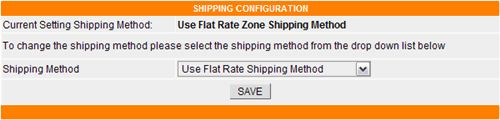
- Shipping Method
The shipping method is the method that the system will use for all orders.
- To change the Shipping Method select the method in the Shipping
Method drop down list and click the SAVE button.
- Click on the Shipping Manager
- Disable Shipping Feature
If you don't offer any products that require shipping, you can select this option in the Shipping configuration section. Lightbox will not charge shipping on any purchases.
-
Use Single Item Shipping Method
If you want to charge a shipping cost based on each individual media purchased then this option should used.
NOTE: You need to enable the Single Item Shipping Method setting in the Shipping Configuration in order for this function to work.
- Click on the Media Manager link in the main menu.
- Browse to the category that contains the desired media.
- Click on the
icon to edit the media's properties.
- Enter the Shipping value.
- Enter Additional Item Shipping value.
- Click Submit to set the shipping cost for this media.
- The Additional Item Shipping Cost value is only applied on the
second and subsequent item for this media. e.g. a customer adds
3 of the same media to their shopping cart where the Shipping Cost
and Additional Shipping Cost are $5 and $3 respectively. Lightbox
will calculate the shipping cost as follows:
Total Shipping Cost = 5 + (3-1)*3 = $11.00
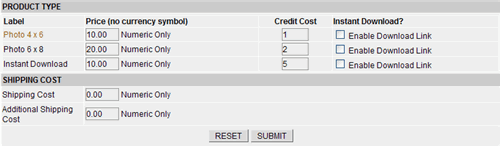
- Use Flat Rate Shipping Method
The flat rate shipping manager section allows you to set a flat rate for shipping cost based on the total amount of the customer's order before tax is added, instead of assigning individual shipping values in the media manager.
NOTE: You need to enable the Flat Rate Shipping Method setting in the Shipping Configuration page in order for this function to work.
- Click on the Flat Rate Shipping link in the main menu.
- Enter a Price From value.
- Enter a Price To value.
- Enter a Shipping Cost for this range.
- Click the Add button, to add the new flat rate shipping range.
- To remove a range, click on the
icon.
You can create as many ranges as necessary. Lightbox charges customers based on the purchase total before tax.
e.g. You create the flat rate shipping as follows:
The Price From and Price To are $0.00 and $49.99 respectively with a shipping Cost of $10.00.
The $10.00 will only be applied if the customer purchases items that total between the $0.00 - $49.99.
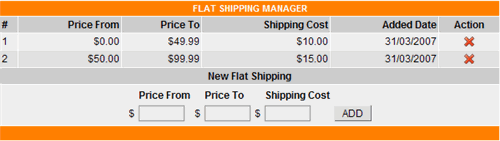
- Use Flat Rate Zone Shipping Method (Pro. & Ent.
versions)
The zone shipping is similar to the flat rate shipping method except it allows you to set different shipping costs for different geographical zones. Customers need to select their shipping zone during the checkout process. The cost is calculated based on customers zone selection.
NOTE: You need to enable the Flat Rate Zone Shipping Method setting in the Shipping Configuration page in order for this function to work.
- Click on the Shipping Manager
Zone Shipping link in the main menu.

- Zone name
The zone name must be unique for every zone. It should not contain any invalid characters or spaces. - Zone Label
Using this field to describe this zone. The system will use this label to display to users for selection. - Click Add button to add the new zone .
- Click on the
icon to edit an existing shipping zone.
- Click on the
icon to delete an existing shipping zone.
- Click on the
icon to set the cost for the target zone.
Zone Configuration - Click on the
icon to launch Zone Configuration page.

- Enter a Price From value.
- Enter a Price To value.
- Enter a Shipping Cost for this range.
- Click the Add button to add the new flat rate shipping range.
- To remove a range, click on the
icon.
If you have correctly configured the shipping zone, the system will display the available zone options in a drop down menu on the shopping cart page.

- Click on the Shipping Manager
- Use Product Type Shipping Method
The Product Type Shipping Method allows you to charge the shipping cost based on a Product Type. You should have at least one Product Type existing in the database in order to use this feature.
NOTE: You need to enable the Product Type Shipping Method setting in the Shipping Configuration page in order for this function to work.
- Click on the Product Manager
Product Types link in the main menu.
- Click on the
icon to edit an existing Product Type (or add new one if needed).
- Enter the Base Price for this product type.
- Enter the Base Credit value for this product type.
- If you want to disable Tax on this product type tick the Disable Tax checkbox.
- Enter the Shipping Cost for this product type.
- Enter the Additional Shipping Cost for this
product type. The Additional Shipping Cost is only applied on the
second and subsequent items with the same product type.
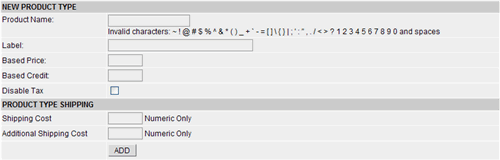
- Click on the Product Manager
TAX MANAGER
The Tax Manager section allows you to tax any order based on a defined set of variables. The available variables are drawn from the registration form fields. Tax will be applied (if the user's registration details match the defined variables) to the order total after any discounts have been applied but before any shipping charges are added.
There are two tax methods that Lightbox uses:
- Sales Tax System
- VAT system
- Configuration
Use this configuration section to tell the system which tax method it should use in the gallery.
- Click on the Tax Manager
Configuration in the main menu.
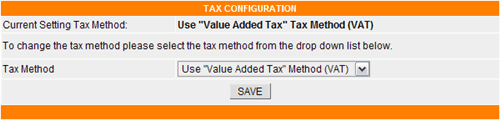
- Tax Method
The Tax Method is the method that Lightbox uses to tax customers. There are three options available:
- Disable Tax System
The system will not tax any order if this option is selected. - Use Sales Tax Method
The system will tax customers based on the total purchase amount and the settings that you configured in the Sales Tax configuration section. - Use "Value Added Tax" Method (VAT)
The system will separate the already included tax from the sub total. The amount that is calculated is based on the settings that you have configured in the VAT configuration section.
- Disable Tax System
- Select the desired method in the Tax Method drop down
list and click the SAVE button.
- Click on the Tax Manager
- Sales Tax
You need to choose the "Use Sales Tax Method" method in the Tax Configuration section for this function to work.
- Click on the Tax Manager
Sales Tax link in the main menu.
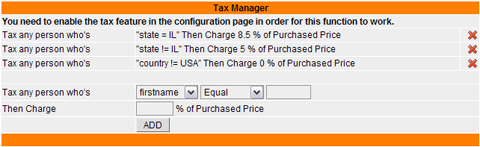
- If you don't see any values in the first drop down list (firstname), please see the Registration Form section to configure the form.
- Select the value in the first drop down list.
- Select the value in the second drop down list (operand).
- Enter the value that will be matched to the customer's entered value. The system will only work correctly if the value is an exact match. We recommend that you should use a drop down type for this form field, so that customers are only able to select the value that you have entered here, instead of entering their data into a field.
- Enter the percentage value.
- Click the ADD button to add the new Tax criteria.
e.g. Assuming that you want to charge the customers who are in the State of Illinois (IL) 8.5%, all other states 5% and outside of the United States 0% then do the following. We assume you have the State and Country fields setup in the Registration Form section.
Creating IL State Tax
- Select the State in the first drop down list.
- Select Equal in the second drop down list.
- Enter IL to the third text box field. We assume that IL is in the State drop down list that you initially entered when creating the registration form.
- Enter 8.5 to the Then Charge field.
- Click the ADD button.
Creating Other State's Tax
- Select the State in the first drop down list.
- Select Not Equal in the second drop down list.
- Enter IL in the third field text box.
- Enter 5 to the Then Charge field.
- Click the ADD button.
Creating Other Countries Tax (Outside US)
- Select Country in the first drop down list (We assume that you have the country drop down field in the registration form).
- Select Not Equal in the second drop down list.
- Enter USA in the third field text box (We assume that the USA value is in the Country drop down list that you initially entered when creating the registration form).
- Enter 0 to the Then Charge field.
- Click the ADD button.
- Click on the Tax Manager
- VAT
VAT is similar to the Sales Tax method, but instead of adding sales tax to the sub total, the system will separate the already included tax from the sub total. The system uses the following formula to calculate the VAT.
Total Tax = A1 – A1 / (100% + A2)
A1 = order sub total cost
A2 = tax percentage
e.g
A1 = $100
A2 = 8.5 %
Total tax = 100 – 100 / (100% + 0.085) = 100 - 100 (1 + 0.085) = $7.83
The VAT method uses the same configuration function as described above in the Sales Tax Manager configuration section.
PAYMENT GATEWAYS
The Payment Gateway Section allows you to configure and set up the payment gateway(s) that will be used to process the customer purchases during the checkout process. There are seventeen payment gateways and an offline payment processing method available for your selection. You can offer more than one gateway for your customer's to use if desired. You will need to open accounts with the gateway providers that you wish to use.
Lightbox supports the following payment gateways.
- PayPal & PayPal Pro Gateway (US & International)
- 2Checkout Gateway (US & International)
- Protx - VSP Form & Direct Gateway (UK Based Company)
- VeriSign Payflow Link Gateway (US Based Company)
- Skipjack Gateway (US Based Company)
- WorldPay Gateway (UK & International)
- WestPac Gateway (AU Based Company)
- PayGate Gateway (South African Based Company)
- Paystation Gateway (New Zealand Based Company)
- Przelewy Gateway (Polish Based Company)
- Webstream Gateway (US Based Company)
- eProcessing Network Gateway (US Based Company)
- Concord Gateway (US Based Company)
- LinkPoint Gateway (US Based Company)
- Echo Gateway (US Based Company)
- Authorize.Net Gateway (US Based Company)
- Payment Express Gateway (NZ Based Company)
- ANZ Egate Gateway (Australia Based Company)
- WTC PayEx Gateway (Scandinavian based Company)
- Beanstream Gateway (Canadian Based Company)
- Chase Paymentech (US Based Company)
- Offline Processing (For Manual Offline Processing)
There are twelve payment gateways that upon checkout, re-direct the customer to their secure server to process the transaction. These gateways do NOT require a secure certificate (SSL) to be installed on your site. The other advantage of these gateways is that they may have free setup and no (or low) monthly fees.
- PayPal Gateway
- 2Checkout Gateway
- Protx - VSP Form
- VeriSign Payflow Link Gateway
- Skipjack Gateway
- WorldPay Gateway
- WestPac Gateway
- PayGate Gateway
- Paystation Gateway
- Przelewy Gateway
- Webstream Gateway
- ANZ Egate Gateway
- PayPal Pro
- Concord Gateway
- LinkPoint Gateway
- Protx VSP Direct Gateway
- Echo Gateway
- Authorize Net Gateway
- Payment Express Gateway
- eProcessing Gateway
- WTC PayEx Gateway
- Beanstream Gateway
- Chase Paymentech
- Offline Processing
Below are a few companies that offer SSL certificates.
Payment Gateway Configuration
- Click on the Payment Gateways link in the main menu.
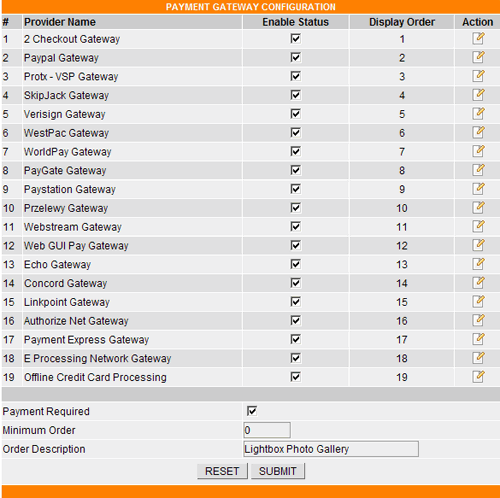
- Tick all the gateways that you wish to use for payment processing (you will need to setup an account with each one that you wish to use). Lightbox will display these selections for customers to choose from on the checkout confirmation page.
- Tick the Payment Required checkbox. If this checkbox is not checked, then instead of being taken to the payment processor, the customer will be taken upon checkout directly to their "My Account" area. If they have ordered an instant download product, this is where it will be made available for download.
- Enter the Minimum Order Amount. Lightbox will only process the order if the total meets the Minimum Order Amount. Otherwise the customer will be prompted to continue shopping.
- Enter the Order Description for the purchase. Lightbox sends the Order Description to the payment processor.
- Click the Submit button to save the configuration.
- Click on the
icon to edit the configuration for the target gateway.
- To view details
of how to set up each payment gateway click on the
icon in each of the payment gateway configuration sections.
Once the payment processor receives the payment from the customer, the
processor writes back to the Lightbox system confirming that the payment
was received. This updates the status in real time of the order in the admin
area from Pending to Completed and the
customer is re-directed to their "My Account" area. Here,
the customer will see a summary of their transaction and they can print
a copy of their invoice (Pro and Ent. only). If their purchase included
an instant download product, then they will be able to download their order
using the link provided.
TEMPLATE
CUSTOMIZATION
This feature allows you to customize the look and feel of your gallery.
It is suggested that you make a copy of the templates in a temporary folder.
That way, you will be able to experiment with modifications without worrying
about "loosing" template defaults. The standard set of templates can be
used "out of the box", edited to match an existing look and feel or you
can replace the existing templates with new ones that you have created from
the "ground up". Some templates have dynamic "call tags" and they can be
moved within the template or deleted as desired.
Below are some restrictions that are required by the system.
- Predefined call tags
You should not remove the predefined call tags from the templates unless you wish to remove the dynamic feature produced by the tag. You should exercise caution when removing tags, as you could remove features that will adversely affect the way the gallery functions. The tags are predefined variables surrounded by square brackets, e.g. [GALLERY]. Lightbox will replace these tags with dynamic content created by the system. - Javascript
You must not remove any javascript that is included in the templates after the installation. The system will not work if its javascript is removed. - CSS
You should not remove any CSS tags that are in the templates unless you have experience in creating and calling your own CSS.
There are two template directories that Lightbox uses. Gallery Templates in the template folder and Smarty Templates in the tpl folder.
- Gallery Templates
All gallery templates are located in the “template” directory. You can modify these html templates using the Lightbox control panel or by editing in an html editor such as FrontPage or Dreamweaver. These templates contain predefined call tags that are described below.
- about.tpl
Use this template to describe your company, product or services. The system also supports images and links, therefore when adding images or links to this template make sure the path is valid. There are no predefined tags in this template.
- activate_email.txt
The system will use this template for the activation email that is sent to end-users if the “Enable New Account Email Validation” option is checked in the General Configuration. There are four predefined tags within this template. The system uses plain text format for this template, no HTML code is allowed.
- [USERNAME]
The system will replace this tag with end user's username. - [PASSWORD]
The system will replace this tag with end user's password. - [ACTIVATE_CODE]
The system will replace this tag with the activation code. The activation code is generated by the system and the customer needs to input this code when validating their email address. If the code is valid, then the system will activate their account (Active status), otherwise it will not be activated. - [LINK]
The system will replace this tag with an activation link that allows users to click on it to validate their email address.
- [USERNAME]
- agreement.tpl
When you enable the “Enable Agreement Checkbox” in the General Configuration section, this template will be used to display your agreement details. You will need to input your site agreement (terms etc.) to this template and it's contents will display on the customer's registration form. No predefined tags are available for this template.
- category.tpl
This template is used to display each media category. There are four predefined tags in this template.
- [DISPLAYNAME]
The system will replace this tag with the category display name (if one is entered) or the system name by default. - [CATEGORYDETAIL]
The system will replace this tag with the category stats (category quantity, media quantity). - [LASTMODIFIED]
The system will replace this tag with the date of last modification. - [DESCRIPTION]
The system will replace this tag with the category description.
- [DISPLAYNAME]
- confirm.tpl
This template is used on the last checkout page. You can use this template to tell customers what they should expect after their purchase. There are no predefined tags for this template.
- contact.tpl
This system uses this template to display the Contact Us page. There are no predefined tags for this template but you should not remove the <div> tag below:
<div id="error_message" class="error_style"></div>
The system will replace this <div> tag with an error if visitors do not input anything into the provided text fields of the contact form.
- contact_mail.tpl
The system uses this template to form the email message when customers submit messages via the contact form on the contact page. There are five predefined tags for this template.
- [FIRSTNAME]
The system replaces this tag with the customer's input data for the first_name field on the contact form. - [LASTNAME]
The system replaces this tag with the customer's input data for the last_name field on the contact form. - [PHONE]
The system replaces this tag with the customer's input data for the phone field on the contact form. - [EMAIL]
The system replaces this tag with the customer's input data for the email field on the contact form. - [COMMENTS]
The system replaces this tag with the customer's input data for the comments field on the contact form.
- [FIRSTNAME]
- horizontal_css.css
This file is used to control the dynamic content and layout of your gallery. By default, the user_horizontal.tpl and user_private_horizontal.tpl use this style sheet for its layout style.
- invoice.tpl (Pro. & Ent. versions)
This template is used when customers want to view or print an order invoice. There is only one predefined tag for this template. If you add images to this template, make sure you use the absolute path to the image file. e.g. src="http://www.your-domain.com/images/logo.jpg". Also, you will need change the sample path to the css file in the html code with your actual path, replacing "your-domain.com" with your actual domain name and "path-to-lightbox" with the folder that lightbox resides (or remove if it is the root).
- [INVOICE]
The system will replace this tag with the order invoice.
- [INVOICE]
- media.tpl
This template is used to display the thumbnail image for each display image. There are six predefined tags for this template.
- [FILENAME]
The system will replace this tag with the media thumbnail image. - [DISPLAYNAME]
The system will replace this tag with the file system name or display name (whichever is present). - [LIGHTBOX]
The system will replace this tag with the "Add Lightbox" or "Remove Lightbox" icon.
[ADDTOCART]
The system will replace this tag with the "Add to Cart" icon. - [LIGHTBOXCOMMENTS]
The system will replace this tag with the "Add Media Comments" icon. This only applies on the lightbox page. The system will replace this tag with an empty string on the other pages. - [IPTC] (Pro. & Ent. versions)
The system will replace this tag with the image's IPTC info. The display order is fixed, but individual fields can be turned on/off in the IPTC config section of gallery admin area.Floating IPTC tags
This is an alternative method to display the IPTC metadata. This feature allows you to place the individual IPTC field calls anywhere on the template and in any order. For example if you wanted to display the Caption and Keywords only (in that order), then you will add the following to this template.
Caption: [caption]
Keywords: [keywords]For this method, you will have to remove the [IPTC] tag and replace it with the individual IPTC tags. The list of available calls are listed below.
[object_name]
[edit_status]
[priority]
[category]
[supplementary_category]
[fixture_identifier
[keywords]
[release_date]
[release_time]
[special_instructions]
[reference_service]
[reference_date]
[reference_number]
[created_date]
[originating_program]
[program_version]
[object_cycle]
[byline]
[byline_title]
[city]
[province_state]
[country_code]
[country]
[original_transmission_reference]
[headline]
[credit]
[source]
[copyright_string]
[caption]
[local_caption]
- [FILENAME]
- media_detail.tpl
This template is used to display the media detail (enlarged display image) page. There are seventeen predefined tags for this template.
- [FILENAME]
The system will replace this tag with the enlarged display image. - [SENDTOFRIEND]
The system will replace this tag with the SEND TO A FRIEND link. When customers click on this link, the system will display the SEND TO A FRIEND form to allow customers to send the selected media to their friends. - [LIGHTBOX]
The system will replace this tag with the "Add Lightbox" or "Remove Lightbox" icon. - [SAMPLEDOWNLOADLINK] (Pro. & Ent. versions)
The system will replace this tag with a "sample image" download link. The sample image download file must reside in the same location as the target display file. You need to name the sample download file as follows:
media name: media.jpg
sample download file: sample_media.jpg
The system only displays a download link if it detects the sample download file on the server. If there is a sample download file, it allows customers to click on the sample download link to download this sample media file. This feature can be used to offer "watermark free comp images". - [DISPLAYNAME]
The system will replace this tag with the file system name or display name (whichever is present). - [AUTHOR]
The system will replace this tag with the media's author. - [COPYRIGHT]
The system will replace this tag with the media's copyright info. - [HIT]
The system will replace this tag with the number of hits (image views). You can edit this value in the Global Update section. - [LASTMODIFIED]
The system will replace this tag with the media's last modified date. Anytime you edit the media properties, the system will update the last modified date to the date it was edited. - [MEDIATYPE] (Ent. version)
The system will replace this tag with the media type. The media type is changeable in the media properties page or the Global Update section. - [MEDIARELEASE] (Ent. versions)
The system will replace this tag with the media release status. The media release status is changeable in the media properties page or the Global Update section. - [MEDIAORIENTATION] (Ent. versions)
The system will replace this tag with the media orientation. The orientation is changeable in the media properties page or the Global Update section. The system will not determine media orientation automatically. You have to input the orientation manually. - [DESCRIPTION]
The system will replace this tag with the media's description. The media description is changeable in the media properties page or the Global Update section. - [KEYWORD] (Pro. & Ent. versions)
The system will replace this tag with the keyword section. The media keywords are changeable in the media properties page or the Global Update section. - [PRODUCTTYPE]
The system will replace this tag with the product type The system will only display the media product type if it has been assigned a price greater than zero. You can use the Product Manager section to add or remove product types. - [ADDTOCART]
The system will replace this tag with the add to cart button. Note: the add to cart button will not display unless a price has been added to at least one product type. - [IPTC] (Pro. & Ent. versions)
The system will replace this tag with the image's IPTC info. The display order is fixed, but individual fields can be turned on/off in the IPTC configuration section. You can also specify which fields will be searchable.
Floating IPTC tags (Pro. & Ent. versions)
This is an alternative method to display the IPTC metadata. This feature allows you to place the individual IPTC field calls anywhere on the template and in any order. For example if you wanted to display the Caption and Keywords only (in that order), then you will add the following to this template.
Caption: [caption]
Keywords: [keywords]For this method, you will have to remove the [IPTC] tag and replace it with the individual IPTC tags. Click here to see a list of available IPTC tags.
- [FILENAME]
- media_preview.tpl (Pro. & Ent. versions)
The system uses this template when customers "mouse over" a media thumbnail. There are seven predefined tags for this template.
- [DISPLAYNAME]
The system will replace this tag with the media display name or system name. - [AUTHOR]
The system will replace this tag with the media's author. - [COPYRIGHT]
The system will replace this tag with the media's copyright details. - [MEDIATYPE] (Ent. version)
The system will replace this tag with the media type. - [HIT]
The system will replace this tag with the number of hits (image views). - [LASTMODIFIED]
The system will replace this tag with the media's last modified date. - [RELEASESTATUS] (Ent. version)
The system will replace this tag with the media's release status.
- [DISPLAYNAME]
- mobile_order_notify.tpl (Ent.
versions)
The system uses this template to send a new order notification to the mobile phone email address that you input into the General Configuration. You can obtain the mobile phone email address through your service provider. The system will not use this template if a mobile email address is not detected. There are eight predefined tags for this template. The system uses plain text format for this template, therefore no HTML code is permitted.
- [ORDER_ID]
The system will replace this tag with the new order id. The order id is generated when customers checkout our their orders. - [CUSTOMER_USERNAME]
The system will replace this tag with the customer's username. - [SUB_TOTAL]
The system will replace this tag with the order's sub total. - [TAX]
The system will replace this tag with the amount of tax calculated for the order. - [SHIPPING]
The system will replace this tag with the order's shipping cost. - [PROMOTION]
The system will replace this tag with the promotion value that was applied to the order. - [GRAND_TOTAL]
The system will replace this tag with the order's grand total. - [PURCHASED_DATE]
The system will replace this tag the date that the order was created.
- [ORDER_ID]
- notify.tpl
If the “Notify me when someone signs up” is turned on in the General Configuration, then the system will use this template to notify you when customers submit their new registration details to your server. This template can be configured differently depending on the information that you want collect from the customer. The system uses plain text format for this template, no HTML code is allowed.
e.g. If you add a field name 'fax' to the registration form, then you will need to add the tag [fax] to this template. Lightbox will replace this tag with the customer's fax number.
- orderinfo.tpl
The system displays this template contents on the order information page. You can use this template to explain the ordering procedure to your customers.
- password_email.txt
The system uses this template when customers are requesting to “Recover a lost password”. There are two predefined tags for this template. The system uses plain text format for this template, no HTML code is allowed.
- [USERNAME]
The system will replace this tag with the customer's username. - [PASSWORD]
The system will replace replace this tag with the customer's password.
- [USERNAME]
- photographer_activate_email.txt (Ent.
version)
If the “Enable Photographer Email Validation” option is turned on in the Photographer Settings section, the system will use this template when a photographer registers to your site. The system uses plain text format for this template, no HTML code is allowed. There are four predefined tags for this template.
- [USERNAME]
The system will replace this tag with the photographer's registered username. - [PASSWORD]
The system will replace this tag with the photographer's registered password. - [ ACTIVATE_CODE]
The system will replace this tag with the activation code. The activation code is generated when a photographer submits their registration details. - [LINK]
The system will replace this tag with the activation link. The photographer needs to click on this link to activate their account.
- [USERNAME]
- photographer_agreement.tpl (Ent. version)
This is similar to the Customer Agreement feature. When you enable the “Enable Photographer Agreement Checkbox” in the General Configuration section, this template will be used to display your agreement details. You will need to input your site agreement (terms etc.) to this template and it's contents will display on the photographer's registration form. No predefined tags are available for this template.
- photographer_approval_notify.txt (Ent.
version)
If the photographer's “Enable Photographer Approval Notification” option is turned on, the system will use this template to notify you when a photographer uploads new media to your server. The system uses plain text format for this template, no HTML code is allowed. There are four predefined tags for this template.
- [MEDIA_NAME]
The system will replace this tag with the file system name or display name (whichever is present). - [MEDIA_CATEGORY]
The system will replace this tag with the media category. - [MEDIA_PATH]
The system will replace this tag with the media's actual file path. - [APPROVED_STATUS]
The system will replace this tag with the media approval status. The approval status is set based on approval status setting in the photographer's profile.
- [MEDIA_NAME]
- photographer_home.tpl (Ent. version)
The system uses this template for the photographers home page. There are two predefined tags for this template. This template uses the cb.css style sheet in the css folder.
- [MENU]
The system will replace this tag with the photographer's navigation menu. - [CONTENTS]
The system will replace this tag with the contents of the photographer's section.
- [MENU]
- photographer_notify.tpl (Ent. version)
If the “Notify me when someone signs up” is turned on in the General Configuration, then the system will use this template to notify you when photographers submit their new registration details to your server. This template can be configured differently depending on the information that you want collect from the photographers. The system uses plain text format for this template, no HTML code is allowed.
e.g. If you add a field name 'fax' to the registration form, then you will need to add the tag [fax] to this template. Lightbox will replace this tag with the photographer's fax number.
- private_login.tpl (Pro. & Ent. versions)
Before customers view a Private Gallery, they must input a valid username/password combination into the private login form. This system will use this template to prompt users for their username and password. There is one predefined tag for this template.
- [PRIVATELOGIN]
The system will replace this tag with the login form. The private login form can be edited in the user_private_login.tpl template in the tpl/english/others directory.
- [PRIVATELOGIN]
- readme.txt
This file will be combined into the zip file that the user will download after their purchase is complete. This template can be used to include your usage/license details (or any other information that you want to provide) for the end-user.
- send_invoice.tpl (Pro. & Ent. versions)
If the “Enable Notification Invoice Email” option is turned on in the general configuration, then the system will use this template to send out the notification invoice to the customer's email address and the site's administrator's email address. There is one predefined tag for this template. The system uses HTML format for this template. If you add images to this template, make sure you use the absolute path to the image file. e.g. src="http://www.your-domain.com/images/logo.jpg". Also, you will need change the sample path to the css file in the html code with your actual path, replacing "your-domain.com" with your actual domain name and "path-to-lightbox" with the folder that lightbox resides (or remove if it is the root).
- [INVOICE]
The system will replace this tag with the customer's order invoice.
- [INVOICE]
- send_lightbox_email.tpl
The system uses this template to create the email used when customers send their lightbox to their friends. There are four predefined tags for this template. The system uses HTML format for this template. If you add images to this template, make sure you use the absolute path to the image file. e.g. src="http://www.your-domain.com/images/logo.jpg". Also, you will need change the sample path to the css file in the html code with your actual path, replacing "your-domain.com" with your actual domain name and "path-to-lightbox" with the folder that lightbox resides (or remove if it is the root).
- [FRIENDNAME]
The system will replace this tag with the customer's friend's name. - [SENDERNAME]
The system will replace this tag with the customer's name. - [MESSAGE]
The system will replace this tag with the customer's message. - [LINK]
The system will replace this tag with a clickable link. This link allows the customer's friend to click on it to go back to your site and view the contents of the sent lightbox.
- [FRIENDNAME]
- send_order_details.tpl (Pro. & Ent. versions)
The system uses this template when you manually send order details to a customer. The email will be sent to email address on the Order Details page. There are two predefined tags for this template.
- [MESSAGE]
The system will replace this tag with the your input message with this tag. - [ORDER_DETAILS]
The system will replace this tag with the selected order details with this tag.
- [MESSAGE]
- send_to_friend_email.tpl
The system uses this template to create the email used when a customer sends a selected media to their friends. The system uses HTML format for this template. There are five predefined tags for this template. If you add images to this template, make sure you use the absolute path to the image file. e.g. src="http://www.your-domain.com/images/logo.jpg". Also, you will need change the sample path to the css file in the html code with your actual path, replacing "your-domain.com" with your actual domain name and "path-to-lightbox" with the folder that lightbox resides (or remove if it is the root).
- [FRIENDNAME]
The system will replace this tag with the input friend's name. - [SENDERNAME]
The system will replace this tag with the input name with this tag. - [MESSAGE]
The system will replace this tag with the input message with this tag. - [LINK]
The system will replace this tag with a clickable link. The link allows the customer's friend to click to go back to your gallery to view the media. - [MEDIA]
The system will replace this tag with the media's actual image. Note: If the image is sent in the email it will no longer be protected by the "image protection" features.
- [FRIENDNAME]
- user_account_info.tpl
This template is used for the "My Account" page. This page shows the customer's order history and also allows customers to download any instant download orders. The customer can also use links on this page to edit their profile or to logout from the system. There are no predefined tags for this template.
- user_horizontal.tpl
If the “Menu Button Display Style” in the General Configuration is set to use the horizontal style, then the system will use this template for the gallery layout. This is the main gallery template and the required CSS and javascript calls must be included in this template. There are ten predefined tags for this template.
- [KEYWORDSEARCH]
The system will replace this tag with a quick search form. - [ADVANCED_SEARCH_LINK] (Pro. & Ent versions)
The system will replace this tag with the advanced search link. This link will redirect customers to the advanced search page when clicked. - [MEMBERACCOUNT]
The system will replace this tag with the visitor's account welcome message. - [MENU]
The system will replace this tag with the gallery navigation menu buttons. You can replace the included menu buttons with your own, simply by uploading new image files to the images directory, while maintaining the same file names. If you wish to add buttons or links to the menu, then you will need to remove the [MENU] call tag and replace the dynamic menu with a static menu of your own. You will have to use the same URL paths (see below) that are currently being used for the existing dynamic menu.
- <a href="index.php?pageId=0&start=0" > Home</a>
- <a href="index.php?module=media&pId=101&start=0" > New Images</a>
- <a href="index.php?module=lightbox&pId=100&start=0" > Lightbox</a>
- <a href="index.php?module=product_type&pId=100">Products</a>
- <a href="index.php?module=customer&pId=100&start=0" > My Account</a>
- <a href="index.php?module=basket&pId=100&start=0" > Shopping Cart</a>
- <a href="index.php?module=company&pId=100&start=0" > Ordering Info</a>
- <a href="index.php?module=company&pId=102&start=0" > Contact Us</a>
- <a href="index.php?module=company&pId=101&start=0"
> About Us</a>
- [PAYMENTMETHOD_LINK] (Ent. version)
The system will replace this tag with the Payment Method link. The Payment Method link allows customers to switch payment methods used to make purchases. - [SHOPPINGCARTSTATS]
The system will replace this tag with the customer's shopping cart details. - [LOGINOUT]
The system will replace this tag with a login or logout link if customer's have logged in. - [CATEGORYDROPDOWN]
The system will replace this tag with the gallery categories. There are two display options for the gallery categories.
- Drop Down List Style
The system displays the gallery categories in an drop down list. - Listing Style
The system displays the gallery categories in a listing style.
- Drop Down List Style
- [FEATUREDMEDIA]
The system will replace this tag with the gallery featured media. You can change the number of featured media that are displayed in this area by changing the "Featured Media Display Number" in the General Configuration section. You can also change the setting to have the featured media displayed vertically in a column or horizontally in a row. - [GALLERY]
The system will replace this tag with the gallery's dynamic media content.
- You MUST NOT REMOVE the following javascript and
CSS calls from the template.
<script language="JavaScript" src="./scripts/scripts.js" type="text/javascript"></script>
<link rel="stylesheet" href="./template/horizontal_css.css" type="text/css" />
and for image protection (optional):
<meta http-equiv="imagetoolbar" content="no" />
<script language="JavaScript" src="./scripts/protect.js" type="text/javascript"></script>
The protect.js file will help protect images from unauthorized use. There are features that can restrict the functionality of your site and depending on your application, may not be desirable. You can deactivate the individual features in this file by adding the comments // in front of the code that needs to be deactivated. Depending on the browser used and the browser settings the features may not be effective. Lightbox also recommends the use of a physical watermark. The following features are included.
- Disables right click
- Check if the mouse button pressed is the right one
- If browser is IE, set the right click event not to show the context menu when clicked
- Disable drag & drop
- Disable text selecting and copy-paste functions
- Disables showing URL of links in status bar, it works by showing a custom message in the status bar when the mouse is moving
- Disable offline use by detecting whether the URL of the webpage is not an HTTP protocol
- Keep page out of frames
- Function to clear the clipboard data (text or pictures)
- Code triggers the interval for deleting clipboard contents and also it will set to not show error messages in case of bugs with the browser
- [KEYWORDSEARCH]
- user_private_horizontal.tpl (Pro. & Ent.
versions)
This template is similar to the user_horizontal.tpl template, but it's used in the private gallery. This template is used in the private gallery when the "Menu Button Display Style" is set to horizontal. Please see the user_horizontal.tpl template for its predefined tags. The corresponding style sheet for this template is the horizontal_css.css.
- user_private_vertical.tpl (Pro. & Ent.
versions)
This template is used in the private gallery when the "Menu Button Display Style" is set to vertical. All predefined tags are described in the user_horizontal.tpl template. The corresponding style sheet for this template is the vertical_css.css.
- user_vertical.tpl
This template is used in the public gallery when "Menu Button Display Style" is set to vertical. All predefined tags are described in the user_horizontal.tpl template. The corresponding style sheet for this template is the vertical_css.css.
- vertical_css.css
This CSS is used for the user_veritical.tpl and user_private_vertical.tpl templates.
- welcome_new_photographer.tpl (Ent. version)
The system uses this template to send out a "welcome email" to the photographer's registered email address if the "Enable welcome email notification when photographers account status becomes active" is enabled in the Photographer Settings section. There are two predefined tags for this template, plus dynamic tags that draw from the photographer's registration form. The system uses plain text format for this template, no HTML code is allowed.
- [USERNAME]
The system will replace this tag with the photographer's username. - [PASSWORD]
The system will replace this tag with the photographer's password. - Dynamic tags
If you add a new field name such as 'fax' to the photographers' registration form, then you will need to add the tag [fax] to this template. Lightbox will replace this tag with the photographer's fax number.
- [USERNAME]
- welcome_new_member.tpl
The system uses this template to send out a "welcome email" to the customer's registered email address if the "Enable Welcome New Customer Email" option is enabled in the General Configuration. There are two predefined tags for this template, plus dynamic tags that draw from the customer's registration form. The system uses plain text format for this template, no HTML code is allowed
- [USERNAME]
The system will replace this tag with the customer's username. - [PASSWORD]
The system will replace this tag with the customer's password. - Dynamic tags
If you add a new field name such as 'fax' to the customers' registration form, then you will need to add the tag [fax] to this template. Lightbox will replace this tag with the customer's fax number.
- [USERNAME]
- about.tpl
- Smarty Templates
Lightbox version 4.00 and above utilizes the smarty template engine for its gallery templates. All smarty gallery templates are located in the tpl folder and its modules directories. You should have prior working knowledge of the Smarty Template Engine before attempting to modify any of these templates. It is recommended that you make a backup of the tpl folder before editing any of the Smarty templates, so that the original files can easily be replaced should problems occur. Please note that requests to modify the smarty templates, or the resolution of issues caused by changes to the smarty templates are not covered by standard support.
-
template_type:
There are three types of templates that you need to be aware of:
- Any file that begins with "admin_" is used by the admin control panel. These templates MUST NOT BE EDITED.
- Any file that begins with "cb_" is used by the photographers section. These templates MUST NOT BE EDITED
- Any file that begins with "user_" is used
by public and private galleries. You can change the gallery
layout by editing the smarty templates, but you must know how
the Smarty engine works before doing so.
-
module_name_prefix: This is the first two letters of the module name.
You can determine the page's module_name_prefix by the module variable
in this page's URL's query string. e.g. If the URL is http://www.yourdomain.com/your_folder/private_gallery.php?module=media&pId=101&start=0,
then the module variable is media, so the module_name_prefix will be "me".
Note: If there are two or more modules that have a similar name to the first module name, then the module_name_prefix name will add a letter for each similar module name. e.g. The modules list have two module names that are similar to each other, they are company and config modules, so the module_name_prefix for company is co and the module_name_prefix for config is con.
-
pId: Similar to the module_name_prefix, the pId can also be found in the URL query string. If there is no pId in the query string, the default value
of 100 will be used.
-
template_name: The last template_name prefix will only be used if
the three prefixes before it coincide .e.g. the tpl\english\media_manager folder have
more than one user_me_102 file, so first file will be user_me_102.tpl, the second will be user_me_102_download_link.tpl and so on.
The template name structure: <template_type>_<module_name_prefix>_<pId>_<template_name>.tpl.
template_type = user
module_name_prefix = me
pId = 102
template_name = download_linkTherefore the corresponding Smarty template is tpl/english/media_manager/user_me_102_download_link.tpl
Please use the following link to view a detailed guide on which Smarty templates control the specific sections of the gallery.
http://www.lightboxphoto.com/help/template_guide.html
-
template_type:
ADMINISTRATOR
This section can be used to add more administrative users to the database to manage your gallery. Using this feature you can create "Admin" users that can have full or limited management privileges.
- Administrator
Profile
Any administrator can access this page to update their profile.
- Click on the Administrator
Admin Profile link in the main menu function.
- Fill in all provided text fields.
- Click the Submit button to save the changes.
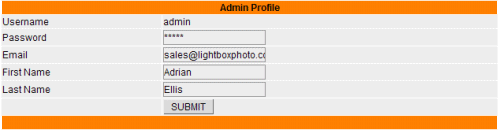
- Click on the Administrator
- Administrative
Groups
Use this feature to create new administrative groups for you gallery.
- Click on the Administrator
Administrative Groups link in the main menu.
- By Default there are two user groups available, master and user. The Master group is used for the admin users and the user group is used for customers. It is not possible to delete these groups from the database.
- To add more admin groups to Lightbox, check all boxes for the privileges that are needed and add a Group Name (do not leave spaces in the group name). Click on the Add button, to add the new group to the database.
- To delete an admin group, click on the
icon for the target admin group.
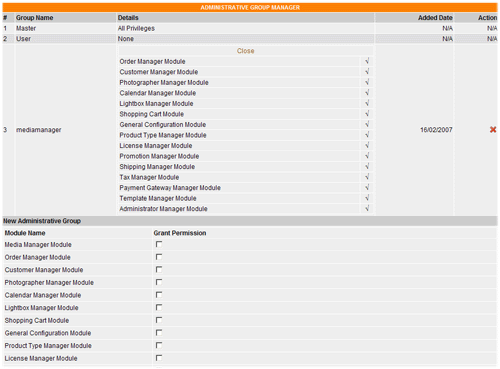
- Click on the Administrator
- Administrative
Users
Use this feature to add more administrator's to the gallery system.
- Click on the Administrator
Administrative Users link in the main menu.
- Fill in all provided text fields and click the Submit
button to add the new admin user. The new admin user must
be assigned to an administrative group. If you don't have any administrative
groups configured, please add the new administrative group by clicking
on the
icon.
- To delete an existing admin user, click on the
icon for the target admin user.
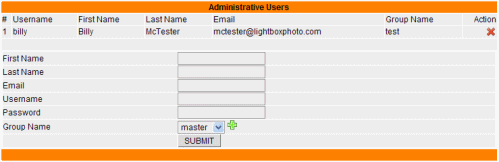
- Click on the Administrator
- Manage Blacklisted IP
This feature allows you to manage your IP Blacklist. Using this feature you can allow or restrict one or multiple IP Addresses to access your Public Gallery Modules.
- Blacklisted IP Address: Enter your Blacklisted IP Address. Example: 127.0.0.1
- Module: Choose the modules that you want to restrict access to from the Public Gallery by clicking on the respective checkboxes.
- Click the Submit button to add your Blacklisted IP Address.
- The
icon shows that the related Module is blocked.
- Click on the
icon if you want to delete your Blacklisted IP Address.

IPTC CONFIGURATION
This feature allows you to control how the IPTC metadata information is displayed and utilized by the system. If your display images have IPTC metadata embedded, the lightbox system will import and utilize this data. The system can also be used to add IPTC metadata to your display images.
- Click on the Media Manager
IPTC Configuration in the main menu.
- Displayed Status: Check the boxes for the desired metadata field(s) to make them display in the gallery.
- Linkable: Check the boxes for the desired metadata field(s) to make them linkable in the gallery. This will create hyperlinks, that when clicked will return results for similar words or phrases.
- Phrase: Check the boxes for the desired metadata field(s) to have the system search by phrase. When searching by phrase is enabled, you will need to ensure that your keywords and keyword phrases are separated with semi-colons.
- Searchable: Check the boxes for the desired metadata field(s) to make them searchable.
- Toggle All: To toggle all checkboxes for the selected
column check this box.
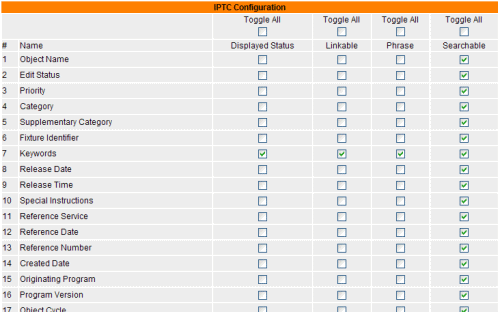
ORDER DETAILS
Depending on the customer's orders, the system will display the order details differently. There are three order detail formats.
- PPP (Pay Per Purchase) order details
PPP orders are orders that customers purchase and pay during the checkout process. By viewing the order details, you will find all information that relates to the selected order id.
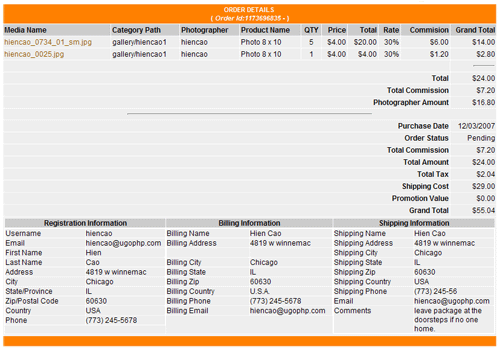
- Subscription order details (Ent. version)
Subscription orders, are orders that customers use their purchased subscription to pay for the order. The customers need to purchase subscriptions that you offer on the Products Page in the gallery before using it to pay for a new order. Related order details section lists all orders that used this purchased subscription during the checkout.
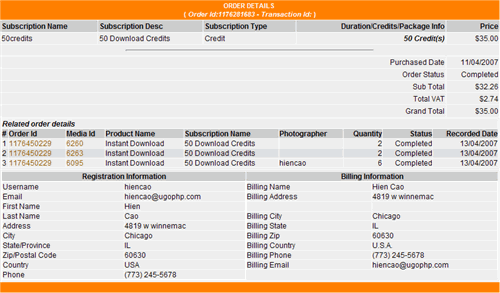
- Package order details (Ent. version)
Package orders are orders that customers used their purchased packages to pay for their purchase. The customers need to first purchase a package that you offer on the Products Page in the gallery before using it to pay for their order. The Related order details section lists all orders that used this purchased package during the checkout.

SUBSCRIPTION REPORT
You are only able to view a subscription report when it has expired or when
its credits are used up. The system displays a full report of the selected
subscription on this page. It even calculates the commissions for each photographer
if customers have purchased a photographer’s media.
To view a subscription report:
- Click on the Product Manager
- Click on the View Subscribers
- On the Subscribers page, click on the report
The system calculates the total credits and credit price as follows:
- Duration Subscription
The Credit Price is the Subscription Price divided by the Total Credits. The Total Credit is a sum of all credits that customers used from the activation date, to the date before the expiration date.- Credit Subscription
The Credit Price is the Subscription Price divided by the Credit Amount. The Credit Amount is the number that was assigned when the subscription was created.
The system uses the Credit Price multiplied by the media credit
cost and its quantities to get the media price. When it has a media price
then it uses the same formula to calculate the photographer’s commission.
If you are using the VAT system for tax, the system will divide the VAT
amongst all photographers.
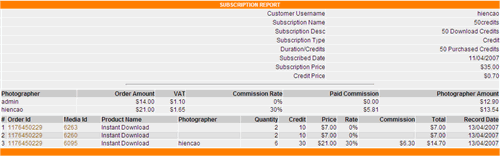
PACKAGE REPORT
You are only able to view package report after it has been used. This is similar to the subscription report.
To view a package report:
- Click on the Product Manager
- Click on the View Subscribers
- On the Subscribers page, click on the report
The total credit is a sum of all credits of the purchased package.
The credit price is a result of a package cost divided by total credit used. The system uses the credit price multiplied by the media credit cost and its quantities to get the media price. When it has the media price then it uses the same formula to calculate the photographer’s commission. If you are using the VAT system for tax, the system will divide the VAT amongst all photographers.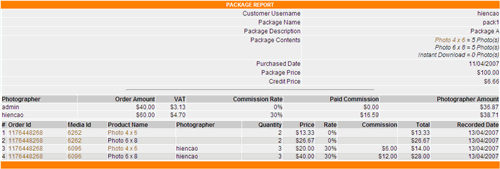
PRICING
MEDIA
By default any images that you upload to the system will be displayed for
viewing by customers. However, the customers will not be able to add them
to their shopping carts unless you apply a price to a product type for that
media. There are two ways to apply pricing to images. You can assign pricing
to individual images by editing the image in the media manager, or you can
use the global pricing to apply a price to a product type for an entire
category (or all categories) of images.
Individual Pricing of images:
- Click the Media Manager
Media Manager link in the main menu.
- Browse to the category where the media you want to set price for is located.
- Click on the
icon to edit it's properties.
- Enter the price to the media's Product Type field. The price must be numeric (no currency symbol). If this Product Type is an instant download type tick on the "Enable Download Link" checkbox. The Enable Download Link will popup a small window to allow you to assign the download file to this media's product type.
- Enter the Shipping Cost and Additional Item Shipping Cost, if you want to charge a shipping cost based on the single item shipping method.
- Click the Submit button to assign a price to the
media's product type.
Category (Global) Pricing of images
- Click the Media Manager
Media Manager link in the main menu.
- Click on the
icon to assign the Global Pricing.
- Category
Select the category that you wish to assign pricing/credits.
- Including Subcategories
Check this box if you want the pricing to be applied to the current category as well as any subcategories that it contains.
- Start From
To prevent a server timeout, enter the start from number and the number of rows to be altered in the provided fields or leave them blank for all media. The rows referenced here are the rows in the "vss_media" table in the database. This feature is only for advanced users, with very large galleries.
- Update Type
Select the update type you want to apply from the dropdown list. The "Credit" Type is only available in the Enterprise version.
- Global Price / Credit (Ent. version)
Enter a price or credit cost that will be set to all media in the selected category for the specified product type.
- Product Type
Select the product type that you wish to assign a price for.
- Click on the Update button to update the global pricing/credit.
Global Product Type Pricing
- If you want to assign a price for a product type to all
media in the gallery you can simply enter a price for the product
types listed in the Global Product Type section and
click on the Update button. You can enter a price in
multiple input fields as required.
Remove Products/Pricing
If you would like to remove a product type from display, you can enter a price of 0.00. This can be applied to a category or for the entire gallery by using the Product Type Pricing.
SAMPLE DOWNLOAD FILES (Comp. Images)
With the Pro. or Ent. versions you can offer a sample download file for
any media by uploading the sample download file to the same location (category
folder on the server) as the target media is located and prefix it with
the word “sample_”. The system will display a Download
Sample
icon if it detects the sample file on the server.
e.g.
Media Name: beautiful_sunset.jpg
Media Path: gallery/landscape/beautiful_sunset.jpg
Then the sample download file must be as follows:
Sample download file name: sample_beautiful_sunset.jpg
Its path: gallery/landscape/sample_beautiful_sunset.jpg
LANGUAGE FILES
The Lightbox language files are located in the language folder and its module directories. You can use this section to translate the displayed text into a foreign language or to customize certain items for your particular gallery. There are three types of language files.
- Admin Control Panel Section
Any file that begins with "admin." is used in the admin control panel.
- Gallery Section
Any file that begins with "user." is used for the gallery section.
- Contributors (photographers) Section (Ent. version)
Any file that begins with "cb." is used for the photographer's section.
You can also change some additional language through the Smarty templates
that reside in the tpl/english directory and its module directories.
SEARCH LOGS
The Search Logs feature allows you to track the user's search terms. The log displays which keywords were searched and how often they were searched. The displayed sort order of the Search Logs or related information can be changed by clicking on the column header title links.
- To view details of the search logs click on the search phrase link.
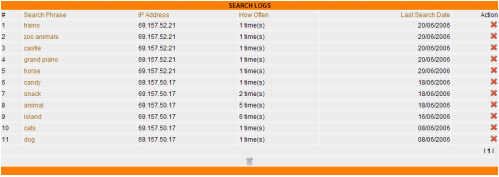
- Empty Search Logs: To delete all recorded search
terms, click on the
icon.
- To delete an individual search term click on the
icon for he target keyword.
REGISTRATION
The dynamic registration feature allows you to add, edit, or delete registration form fields. There are three fields already included in the registration form that are required by the system. These are username, password and email address. These are required by the system to track the customer's activity and orders.
- To view the current customer registration form fields, click on
the Customers
Registration in the main menu.
- To view the current photographer form fields, click on the
Photographers
Registration in the menu function (Ent Version).
- To view the current registration layout click on the
icon in the registration view page.
- To delete an existing form field from the database, click on the
icon for the target form field. When you delete the form field from
the database, all of the customer data captured will be deleted from
the database. We recommend that you make the field inactive, rather
than delete it. Any inactive form fields will not display on the registration
form.
- To move a field up or down in the list, click on the
or
icons
respectively.
- To edit an existing form field, click on the
icon for the target form field. You can't change the field name once
it has been created.
- To add a new form field to the current registration form, click
on the
icon in the registration view page.
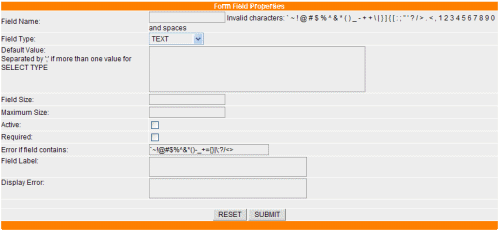
- TEXT
Use this field type to collect data from your customers. It is useful for collecting items such first name, last name, address, phone numbers etc. - SELECT
Use this field type when you want your customers to select from a set of available options in a drop down menu. It's good to use this type for States and Countries. This field type is also useful if you are requiring matches to charge tax. This method will avoid user input error and therefore allow an exact match. - TEXTAREA
Use this field type to collect a large amount of data from your customers. It's good to use this field type to collect customer comments or feedback. - RADIO
Using this field type gives customers no choice on input data. - CHECKBOX
Use this field type for a simple YES (check the box) answer to a question.
- Field Name
The database name of the field. The name should not contain any invalid characters such as ~ ! @ # $ % ^ & * ( ) + \ | } { [ ] " : ; > . < , ? / 1 2 3 4 5 6 7 8 9 0 or spaces. - Field Type
The type of the field. There are five types available in the drop down-list. They are TEXT, SELECT, TEXTAREA, CHECKBOX, and RADIO types. - Default Value
The field's default value. This value will be displayed initially. If the SELECT type is selected, each value should be separated with a ; (semi colon) and the last value should also end with a ; (semi colon).
If the CHECKBOX or RADIO type is selected then the true value is 1 and the false value is 0. Enter 1 to make the box checked as default, otherwise leave it blank or enter 0 for default value. - Field Size
Field size is the width of the field. - Max Size
Max size is the maximum number of the characters allowed to be entered. - Active
To make a field active on the form, check this box. - Required
To make a field required, check this box. Once the box is checked users must input data into this field. - Error if contains
The script will check for errors based on any entered character: ex ~~!@#$%^&*()+=|\}]{["':;?/>,< These can be removed if not required, but at least one character must remain. - Field Label
Label of the field (this will be displayed to the end-user). - Display Error
This error message will be displayed if an error (as defined above) is detected. - Submit
To add the new field, click the Submit button.
You can use this registration form function to create as many form fields as you need. Active fields will be displayed for the customers in the registration form. The data submitted is stored in the database for shipping and billing purposes.
FTP SERVER
This feature allows you to run the Lightbox installation on one server, while storing the high resolution download files on another server. This method should be considered a secondary option as Lightbox needs time to obtain the files from the other server before allowing customers to download it. Therefore it will take twice as long for this action to complete compared with the same action if the download files were stored on the same server.
To use this function you need to setup the FTP information for each category. Lightbox will use this configuration information to connect to the remote server and obtain the downloaded files.
Setup FTP information- Click on the Media Manager
Media Manager link in the main menu.
- Browse to the target category.
- Click on the
icon for the target category.
- Fill in all FTP info to the provided text fields.
- SSL FTP Connection: check this box if your server requires an SSL connection.
- Port #: By Default the port number is 21 for most FTP servers. Enter the port number to this field if yours is different.
- Click the GET button to check the entered data.
If the information entered is correct you should see the same as the
screen shot below.
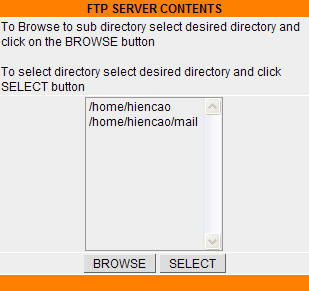
- You need to select the remote directory that holds the download files for the selected category.
- To browse to a subcategory, select the category in the popup window and click the BROWSE button.
- To select the directory that holds the download files for the selected category click the SELECT button.
- The path of the selected directory will be filled in the Category Remote Directory text field when the popup window is closed.
- Click the Submit button to set the FTP info for the selected category.
SAFE MODE
Lightbox requires the safe_mode variable to be turned off when adding new categories or media through the browser based admin area. To check the status of the safe_mode variable, run the info.php file that comes with the Lightbox package http://www.yourdomain.com/path-to-Lightbox/info.php. Replacing the yourdomain.com with your domain name and path-to-Lightbox to the path of where Lightbox is installed.

When the info.php file is run from your web browser, you
should see the above screen shot. Look for the safe_mode
variable and make sure that it's Off. If it's On, please ask your hosting
provider to turn it Off.
INSTANT DOWNLOADS & ENABLE DOWNLOAD LINKS
Using Lightbox, you can offer instant downloads of your digital products
and sell tangible products (such as prints) at the same time. Once the purchase
has been confirmed by the payment processor the download link will be activated
in the customer's My Account area.
Instant download files can be assigned to individual media by editing the
media details in the Media Manager or they can be assigned to an entire
category of media using the
Downloadable Configuration section. Before assigning a download link to
the desired display image(s), the "download file" must be uploaded to the
server via FTP and it must reside in the download directory.
This directory is protected by the Apache .htaccess. This
directory is only accessible by the system and can not be accessed through
a web browser.
To assign download files to individual media:
- Upload the download files to the download directory.
- Create a product using the Product Type function.
- Browse to the category in the Media Manager that contains the media you wish to assign the download to.
- Browse to the media and click on the
icon to edit the media.
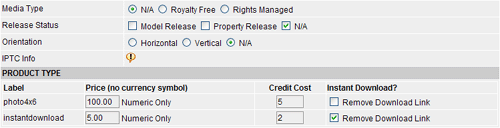
- Click on the Enable Download Link
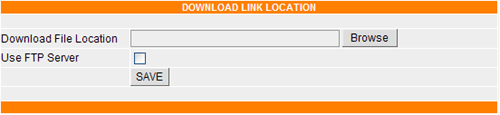
- Click the Browse button, to browse to the download file on the same server or click on the Use FTP Server if the download file is stored on a different server (Ent version).
- Click Save to Enable Download link for the selected
media.
- Use the Enable Download Links
feature in the Media Manager.
- The high resolution download files must be located in the "download"
directory, under the same directory structure as the gallery folder
and you must have prefixed the file name with the related product type.
To use this function:
- Click on the
icon to assign download links to the target category.
- Select the Category from the drop down list.
- Enter the Price
- Select the Product Type: You must have created at least one product type for this function to work.
- Disable File Extension: Tick this checkbox and the system will ignore the difference between the display and download the file extensions. e.g. If you have .jpg display images and you have .tiff download files, then you will need to check this box.
- Use FTP Server: Tick this checkbox if you are storing the download files on another server (Ent Version only).
- Click the Enable Download button to assign
download links to the target category.
Before using this feature, please make sure that all download files are residing in the download directory under the same directory structure (mirror) as the gallery folder and that you have prefixed the download file names with the respective product type.
e.g. Assume you have as follows:
- pic1.jpg, pic2.jpg, pic3.jpg under the category1 with the path gallery/category1. So the paths of the pic1, pic2, pic3 are as follows:
- gallery/category1/pic1.jpg
- gallery/category1/pic2.jpg
- gallery/category1/pic3.jpg
- If you want to set the price for the product type named highdownload. Then the paths of the downloadable files should be as follow:
- download/category1/highdownload_pic1.jpg
- download/category1/highdownload_pic2.jpg
- download/category1/highdownload_pic3.jpg
- If you want to set the price for a second product type named lowdownload. Then the paths of the downloadable files should be as follow:
- download/category1/lowdownload_pic1.jpg
- download/category1/lowdownload_pic2.jpg
- download/category1/lowdownload_pic3.jpg
- Click on the
SMTP SERVER CONFIGURATION
If you experience problems with your default mail server, you can use this feature to send mail. The SMTP server generally takes longer to send out email compared with the default mail server.
To configure the SMTP Mail Server:
- Click on the General Configuration
link in the main menu.

- Select SMTP Server in the Outgoing Mail Server drop down list.
- Enter SMTP Server info.
- Check the Authorization Required checkbox if your SMTP server requires you to login before sending mail.
- Enter username for this SMTP Server.
- Enter password for this SMTP Server.
- Enter Word Wrap Number.
- Click on the
icon to test the entered info. If the entered info is correct, you will
receive an email that is sent to the email address in the "Notification
Email Address" text field .
- Click the Submit button to save the changes.
MEDIA CONFIGURATION
This section allows you to configure the gallery thumbnails, watermarks, etc.
Click on the Media Manager
Media Configuration link in the main menu.- Enter Date to be considered new
You can either enter the date in the displayed format or click on the
icon to open the date selection window. Select the month and year from
the drop down menu and then click on the calendar date to complete the
date selection. The system will use this date to determine which images
will be displayed in the "New Photos" section of the website. Images
added to the system prior to the date submitted will not be displayed
in this section.
- Thumbnail Prefix Name
This name will be prefixed to the image filename to create the thumbnail filename. This is how the gallery matches the thumbnails to the larger display images. e.g. If the display image is image1.jpg then the thumbnail generated (using the default value) by the system, will have a filename of gallery_image1.jpg. The thumbnails generated by the system will be saved in the same folder as the larger display images.
- Reduce from its original size
The thumbnail size will be created based on this percentage reduction. Therefore, to create a smaller thumbnail you will have to input a larger number (more reduction).Original image Percent setting Resulting thumbnail
500 px 50% 250 px
500 px 60% 200 px
500 px 70% 150 px
500 px 80% 100 px350 px 50% 175 px
350 px 60% 140 px
350 px 70% 105 px
350 px 80% 70 px
- GD Version 2.0 or Higher
To find out the GD version installed on your server, click on the
icon. Look under the GD section of the page displayed and if it says
“2.0 or higher”, then check the box. Lightbox will run on previous versions
of GD, but the thumbnail quality will be relatively poor.
- Overwrite Thumbnail Enable
Check this box if you want to be able generate a new size of thumbnail and have the previous file replaced (overwritten). This feature is designed to allow you to experiment with different size thumbnails until the desired size is achieved. Once the desired percentage reduction is determined, the overwrite enable box should be un-checked. Otherwise, it can cause a server time out before the operation completes in a large category of images. For large galleries, it is recommended that the existing thumbnails are deleted from your server using your FTP client and then generate new thumbnails.
- Auto Generate Thumbnails on New Media
Check this box and the thumbnail images will automatically be generated (according to the size specified above) when new media are brought into the system using the Auto Detect feature. Make sure that you have set the folder permissions set to 777 before using the Auto Detect Feature, otherwise the thumbnails will not be generated.
- Resize To
This feature is not recommended for a large category of images, or for very large files, as the server may timeout. If a blank page is displayed please continue refreshing the screen until the message "Action Performed Successfully" is shown. This indicates that the resize image process is complete. It is more efficient to run a batch process to resize your images prior to upload.
Enter the new size here if you want to resize any image which is larger than the size set here. The system will resize the longest dimension of the images to the size entered in the configuration page. The system will maintain the aspect ratio of the images during the resize process.
e.g. If you enter 500 Pixels and the image size is 1772px by 1186px. Then the system will re-size the image to 500px by 334px. Using this feature helps you to resize all images to the same width or height. We suggest a size of 450 pixels wide for your display images.
NOTE: images can't be recovered to their original size after resizing. So please make sure that you backup all images before doing so. Before using this feature, you must ensure that all image folders and files have permissions of 777 (r/w/e).
- Watermark Type
There are two types available, Image or Text.
- If Image is selected, the system will use the
image that is shown in the line Watermark Image or Logo
for the watermark.
- If Text is selected, the system will use the
Watermark text string for the watermark.
- To view a demo of how the image looks after
it has been watermarked, click on the
icon.
- If Image is selected, the system will use the
image that is shown in the line Watermark Image or Logo
for the watermark.
- Transparency Value
This value can be changed to adjust the transparency of the watermark. The default value is 30. The higher the number the less transparent the image. You can view the effect of changing this value by clicking on the
icon to use the watermark demo feature.
- Watermark Image Upload
Click on the icon to upload a new image to be used for watermarking.
- Click on the Browse button, to browse to the image on your local machine.
- Click on the Upload button to upload the new image to the server.
- The new image will be used once it is upload to the server and it will replace the existing one.
- Watermark Text
Enter the text string that you wish to apply to the display images.
- Watermark Text Colour
Enter the HEXADECIMAL colour value (No # symbol) for the text colour that you will like to use for the watermark text string.
- Watermark position
Enter the position that will be used to place the watermark image or text on the display image.
- Quick View Media Configuration
The system uses this default width and height to draw the Quick View Media pane when customers mouse over the media thumbnail images. If the system detects that the display images are larger than the specified width and height, the system will resize the pane to the image before displaying it in the Quick View Media pane.
- Default Width
Default Quick View Media pane's width.
- Default Height
Default Quick View Media pane's height .
- Default Width
- ImageMagick® Configuration
Before using the Media Utilities function you need to input a valid ImageMagick® path. If you don’t have ImageMagick® installed on your server, please visit the ImageMagick® web site to download and install this package before configuring this section. If you are unable to install ImageMagick®, then you will need to ask your host to do this for you.
- ImageMagick® Path
The ImageMagick® path is a path that you provide during the ImageMagick® installation. Please ask your host for this path if you are unsure.
- Click on the
icon to test the input path.
- ImageMagick® Path

DOWNLOAD DIRECTORY
The download directory is used to store the download files. By default it is protected by the Apache .htaccess file. Apache will block all access to this directory from web browsers, so all files that reside in this directory are secure. To confirm that this directory is protected, you can enter the following URL into your browser's address field:
- http://www.yourdomain.com/path-to-lightbox/download/
- If the download directory is secure you should see a forbidden (403
error) message displayed in your browser.
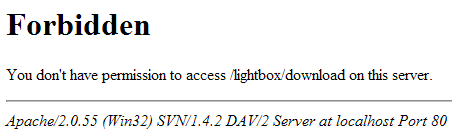
- If there is no forbidden message displayed then you need to check
the following:
- Make sure that the supplied .htaccess file is in the download folder.
- Ensure that the web server is running apache.
- Ensure that the httpd.config file is properly configured.
<Directory />
Options FollowSymLinks
AllowOverride All
</Directory>
- Go to MS Control Panel.
- Launch IIS server control panel in the Administrative Tools
panel.

- Navigate to the Lightbox installation directory and click on it.
- Right click on the download directory and select
Properties in the menu drop down function.
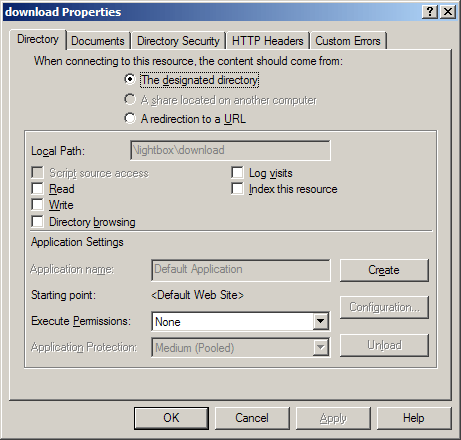
- Un-check Read/Write/Directory Browsing as in the above screen shot.
- Click Apply to deny any access to the download directory from web browsers.
- Click OK to close the download Properties Window.
- The download directory is now protected and all files under it will
be secure.
FTP (CLIENT) PROGRAM
You can use any FTP (client) program to upload files to your server. There are a number of good commercial applications such as WS_FTP Pro, or you can download one for free at the http://www.download.com.
An example of uploading and changing the file permissions using an FTP Application.
- Run the FlashFXP application.
- Launch Quick Connect.
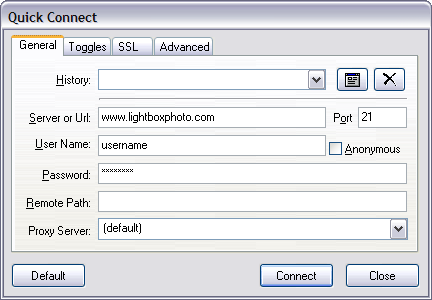
- Fill in all information and click Connect, to connect to your server.
- Browse to the directory (folder) on your server where Lightbox is installed (Right Pane). Then click on the gallery folder.
- Browse to your local files that you wish to upload, select the files and right click on the local files (Left Pane).
- Select Transfer, to transfer the selected files
or directories to your server (Right Pane).
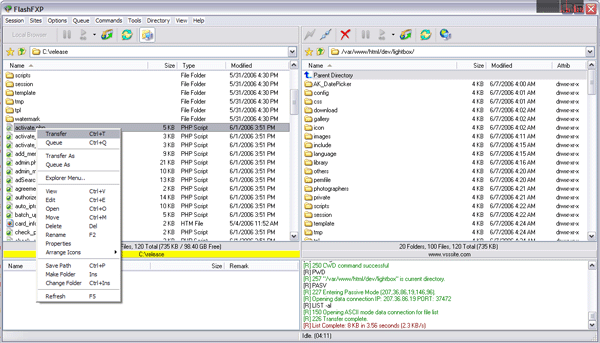
- Your display images should be uploaded to folders inside the gallery folder.
- If you are offering instant downloads, you will need to repeat the
process with your download files. This time you will be uploading your
files to the download
folder.
FILE PERMISSIONS
For security purposes, most servers by default don't allow you to write data from a web browser to the server. Lightbox needs to have write permission, to write data to your server (examples of this will be when Lightbox generates thumbnails or applies watermarks). If you see an error that says "Reading File Error" or "Can't Open File for Writing" it means that your server doesn't allow you to write to the server from your browser.
Changing the File Permissions using the FlashFXP application.
- Using the above FTP steps to connect to your server.
- Right click on the target files or directories in the Remote
Pane (Right Pane).
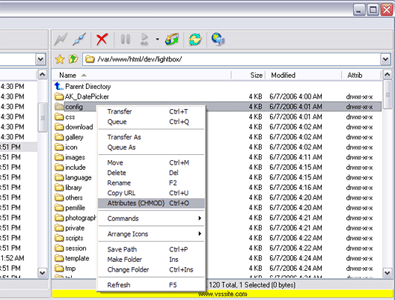
- Select Attributes (CHMOD) in the menu drop down
function.
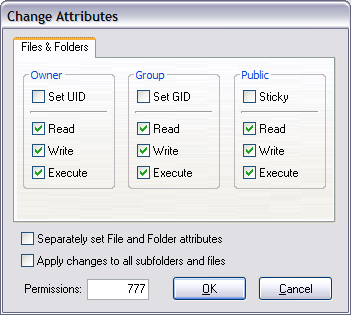
- To change permissions to 777, tick all checkboxes or enter the value 777 in the box provided and click the OK button to change the file permissions.
- Repeat as required.
PUBLIC GALLERY
A Public gallery is a gallery that anyone can access without any login required.
- Public gallery interface.
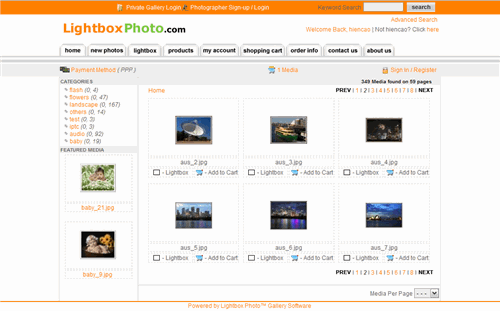
- HOME
Links customers (users) to the main gallery page that displays all main categories. - NEW PHOTOS
Links customers (users) to a page that contains all new media that were added to the gallery on, or after the date entered in the Enter Date to be considered new text field in the Media Manger
Media Configuration section. - LIGHTBOX
Displays the customer's current active lightbox contents. - PRODUCTS
The system displays all available subscriptions that you have setup in the Product Manager section. - MY ACCOUNT
Displays the customer's account info (including order details and download links if applicable) if they are logged in, otherwise the login form will be displayed. - SHOPPING CART
Displays the customer's shopping cart contents. - ORDERING INFO (orderinfo.tpl template)
This page can be used to explain to customers how to purchase media from your site and to explain to them what they can expect after their purchase is complete. - ABOUT US (about.tpl template)
This page can be used to tell customers about you, your company and your products or services. - CONTACT US (contact.tpl template)
This page can be used to display your contact details. The contact form is included within the page to allow customers to send you a contact message via email. Lightbox will send the message to the email address that is entered in the Notification Email Address text field in the General Configuration section of the admin control panel. - CATEGORIES
Lightbox only displays the main categories (level). They can be displayed in either a listing format or a drop down menu format as defined in the General Configuration section of the admin control panel. - FEATURED MEDIA
Lightbox uses the Featured Media section to display media that have been designated as "featured" in the Media Manager section of the admin control panel. - IMAGES PER PAGE
This feature allows the customer to define how many thumbnail images will be displayed on a page. The default number displayed is equal to number of media per row multiplied by the number of media per column in the General Configuration section of the admin control panel.
- To launch the Public Gallery click on the
 Public Gallery link in the top right corner of the
admin control panel.
Public Gallery link in the top right corner of the
admin control panel. - Or access the Public Gallery using the following URL
http://www.yourdomain.com/path-to-Lightbox/index.php
Replacing yourdomain.com with your actual domain name and replacing path-to-Lightbox with the path to where you installed Lightbox.
The index.php is called when users access to the public gallery.
PRIVATE GALLERY (Pro. & Ent. versions)
A Private gallery, is a gallery that customers need to input a valid Event Id and Password in order to access.
To protect a gallery (category) please see the Protect & Un-protect Category section.
Launching the Private Gallery
- To launch the private gallery click on the
Private Gallery link at the top right corner of the
admin control panel.
- Or access the private gallery as following URL
http://www.yourdomain.com/path-to-Lightbox/private_gallery.php
Replacing yourdomain.com with your domain name and replacing path-to-Lightbox with where you installed Lightbox.
- The core functionality of a Private Gallery is the same as a Public Gallery.
FEATURED MEDIA (Pro. & Ent. versions)
The featured media are displayed in the Featured Media section in both the public and private galleries.
To assign media to be featured, you will need to do the following.
- Click on the Media Manager
Media
Manager link in the main menu.
- Browse to the target category
- Click on the NO link in the Featured Media column (the status will change to YES). The target media will now be Featured.
- To remove media from the featured section, click on the YES link in the Featured Media column (the status will change to NO). The target media will no longer be featured.
There are two ways to display featured media in the gallery. These can be defined in the General Configuration section. Here you can change the style from horizontal to vertical and you can also specify how many images you whish to display. If there are more featured media than available spaces, the system will "rotate" the media each time the category page refreshes.
| Horizontal Style | Vertical Style |
 |
 |
SEND TO A FRIEND & SEND LIGHTBOX
The Send to a Friend and Send Lightbox functions allow customers to an send selected media or their active lightbox to friends (or associates).
When customers click on the SEND TO FRIEND or SEND LIGHTBOX link in the public or private gallery the compose window will open to allow customers to enter their friend's information and message.
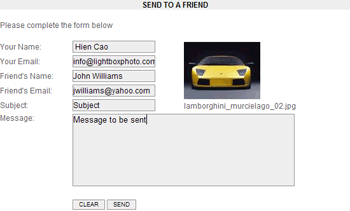
Lightbox offers an option that allows you to bcc (blind carbon copy)
this message to your email address by checking the "bcc Admin a
copy of SEND TO FRIEND email" checkbox in the
configuration section. The bcc email address
is defined in the Notification Email Address text field
in the General Configuration section.
INVOICE NOTIFICATION (Pro. & Ent. versions)
If you turn on the Enable Notification Invoice Email feature in the General Configuration section, Lightbox will send out a notification invoice email to the customer's email address and the administrator's email address that is defined in the Notification Email Address text field in the configuration section.
Lightbox also provides the option to bcc (blind carbon copy) the invoice email to third a party if the Enable bcc Invoice feature is turned on. The third party email address is defined in the "bcc Invoice Email Address" text field in the configuration section. This feature could be used to automatically send a copy of the invoice to your print shop or order fulfillment centre.
The invoice email is in HTML format. The Registration section can be configured through the Customer's Invoice Section. The Ship To details will only display if they were collected on your site through the Offline payment method or other gateway (e.g. Auth.Net, Linkpoint) that uses the form on your site to collect this information.
PHOTOGRAPHER (CONTRIBUTOR) SECTION (Ent. version)
The Photographer (Contributor) section allows photographers to upload their digital images to your server. Before accessing this section the photographer needs to register to the system. Using this section the photographer (contributor) can do the following:
- Navigate to the public gallery (category).
- Upload images to a public gallery (category).
- Edit/Remove/Delete the image properties of uploaded media.
- Upload high resolution files to the download directory.
- Delete uploaded high resolution images from the server.
- View their sales reports.

SEARCH GUIDE
The system will search the following fields for results when customers use the Standard Search (Quick Search) or the Advanced Search (Pro. & Ent. versions) functions in the gallery.
- Category Fields
- System name
- Display Name
- Description
- Media Fields
- System name
- Display name
- Author
- Copyright
- Keywords
- Description
- IPTC Metadata
- It's category properties
Standard Search (Quick Search)
By default the system uses “Match at least one keyword” for the quick search function. If customers input “beautiful sunset” (without the quotes) into the standard search field, then the search function would return results for any media that contains either “beautiful” OR “sunset” in its properties.
The system supports the “AND” and “NOT” operands in the quick search function by the use of the plus sign (+) and minus sign (-) respectively in front of the keywords.
- If a customer inputs “beautiful +sunset” into the search field, the system will only return results for any media that contains both “beautiful” AND “sunset” in its properties.
- If a customer inputs “beautiful –sunset” into the search field, the system will return results for any media that contains the keyword “beautiful”, but this media can't contain the keyword “sunset” in its properties.
- Note: There must not any spaces between the second keyword and the input operands (+), (-) keywords. Also, please ensure that the "Enable Partial Text Searching" option is unchecked in the General Configuration if you want users to be able to use these operands in their searches.
Please Note: If you want to change the default setting for the standard search from “Match at least one keyword” (OR operand) to “Match all keywords” (AND operand) then you will need to change the value from OR to AND in the following line of the config.inc.php file in the config folder: define ( "STANDARD_SEARCH_PHRASE", "OR" );
Advanced Search (Pro. & Ent. versions)The advanced search function doesn’t use the same algorithms as above. It offers an option to allow customers to choose which operand they want to use for their searches.
There are three options available.
- Match at least one keyword
The system will return results for any media that contain either one of the input keywords in its properties. - Match all keywords
The system will only return results for any media that contain all input keywords in its properties. - Match exact phrase
The system will only return results for any media that contains the exact input keyword phrase in its properties.
- Category Drop Down List
The system will only return results for media within the selected category. - Media Properties
The system will look into the above category's and media's fields for results, if this checkbox is checked. - Media Metadata
The system will look into the IPTC metadata fields for results, if this checkbox is checked. - Rights Managed
The system will return results for any media that have been assigned to the "Rights Managed" type, if this checkbox is checked. - Royalty Free
The system will return results for any media that have been assigned to the "Royalty Free" type, if this checkbox is checked. - Model Release
The system will return results for any media with "Model release" status for its release status, if this checkbox is checked. - Property Release
The system will return results for any media with "Property release" status in its release status, if this checkbox is checked. - Vertical
The system will return results for any media with "Vertical" status in its orientation status, if this checkbox is checked. - Horizontal
The system will return results for any media with "Horizontal" status in its orientation status, if this checkbox is checked.
- The system will return results for both "Rights Managed" and "Royalty Free" media types if both checkboxes are checked.
- The system will return results for both "Property Release" and "Model Release" media if both checkboxes are checked.
- The system will return results for both "Vertical" and "Horizontal"
media if both checkboxes are checked.
LANGUAGE MANAGER (Ent. version)
This feature allows you to offer additional languages for your customers to select from. The primary system language is English and therefore you are not able to delete this language from the system.
Using this feature you can:
- Add additional languages
- Edit an existing language
- Set the default language that will be displayed when users visit your site
- Delete a language
USING THE LANGUAGE MANAGER
Please Note: before adding a new language, you will need to make sure that the following directories are writable (permissions set to 777):
- tpl directory
- language directory
- template directory
- images directory
- In your Lightbox Admin Control Panel, please click on the
Language Manager link in the main menu.
- On the LANGUAGE MANAGER page, please fill in the following fields
for
the NEW LANGUAGE section:
- Language Name
Enter your language system name. Please use Latin characters only without any invalid characters. - Language Description
Please describe your language. This description is usually your language name and will be displayed in the Language select box in the gallery. - Language Icon
This is the icon for your language. This icon will be displayed if your Language Display Style (selected it in the General Configuration) is set to Icon. This icon will be uploaded by the system to the images directory.
- Language Name
- Click on the ADD button to create the new language. The system will create a folder named with the specified system language name in the language, tpl and template folders. It will then copy all files in the english (primary language) folders to your new language folders.
- To edit an existing language, click on the
edit
icon for the desired language on the LANGUAGE MANAGER
page.
- On the EDIT LANGUAGE page, you can edit the Language Description or click on the
upload
icon to upload a new language icon.
Click on the SUBMIT button to save your changes.
You can specify the default language that the system will display when users enter your site. On the LANGUAGE MANAGER page, the default language will be marked as Yes in the User Default Language column. To set another language as the default language, simply click on the No link for the desired language and the status will change to Yes.
4. Delete language- On the LANGUAGE MANAGER page, click on the
delete
icon
for the language that you want to delete.
- On the DELETE CONFIRMATION page, click on the
confirm
icon to
confirm
the language deletion.
Please Note: you will have to manually delete the following folders:
- language/<your-language-name> and its contents
- template/<your-language-name> and its contents
- tpl/<your-language-name> and its contents
LIGHTBOX SEO (SEARCH ENGINE OPTIMIZATION) (Pro. & Ent. versions)
This feature is only available for the Pro. and Ent. versions. The Lightbox SEO feature concentrates on optimizing the dynamic content of your Lightbox system which will allow the major search engines like Google, Yahoo, MSN, etc... to crawl your site more effectively and therefore add more content to their databases.
SYSTEM REQUIREMENTS
- Apache server 1.3 or higher. This feature is not supported in IIS.
- Apache mod_rewrite module must be enabled on your server.
- .htaccess must be enabled on the Lightbox root directory.
- Please Note: the current version of Lightbox (4.07 and later) contains a .htaccess file called .htaccess(lightbox) in the root directory (where the main index.php file is located). Therefore, if you have created your own .htaccess that has the RewriteRule and this file resides in the same directory as Lightbox or a parent directory, you will need to make sure the existing RewriteRule doesn't affect Lightbox's RewriteRule. If there are no conflicts you can copy the contents of the .htaccess(lightbox) into the existing .htaccess file in the Lightbox directory. If you don't have an existing .htaccess file, you can simply rename the .htaccess(lightbox) to .htaccess before using the SEO feature.
USING LIGHTBOX SEO
Please Note: If you enable the SEO feature, please change the URL of Home Public Breadcrumbs Link and Home Public Button Link options in the General Configuration page to the absolute URL (e.g. http:/www.yourdomain.com/path-to-lightbox/index.php).
There are two features available:
- Dynamic content on the Media Details page
- Search Engine Friendly URL (SEF URL)
- DYNAMIC CONTENT ON THE MEDIA DETAILS PAGE
With this feature, your static page title, meta keywords and meta description on the Media Details page will be automatically changed to the content of your selected media properties. There are 7 media properties that can be used:
- System Name
- Display Name
- Description
- Author
- Copyright
- Keywords
- IPTC
- Configuration
To change the media property displayed for the page title, meta keywords and meta description tags, please follow the steps below:
- In the Lightbox Admin Control Panel, click on the Lightbox SEO menu link.
- On the Lightbox SEO page, you can select the desired media property for each tag in the Media Details Configuration section.
- Click on the SAVE button to save your changes.
- Changing default content
Lightbox SEO will use the default content in the following instances:
- Any other pages except the Media Details page.
- The current media properties content is empty.
These default contents are stored in the language/<your-language-name>/user.language.php. To change these values, please open the language/<your-language-name>/user.language.php file and edit the following PHP constants:
- _MD_SEO_DEFAULT_TITLE: this constant will be displayed as the page title.
- _MD_SEO_DEFAULT_META_DESCRIPTION: this constant will be displayed as the page meta description.
- _MD_SEO_DEFAULT_META_KEYWORDS: this constant will be displayed as the page meta keywords.
- SEARCH ENGINE FRIENDLY URL
Lightbox SEO will change all static & dynamic URLs that are generated by Lightbox to Search Engine Friendly URLs (SEF URLs). For example, the URL to go to the category listing page is http://<your-lightbox-path>/index.php?module=media&category=gallery/abstract&start=0 and with the SEO feature enabled it will be changed to http://<your-lightbox-page>/index/disp_cat/gallery/abstract/0/.
Please Note: If you added any relative URL (any URL that aren't generated by Lightbox and don't contain the full domain name, e.g. href="index.html"), the system may return Page Not Found, Error 404 because the relative URL will be appended at the end of the current SEF URL, which will make server recognize it as an invalid path. Therefore, to ensure that everything functions correctly, please follow the directions below:
- Please change all relative URLs in the HTML tags <a href="<your-URL>"> and <form action="<your-URL>"> to absolute URLs.
- Please make sure that all of your HTML codes that contain URLs like <a> and <form> tags follow the standard style: <a href="<your-absolute-URL>"> and <form name="<your-form-name>" method="<your-method>" action="<your-absolute-URL>">. E.g. <a href="http://www.domain.com/index.html" or <form name="form1" method="post" action="http://www.domain.com/process.php">.
a. Enable/Disable Lightbox SEO
Please follow the steps below:
- In the Lightbox Admin Control Panel, please click on the Lightbox SEO menu link.
- On the Lightbox SEO page, check the Enable SEO checkbox to enable Lightbox SEO, un-check to disable the Lightbox SEO feature.
NOTE: enable or disable Lightbox SEO won't affect the Media Details Configuration. If you want to disable the Media Details page title, meta description and meta keywords, simply select ----None---- in the respective dropdown boxes.- Please make sure the RewriteEngine parameter in the Lightbox root directory's .htaccess is On. It's On by default.
- Click on the SAVE button to save your changes.
b. Using
- Tailing Keywords
Tailing Keywords are the extra keywords that will append at the end of all media and category URLs. This will make the Search Engines crawl more data from your URLs to store in their databases, resulting in more effective SEO. Lightbox SEO will fetch Tailing Keywords based on the media property content of the current user's selected language. If it is empty, Lightbox SEO will use English instead.
To configure the Tailing Keywords feature, please follow the steps below:
- In the Lightbox Admin Control Panel, please click on the Lightbox SEO menu link.
- In the Tailing Keywords section, please configure the following options:
- Tailing keywords for media URLs: Choose a property of media content that the Lightbox SEO will fetch to produce the Tailing Keywords for all of your media URLs.
- Tailing keywords for category URLs: Choose a property of category content that the Lightbox SEO will fetch to produce the Tailing Keywords for all of your category URLs.
- Tailing Keywords Separator: Choose a symbol to separate all keywords. If the Tailing Keywords string contains spaces or invalid characters, this symbol is also used to replace them. e.g. If you choose the "_" (underscore) to be the separator, and the string is "Thess are$the?Tailing~Keywords", it will become "These_are_the_Tailling_Keywords".
- Tailing Keywords Limitation: If your Tailing Keywords string is too long, you can limit the number of characters that will be displayed. Set this option value to 0 to disable the limitation. e.g. If your Tailing Keywords string is "Hello_world" and the Limitation value is 5, then the final output string will become "Hello".
- Please make sure Lightbox SEO is enabled, then click on the SAVE button to save your changes.
c. Using
- Remove Stopwords
Most Search Engines do not consider extremely common words in order to save disk space or to speed up search results. These filtered words are known as Stopwords. Lightbox SEO will remove all Stopwords from the Tailing Keywords strings before displaying them.
To configure the Remove Stopwords feature, please follow the steps below:
- In the Lightbox Admin Control Panel, please click on the Lightbox SEO menu link.
- In the Remove Stopwords section, please configure the following options:
- Enable Remove Stopwords: Use this option to Enable or Disable the Remove Stopwords feature.
- Stopwords List: Enter your Stopwords into this text box. Each word is separated by the carriage return (Press Enter key).
- Please make sure Lightbox SEO is enabled, then click on the SAVE button to save your changes.
d. Using - Keywords Translating
This feature is used for translating characters, words, and phrases of the Tailing Keywords strings to the other languages. This is useful if Lightbox will have multiple languages displayed and you need for example all Spanish or German special characters to be translated to the suitable Latin characters. e.g. If a Tailing Keywords string has an "Español" word and you add a translating entry for ñ to n, this word will become "Espanol".
To configure the Keywords Translating feature, please follow the steps below:
- In the Lightbox Admin Control Panel, please click on the Lightbox SEO menu link.
- In the Keywords Translating section, please fill in the following fields.
- From: Enter the original character, word, or phrase that needs to be translated. This value is case sensitive.
- To: Enter the translating character, word, or phrase. This value is case sensitive.
- Language: Choose the language that the translating entry will be applied to.
- Click on the
You can click on the
e. Using - Lightbox Error 404 Report Page
This feature will display an Error 404 page inside Lightbox instead of your own HTML error file.
To use this feature, please follow the steps below:
- Open the Lightbox root directory's .htaccess file, then remove the # sign at the start of ErrorDocument 404 http://<your-lightbox-URL>/index.php?module=seo&pId=102 line to enable this feature, where <your-lightbox-URL> is your installed Lightbox URL.
- You can edit the Error 404 content in the ./tpl/<language-system-name>/seo/404.tpl file. With <language-system-name> english, or any other languages that you want to edit this 404 content.
- You can edit the default page title "Page Not Found" to your content by editing the PHP constant "_MD_SEO_404" in the ./language/<language-system-name>/user.language.php file.
We recommend that you update your current Lightbox software to the latest version. Please visit our site for details on the latest version. The update files will install on top of your current version and by running the upgrade.php from your web browser, the system will update your database accordingly.
We provide free updates for a period of one year from your original purchase date (upgrades do not extend this period). Please note that it is the your responsibility to perform the update installation. If you would like one of our staff to perform the update for you, please click here to make the installation payment. To renew your update subscription please click here to order online or contact our support department for more information.
Before installing a update or upgrade, we strongly advise that you
do a complete backup of your site including a database
backup.
- Check for the latest version before updating. Your current version can be found in the page header of the gallery admin control panel.
- Backup all existing templates in the template folder (directory).
- Backup all existing templates in the tpl folder.
- Backup all files in the config folder.
- Backup all existing data from the Lightbox database.
Update Process
- Unzip
the update zip package on your local machine.
-
Upload all unzipped files to your server via FTP in
binary mode
to the same location that you previously installed Lightbox.
- Copy
the details for the first four items in the dbconfig.inc.php
backup file into the new dbconfig.inc.php
file (in the config folder). You will need to ensure that the last
three lines are as follows:
define("DB_TYPE", "mysql");
define("IS_INSTALLED", true);
define("DB_PREFIX", "vss_" );
- Open
the config.inc.php
file in the config folder and replace the
License Key with the one from your backup
config.inc.php
file.
-
Ensure the following directories and files have their permissions
set as follows:
- All files under "config" dir and the "config" dir itself to 777
- The "download" directory itself to 777 (Ent. Version)
- The "gallery" dir itself to 777
- The "session" dir itself to 777
- All files under "template" dir and the "template" dir itself to 777
- The "tmp" directory itself to 777
- The "tpl_c" directory itself to 777
- The "./modules/image_tools/tmp" directory to 777
-
All files under "watermark"
dir and the "watermark"
dir itself to 777config directory
- Run the upgrade.php
file from your web browser by doing the following and follow the
instructions at the bottom of the page:
- http://www.yourdomain.com/path-to-Lightbox/upgrade.php
- Replace the yourdomain.com with your domain name and path-to-Lightbox with the folder name where you installed the software.
-
After running the upgrade.php file, all new tables and new
fields will be added to your current Lightbox database.
- You
will need to add your customized template code to the new template
set in the template folder.
PLEASE NOTE: With the release of v4.00 there were changes made to the template set. There are some new templates that will need to be customized and there are others that have been modified or are no longer used. Please use the following link to view details of the template changes.
- Login
to the admin control panel and reconfigure your gallery to the
previous values in the General Configuration,
Media
Configuration and
Payment Gateway Configuration
sections.
-
Important:
For security purposes, please delete all setup files that are listed
below before using Lightbox.
- setup.php
- upgrade.php
- SetupHostTest.php
- upgrade_tables.inc.php
DATABASE BACKUP
PROCESS
If you are unsure of this process or do not know how to login to your
phpMyAdmin, please contact your hosting provider for support.
1. Login to your phpMyAdmin Database Administration Tool.
2. Select the lightbox database that you want to backup.
3. Once the database is selected, the screenshot below will be displayed.
4. Click on the Export link at the top of the page.
5. The export page will be displayed, allowing you to backup your data.
6. Click the Select All link under the drop down list of the DB tables.
7. Scroll down the screen and check the "Save As File" checkbox.
8. Click on the Go button at the right bottom page.
9. Choose the target location where you want to save the DB backup. Lightbox recommends that you make regular backups of your database.
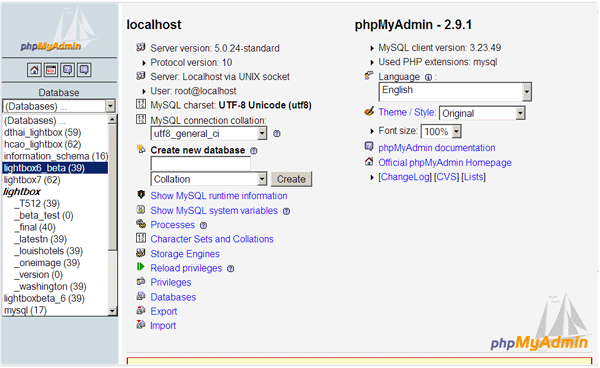
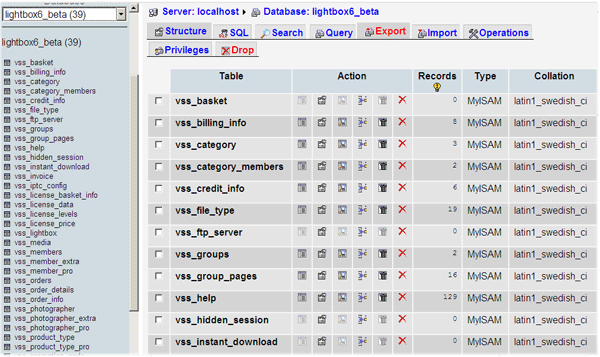
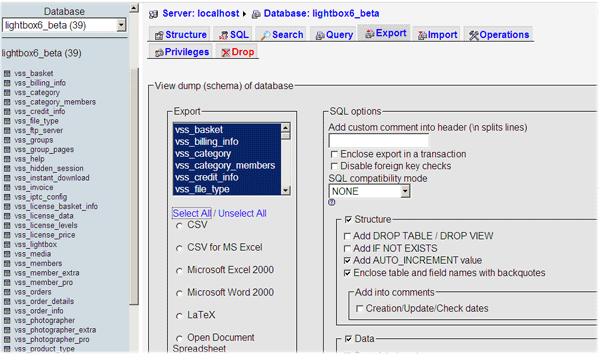


INSTALLATION
To run the setup file to install Lightbox, please follow the procedure outlined below.

 |
 |
|
|
|
Please note that you should replace domain.com with YOUR domain name and your_folder with the folder name where you uploaded the lightbox files.
|
|
Page 1 - Welcome Page Page 2 - Database Information Page Page 3 - Confirmation/License Key Page Please verify all the information on the confirmation page and input you software licence key before you continue. NOTE: For a Linux or
Mac installation, remember to change mode (CHMOD) the
following before clicking the EXECUTE button. Page 4 - Successful Completion Page REMEMBER to change your user name and password after your first login. The location of the media should be in the gallery directory. All you have to do, is upload all media to this directory (note: you must upload media to a folder inside the gallery folder e.g. gallery/catergory1/ ) and using the Media Auto Detection feature in the admin control panel, add them to the database. Also, you can create new categories or upload new media to the server manually, using the Add New Category or Add New Media function in the Media Manager section of the Admin area. For technical support, please contact us via email. Please supplying all relevant details including your Purchase I.D. Number and location of your installation. We recommend that you backup your site and database locally at regular intervals even if your host provides this service.
|
|

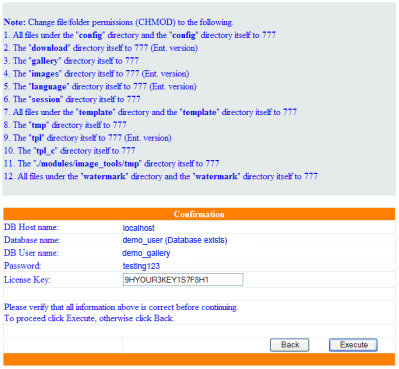
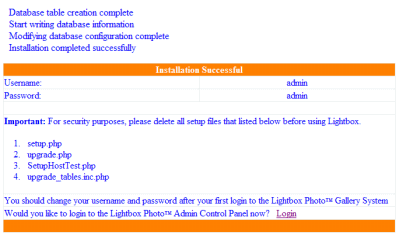
FAQ - Frequently Asked Questions
Batch Upload Media via ftp:
Q. I have a category that contains over 600 images,
what is the best way to add them to the gallery?
A. You can batch upload media via FTP to the
gallery folder. If you upload an entire folder of images
then the folder name will become the category system name once the folder
has been brought into the database using the Autodetect feature. After the
media have been uploaded, please remember to give the files and folder
permissions of 777 (r/w/e). Once the images have been added to the database,
you can then create thumbnails, add watermarks, pricing, descriptions etc.
Customizing:
Q. How can I determine which style in the css file
corresponds to the items in the gallery.
A.
The look and feel of
the dynamic content is primarily controlled by the css. There are a
couple of ways to detect the css style. The basic way is to view the
page source, then find the "class" that applies to the tag you are
looking for. The second way is using the Web Developer add-on for
Firefox. You can install it here:
https://addons.mozilla.org/en-US/firefox/addon/60. After installing
this add-on, you can click on CSS --> View Style Information (or press
Ctrl+Shift+Y) and then select the part that you want to view CSS style
information for.
Q. Is it possible to change the size of the slideshow.
A. Yes, you can change the size of the slideshow
by editing the #myGallery section in the horizontal_css.css.
Q. Is it possible to change the link path for the HOME button
in the dynamic menu and the Home link in the breadcrumb trail? I want it
to point to my site homepage instead of the gallery main page.
A. Yes, you can change the link path for the "Home
Public Breadcrumbs Link" and the "Home Public Button Link" in
the General Configuration section.
Q. I
would like to have a different homepage on my site rather then using the
gallery main page as my homepage.
A.
You will first need to create a static
html page based on the user_horizontal.tpl template (this will allow you
to maintain the same look and feel of the gallery). There is a sample
file called static_index_sample.html in the main folder with
instructions that you can use for this purpose. After you have created
this file you will need to change the link paths for the Home button and
Home breadcrumb link to point to this new homepage (see previous
question).
Q. In the status bar of my browser I can see a message that says "Powered
by Lightbox Photo....". How can I edit this text?
A. You can change or remove that text by editing
the protect.js file in the scripts folder. You can edit this file with any
text or html editor.
Q. I would like to remove the required checkbox (that
displays the user agreement) from the registration form. Is this possible?
A. Yes, you will need to un-check the Enable
Agreement Checkbox in the General Configuration
section of the Admin Control Panel.
Q. Can I add html code to the language files?
A. Yes, you can add html code to the language files
to bold an item, change text colour etc.
Q. Can I add html code to the file description field?
A. Yes, you can add html code to the description
field.
Q. Can I add html code to the product type label
field?
A. Yes, you can add html code to the product type
label field to bold an item, add hyperlinks etc.
Q. Can I use special characters such as 's in my
file names?
A. Do not use any special character or leave
spaces in your file or category names, as it could cause issues with some
DB versions. If you wish to use spaces in the file or category names, then
use the ( _ ) underscore instead.
Q. How do I add an image or icon to the categories
on the main page?
A. You can either upload category icons to the “icon”
directory via FTP and then assign them to the categories by editing the
category in the Media Manager, or you can upload the icon to the category’s
directory itself. If you upload the icon to the target category’s directory,
then you must name it as “icon.jpg”. The system will automatically
load the “icon.jpg” for the target category
for selection when it detects
one. You can also use thumbnail images in the target category for icons,
by selecting the “Use Random Image” option in the Icon
drop down list. If the “Use Random Image” is selected,
the system will randomly use thumbnail images from the target category and
its sub categories.
Q. I would like to change the buttons on the navigation
menu bar to ones that match those on my home page, how can I do this?
A. To change the menu buttons, you just need to upload
your new buttons to the image folder giving them the same file names and
they will replace the existing buttons.
Q. How should I separate keywords?
A. Keywords or keyword phrases should be delimited by
semi-colons only.
Q. How can I make the Quick Search show results for
images that have both keywords and not images that just have one or the
other keyword?
A. If you want to change the default setting for the
Quick Search (standard search) from “Match at least one keyword” (OR
operand) to “Match all keywords” (AND operand) then you will need to
change the value from OR to AND in the following line of the
config.inc.php file in the config folder: define ( "STANDARD_SEARCH_PHRASE",
"OR" );
Miscellaneous:
Q. Can I offer free downloads by setting the price to
zero 0.00?
A.
It is
not possible to have “free” downloads. However, you could use the
Sample
Download feature for this, or create a 100% Promotion Code for the
customer to use.
Q. I have added keywords to my images, but the search
feature is not returning any results.
A.
If you are using the IPTC feature, then
you will need to click on the searchable IPTC icon
in the media manager for each category. When inputting keywords you should
separate them with semi-colons only.
Q. When creating a category in the admin area, I
am unsure what to input for the system name?
A.
The system name is the actual file or folder name as it resides on
the server.
System names
must not contain any invalid characters: ~ ` ! @ # $ % ^ & * ( ) + = \ |
} ] { [ " ' : ; / ? > . < , and spaces.. If you upload the files and
folders to the gallery using your FTP client, then the system name will
be the same as the names that you have uploaded. You can add an optional
display name if desired. With the display name, you can add a more
descriptive name and use the above restricted characters if necessary.
If you are creating categories or uploading files from within the admin
control panel then you will need to input a system name. However, in
some instances you may find that a display name is not required as you
will not need to use any of the restricted characters. e.g. a category
system name “Travel” will have the same display name, but for a category
system name “airtravel”, you will want to add the display name “Air
Travel”.
Q. I uploaded my images, added watermarks and then
generated my thumbnails. Now my thumbnails are watermarked, is it possible
NOT to have watermarks on the thumbnails?
A. Yes, you just have to change your operating order.
After uploading your images, you should generate your thumbnails first and
then add your watermarks. This way, only your display images will be watermarked.
Q. How many file formats can the Lightbox system
be used with?
A. The system is able to display any file formats that are
viewable in a web browser. If the file format is not viewable from within
a web browser, the system provides a link for users to download the other
formats so that they could view them locally in the associated application.
You would just use the call [FILENAME] in the opening code (input into the
Media Type section of the admin). In the same
way, other file formats that will open in a browser can be added to the
system by inputting the opening code into the Media Type section of the
admin area. Current default file types are: gif, jpg, au, avi, aif, htm,
html, mid, mp3, mpg, mov, png, ra, ram, rar, swf, wav, zip, wma, wmv and
pdf.
Regardless of what file
format is displayed in the gallery, any file format may be offered for download.
Q. After unzipping the software, I see an index.html
file in each folder. What is this for?
A. This file is to prevent directory browsing if
your server (hosting account) allows it. This file can be edited, replaced
or removed as desired.
Q. Is there a faster way of deleting the lightboxes?
Perhaps by directly accessing a table through MySQL?
A. You can click on the
icon in the Lightbox Detail section of the to remove all lightboxes and
contents from the system. Alternatively, there is a table in the MySQL DB
called vss_lightbox, you could truncate this table and all the user’s lightboxes
would be removed.
To eliminate the ones from the search engine, look for the IP that has several
lightboxes and use the following query: DELETE FROM vss_lightbox WHERE
ipaddress = 'ip address of the search engine'
To eliminate a range of lightboxes you could use the following query:
DELETE FROM vss_lightbox WHERE session_id >= 'start session id' AND session_id
<= 'end session id'
Q. I tried to add a new category from within the
media manager and received the following error message. "The system has
detected that the Safe Mode is enabled on your server. In order to have
this system working properly when adding a new category, Safe Mod....
Why do I see this message?
A. Safe mode is a PHP setting and will have to be
changed by your host, unless you have root access to your server. If they are unwilling to
turn safe mode off, then it will not effect the running of the software
but you will not be able to create categories from within the admin control
panel, you will have to create or upload folders (categories) with your
FTP program.
Q. I have just set up my new website and I am trying
to add images to the gallery. The images I have uploaded will not re-size
down to 500 pixels wide, they just stay the same size as I uploaded.
A. If your images are large, or there are large number
of images in a folder the server may timeout, before the process completes.
The most efficient way is to do this is to run a batch process locally to
re-size your images for display and then upload your display size images
(e.g. 500px wide) to the gallery folder. These images will be used by the
system to generate the thumbnails.
Q. Can I specify different product types for different
categories?
A. Yes, a product type will only display if a price
is assigned to it. Therefore, if you do not want a product to display for
a particular category, then you just don’t assign a price to the product type
for that category.
For technical support, please to our support department. Please supply all of the relevant details of your question or issue, including your Purchase I.D. Number and location (URL) of your installation. To help expedite your request, please forward your FTP and gallery admin login details.
Thank you for choosing Lightbox Photo Gallery Software.
The preferred choice for professional photographers,
artists and artisans to display and sell their work online.
Content
Copyright © 2003 - 2008 Lightbox Photo
TM Gallery Software
www.lightboxphoto.com. All rights reserved
(updated: 24/06/2008)